


Uploading the image can be relatively simple, but finding out what to do with the links that appear on the next page may take some time.
One states "Direct URL," and the other states "Share" or "View." It is possible that there will be a regular Copy Link button at the highest level of visibility.
You will open the first web site, view the image. You will then open the second web site, and you will find the same image.
At this point, one could naturally assume the only difference is the label. However, this is not true.
Usually, this problem will occur only after the URL is removed from the upload page and used elsewhere. A URL that appears to be working fine within your web browser could fail within an HTML image tag. A URL that works well as a way to send files to clients might not work well if a website wants to use it as an image source.
Both links are pointing to the same file. However, the function of each link may differ.
When developing Media2URL, this was a key separation point for us from day one. A user uploading an image to use as part of their site content is fundamentally different than a user sharing the same uploaded image with someone else to be reviewed. Both users begin with the same uploaded image file; however, their intent and purpose are very different.
That difference is really what Direct URL and Share Page are about.
Start with where the link is going
When you submit a banner for your client's campaign, the web developer will integrate it into the site. After a short period of time, the client requests to view the banner prior to the website being made available to the public.
The most crucial aspect for a developer when using a website is its ability to download images. On the other hand, what is most essential for a customer is that their links function correctly, and they are provided with an easy-to-use method of viewing the files.
Those are two different roles.
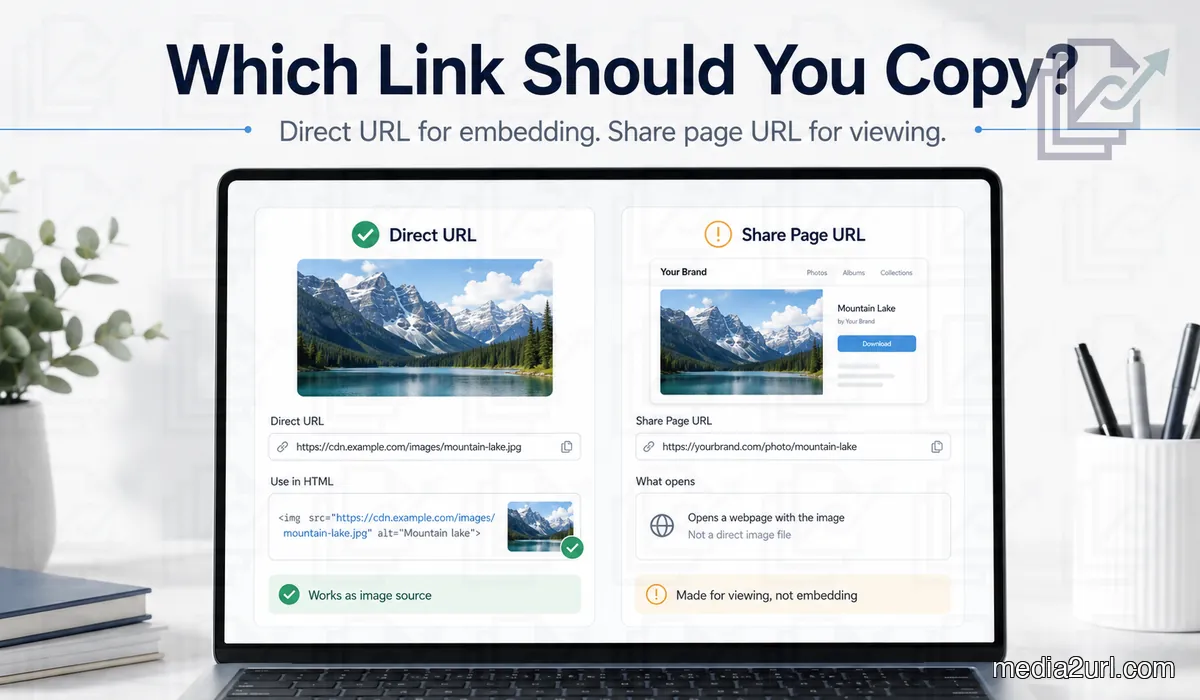
A direct image URL is the one you normally want for something like this:
<img src="https://cdn.example.com/media/campaign-banner" alt="Campaign banner">
When the browser looks at the URL within the src attribute, it will attempt to download the image located at that URL. The browser does not look for a page containing an image, but rather, the image file directly.
Now imagine a different address:
https://example.com/view/campaign-banner
Opening a shared link will typically display the same banner. However, there may be additional elements on the screen such as the filename above the banner, a download button below the banner, branding, etc., which surround the file being viewed.
From the perspective of a user, this may be a better experience than what they get with the <img> tag.
The fastest way to decide is to figure out where the URL goes after clicking on it.
Why the wrong link still looks correct in your browser
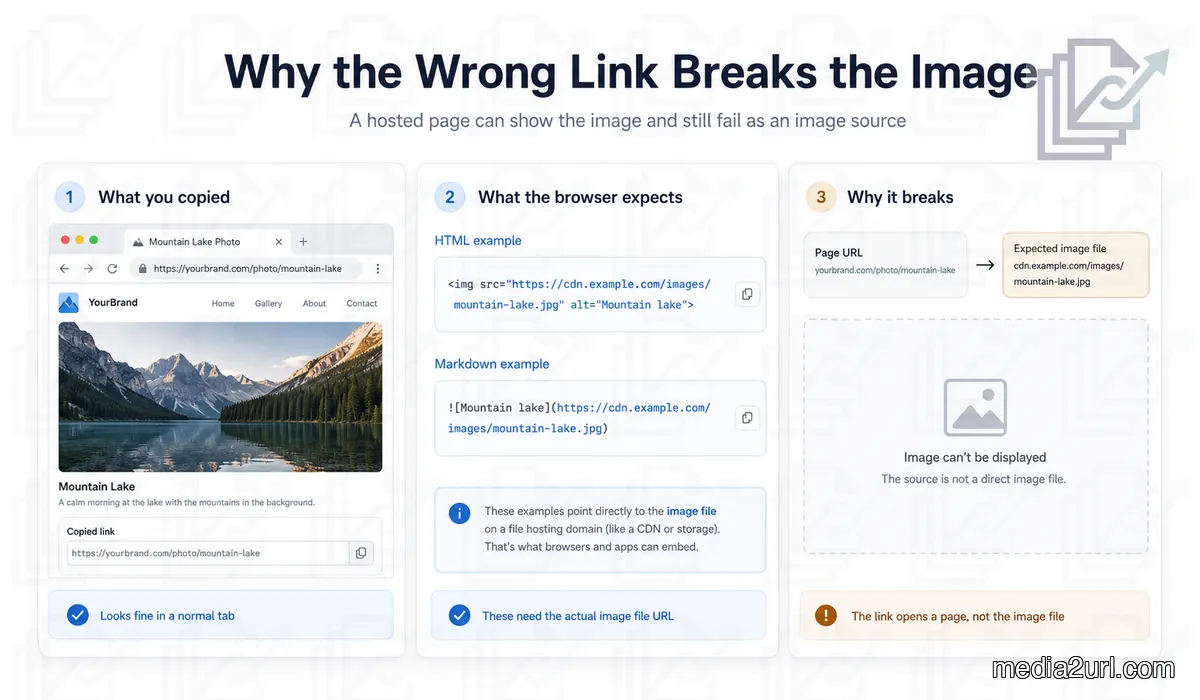
People are often fooled by this step. A regular browser tab will happily display a web page. When the web page has an image on it, you can view the image and assume everything is fine. You do not get a clear warning saying something like "This is a viewing page; it is not the actual image file that you can use in HTML."
Therefore, the link has passed your first check. Next, you place the link in the src attribute of an <img> tag:
<img src="YOUR_LINK" alt="Product image">
and the image disappears.
No magic here. The browser tab was requesting to see the entire web page. However, the image tag was requesting to view an image.
Markdown can also cause the exact same issue:

When your image URL takes you to a page that includes the image but doesn't actually display the image on its own, then the Markdown rendering engine will not render what you thought it would.
I am not going to open the same link multiple times in different tabs. Once or twice will suffice. When testing a link designed for HTML, test it in HTML. When testing a link designed for Markdown, test it in Markdown. Test a website builder with an Image URL field directly within that field. This provides more information about the functionality of the link rather than just demonstrating that Chrome can access the page.
The URL does not need to end in .jpg
One of the most frequent errors made by individuals who wish to find images on the internet is guessing based upon the URL itself.
This one looks like an image:
https://example.com/photos/banner.jpg
This one does not:
https://files.example.com/f/8dk29qmx
Although a URL may appear to be a file location, or even have no file type extension, it could still be the exact image URL. A hosting service does not necessarily need to display the user's uploaded filename in its public address. A host service may use a unique identifier that will provide the correct image upon receiving a request for that image.
Thus, whether the URL contains .jpg, .png, or .webp at the end is irrelevant to determine if the URL is indeed the image URL. Additionally, a URL can appear as if it were a direct link to an image, however, provide results that are completely unrelated to the image requested.
It is more important to analyze what returns from the request than how the URL appears. This is increasingly true when Content Delivery Networks (CDNs) are utilized, as the public address may be entirely different from the original filename provided by the individual uploading the image.
Sometimes the share page is actually the better link
I don't think direct URLs are always "better" than other types of links.
For example, let's say you send a client four different versions of a home page banner. The client can use each direct URL to open just the image. However, it will probably feel very basic, especially since all the images will look similar.
A share page would provide more information about the file. It could show the file name, a thumbnail of what the image looks like, and allow them to download the file directly from the same page. When people review things, they are often more comfortable with this type of environment.
At the same time, the person who developed the website wants to have access to the direct image URL.
Same banner. Uploaded in the same manner. But two different people require two different links.
This is why Media2URL provides both options: the direct file output and the share page separately, rather than trying to make one link fit everyone's needs.
Why Copy Link causes so much confusion
When you upload a file to a hosting site, the first button that appears after your upload is typically Copy Link.
I don't think it's fair to say that anyone would click this button in error. If you're simply sharing a file with someone, then this button will likely work perfectly. The hosting service assumes that you intend to share the file with someone else, so it provides you with a link that will take the recipient directly to a viewing page.
However, there are times when you uploaded the image for reasons other than sharing. Perhaps WordPress requires an image URL. Perhaps you're creating a Markdown document. Or perhaps some other application wants to access the actual media.
When you find yourself in this situation, although the largest button on the page may be the most prominent, it may not be the best choice. In many instances, the actual direct address can be found in a less obvious location (usually below a smaller label like Direct URL or File URL).
There is no standard for labels across all hosting services; therefore, looking solely at the label is not sufficient. You need to consider what the application receiving the file expects.
One image can use both links on the same day
This scenario occurs frequently within a standard working environment.
A designer creates a banner for a campaign in the morning. The developer receives the direct link to the banner and inserts it into the landing page.
Within an hour, another member of the marketing team requires the final version of the banner to present to the client. There isn't any reason why both individuals must provide the exact same URL.
It would be appropriate for the marketer to provide the share page URL since the client will be viewing the image in their web browser and evaluating it as an individual.
Additionally, at a later date, another team member may require access to the original source file. At that point, providing a direct download link makes sense.
While the contents of the uploaded file remained unchanged throughout these processes, only the subsequent actions changed. Thinking along those lines provides a perspective where each unique URL doesn't seem so redundant.
When the link type is correct but it still does not work
Selecting the Direct URL is to answer one question: does the next website require the file itself as opposed to a page that contains it? Even if you have the correct Direct URL, you may find yourself unable to access it due to an expired URL, a redirection, or restriction by another site.
Once you reach this point, you cannot resolve your issue by comparing Direct URLs and Share Pages. The Direct File Links guide explains redirects and file delivery behaviour across different formats, while the image troubleshooting article covers the case where an image opens normally but disappears when a website tries to use it.
It is best to treat each decision as being separate. You should first select the type of link required for the next location. If your chosen link continues to be problematic, then you should troubleshoot why the file is being delivered incorrectly.
Public and private are another decision entirely
Direct URL, Share page, Public link, and Private link are often used interchangeably by people:
- Direct URL
- Share page
- Public link
- Private link
However, these four are not on the same continuum.
Direct URL and Share Page are both types of destinations that you use. Public and Private refer to whether others should be able to access the destination.
A share page can certainly be private. For example, a client may view a standard page that surrounds the file but must first be granted access to download or view the file itself.
A direct image URL can be public if the image is hosted on a public website. This is a common practice. Since visitors should be able to view the image, their web browser needs some method to obtain the image.
Therefore, copying the direct URL does not necessarily imply that you have made the file public; similarly, selecting a share page does not automatically imply that you have created a private file.
If access is the part you are trying to decide, the Public Link vs Private Link guide is the better place to continue.
Where the download link comes in
A final type of output that will typically show up as a result of uploading something is called a Download output.
This type of output is a bit more obvious as to why you would want to provide it to users.
Suppose a button on your site says:
Download brochure
If a user clicks on a button labeled "Download brochure," they are expecting to receive the document. Since this is exactly what they want to do, providing them with a download is logical.
Conversely, if you send someone a copy of the brochure so that they can review it prior to publishing, they may prefer the share page because it allows them to view the brochure first and then determine what they would like to do with it.
This is another example of one uploaded file being used in completely different ways without needing to be uploaded again.
How we approach this inside Media2URL
When we first developed this section of Media2URL, we quickly realized that people were not simply uploading files to get a URL; they were doing so with the intention of taking some type of action on that URL.
For example, they might want to paste the URL into a website. Or perhaps a customer wants to view the file. Or someone wants to download the file.
Since these are all distinct actions, creating a single link for each upload type would be too confusing.
Therefore, Media2URL has designed separate output options for each supported upload type: direct file URL, share page, and download output.
The direct URL option allows other websites or applications to access the media directly.
The share page option is intended for situations where the user wishes to provide a standard web page surrounding the uploaded file.
Lastly, the download output option is appropriate when downloading the file is the next logical step.
By providing multiple output options based upon how the uploaded file will ultimately be accessed, we allow our users to use the same file in multiple locations without having to continually create additional uploads.
What if the image only exists on your computer?
A local file path does not represent a public image URL.
Something like this:
/Users/name/Desktop/banner.png
Your computer will know exactly what files you are referencing by their paths; however, visitors using different devices will not be able to view anything in your desktop folder.
Therefore, before the image can be viewed over the internet, it must first be hosted somewhere so that it can be served.
That is what Image to Link is for.
After uploading the image, use the URL representing the image for the next step.
There are no other methods to turn a local path on your laptop into a valid public image address without first placing the file somewhere that is accessible. The missing step is hosting.
A smaller version of the same image is a different question
Once the direct image URL works properly, you might find that the size of the original file is too large for certain areas of your site.
This does not always require you to manually upload another file. For supported Media2URL images, URL transformations can generate a supported size or format for you (e.g., eligible WebP or AVIF output).
Deal with the size/format issue once the link itself has been resolved. Ensure that the site receives the correct image first. Then determine what size/format the site actually requires.
These two aspects represent different phases in the overall media workflow process; however, they do not constitute the same issue.
So which link should you copy?
Do not start to compare how the URLs appear if you remain uncertain following an upload. Instead, review where you plan on pasting the link.
For example, a website image field will typically require direct media.
On the other hand, someone who is reviewing the file would likely want to view the share page.
Finally, a download button should provide the output designed for saving the file.
In addition to reviewing the link's behavior, if it continues to behave in a manner that you did not anticipate, test it at the destination. It is far more beneficial than to open the identical URL in a new browser window/tab and confirm once again that you are able to view the image.
The link should serve the purpose. When you make this a habit, Direct URL and Share Page will no longer seem as redundant choices but as two distinct methods of utilizing the same uploaded file.
Frequently Asked Questions
What is the difference between a direct URL and a share page URL?
Share pages are used when you want to open and view the hosted file in its entirety. Direct URLs are used when you just want the hosted file itself.
Which URL should I use in HTML?
Always provide a direct link to the image file if you want the image to display on a webpage. While some share pages can be opened successfully in your browser, they will often give an image element a webpage rather than the media that was requested.
Which URL should I use in Markdown?
Markdown image syntax typically requires the image source directly. However, if you would prefer someone to click on your share page rather than seeing the image itself, use the share page as a standard clickable link as opposed to the image source.
Does a direct URL need to end in .jpg or .png?
No, a generated URL will be able to display the appropriate image without displaying the actual file name and extension within the address bar.
Can a direct URL redirect?
Yes. It's possible for some URLs to go through a redirect (or several) prior to accessing the file you're looking for. A redirect doesn't necessarily mean the link you're using will be a share page.
Why does a link work for me but not for another person?
If you are logged in to your browser with an existing account or if your browser has saved permissions for the site, try opening the same link in a private browsing window to determine if the site functions properly without using that account.
Is a share page always public?
No, Share Page is used for describing where you are sharing your content (the destination). However, the page may also require permission or a different type of access check.
Is the direct URL always better?
No. It's best used when you want to make files available to other websites or applications. Share pages are better for individuals who are viewing your files.
What should I use for a Download button?
If the user wants to download/save the file, use the download option. If the user wants to view the file in a browser prior to downloading/saving, then provide a link to a share page.
What if I copied the direct URL and the image still does not load?
At that point, the issue could be with other things than just the type of link you're using. Check to see if there are any issues with your access, when the image will expire, if there are any hosting limitations, or if the website hosting the image has specific guidelines.