


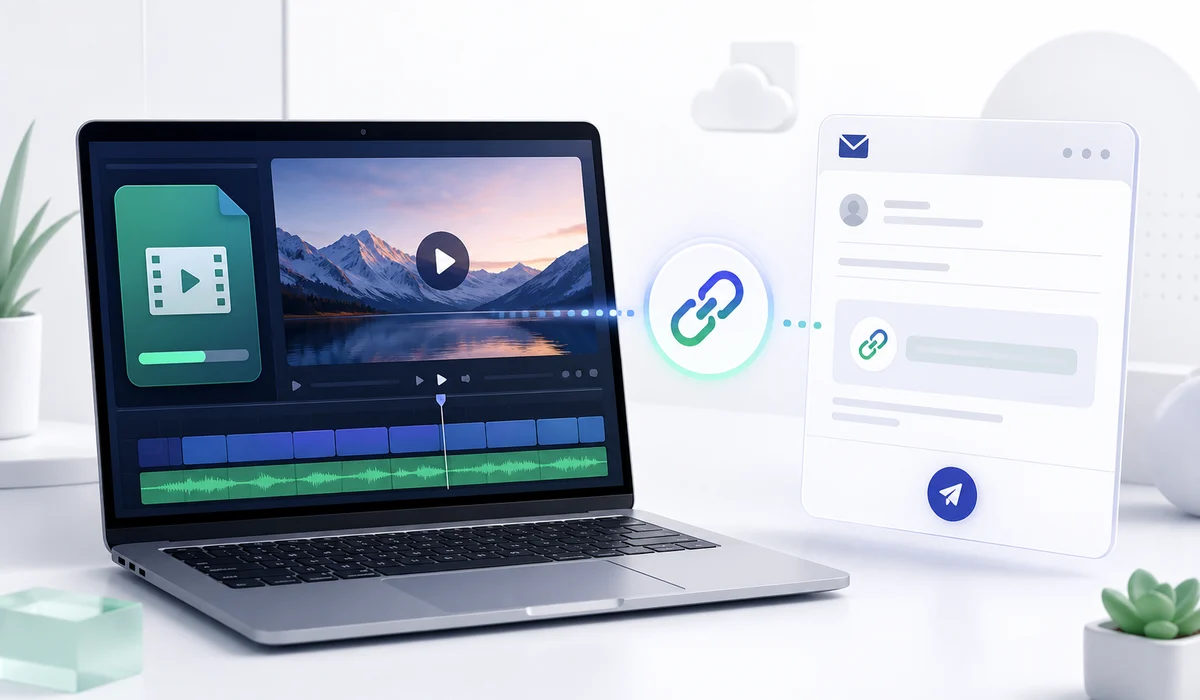
Sending a video via email seems simple enough until you check the size of the file. You have just completed a six-minute walk-through of your product for one of your clients. Your video appears to be fine when viewed on your PC; however, the MP4 file that was created during the export process is 150 MB and therefore cannot be attached to an email sent using Gmail.
Now you need to choose what you want to do with the video. On one hand, you can shrink down the file so it will fit into your storage space, however, this may not be an option if there is a lot of fine print in the video which the user needs to be able to see. On the other hand, you can upload the full-size video to a website and provide a link to the user.
I would suggest going with option number two for a video that large. If someone wants to see what you have to share, there's really no reason why you should reduce the quality of a perfectly fine video just to fit an attachment limit. You're not doing anything very strange or unusual by providing a link to your content. Gmail is a prime example of this; when files are too big to attach to emails, Gmail will move them into Google Drive and create a link to them in your email.
Why your email won't accept a large video
Gmail provides each user with an individual email account that has a 25 megabyte (MB) maximum attachment size. This may provide enough space for a couple of pictures or a short document; however, this amount of storage does not allow you to attach large files such as videos. Particularly, if you have made a screen recording at a high resolution, there will be very little available space left.
Outlook.com has a maximum file size limit of 25 MB per email, which includes all attachments and the body of the email. Yahoo Mail indicates that they also have a maximum attachment file size limit of 25 MB. If you're using an email account provided by your workplace, its limits may be different.
| Email service | Documented limit | What happens with a larger file |
|---|---|---|
| Gmail | 25 MB for personal accounts | Gmail can upload the larger attachment to Google Drive and insert a link. |
| Outlook.com | 25 MB for the entire message | You can share larger files using OneDrive. |
| Yahoo Mail | 25 MB total attachment limit | You'll need to reduce the file size or share it another way. |
These limits are described in the official help pages for Gmail, Outlook.com and Yahoo Mail.
Our example, a 150 MB screen recording, would exceed Gmail’s standard attachment file size limit by six times. Therefore, you may lose some quality simply because you need to send a six minute demonstration.
There are times when recordings do not need to be sent in their original format. For example, if a 28 MB video is recorded, and there is one minute of unnecessary footage in the video, then deleting that portion of the video may reduce the overall file size enough to meet the limit.
On the other hand, there are other instances when every single second of the recording is vital to the message being communicated. A software demonstration is one such example. In this case, the client needs to see the menu labels clearly. Therefore, in these cases, I would keep the recording as-is and create a link to share the recording with the client.
Getting a shareable link for your recording
The video you have stored on your PC does not provide a direct link to the video, which other people can access. Even if you copy the path where the video is stored and then paste this link into an email message, the link will only point to the location of the video on your own computer.
For example, C:\Videos\client-demo.mp4 tells your Windows computer where to find the recording. It doesn't give the person receiving your email access to it.
Therefore, you need to find an online storage site for the video. After uploading the video to such an online storage site, you will receive a unique URL (or web address) for the video. This URL can be shared with others so they can view the video.
With the Media2URL video to link tool, you can upload supported recordings in MP4, MOV or WebM format. Select your file, complete the upload and copy the link you want to share. Just make sure the recording is within your account's upload limits.
If the recording is audio only, Audio to Link creates a hosted audio URL.
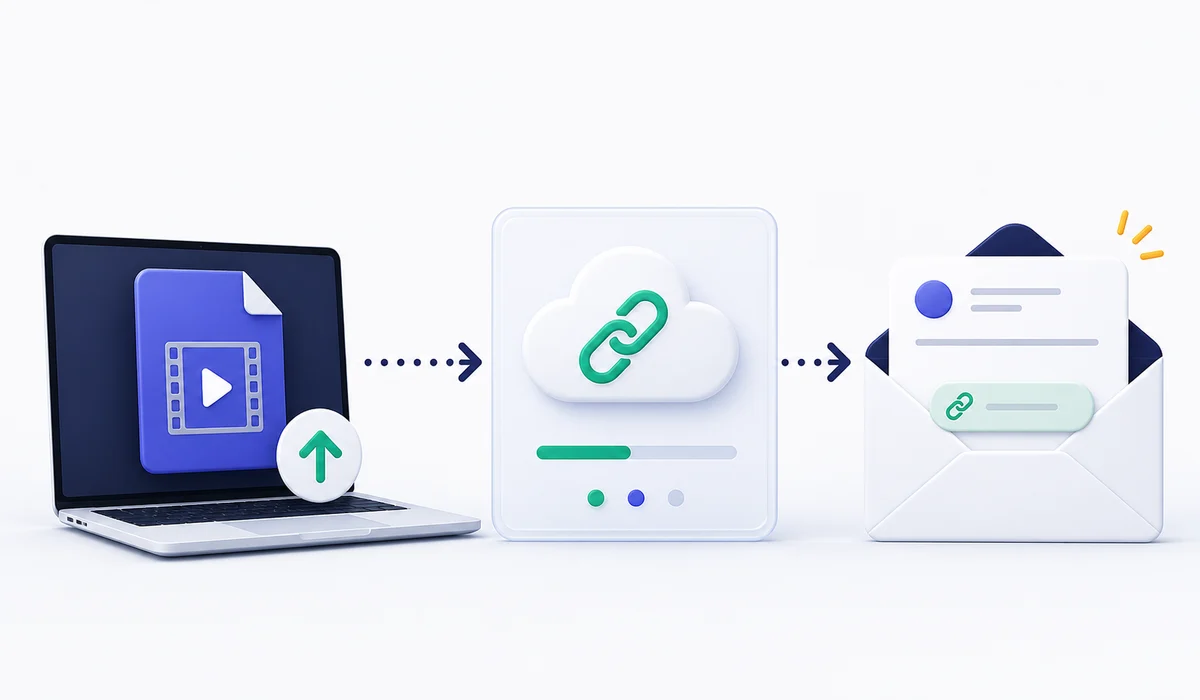
You do not need to upload the video each time you wish to share it with someone else. If both the uploaded video and the URL continue to exist, then you can create new links to the video using the same URL in subsequent emails or pass the URL along to colleagues.
Which link should you copy?
Media2URL gives a direct URL to the video being hosted as well as a separate sharing page. While these two are similar, there is an important difference in how you will use each of them depending upon why you are sharing your recording.
For example, if you are sending the video to a client so they can see a demonstration of what was changed on the new site you created for them; then you should send them the viewing page. The viewing page is just like any other webpage; it allows the user to simply click on the link provided in order to view the recording, without having to perform any technical actions.
However, if a developer wants to put this same recording on a website, then you should provide them with the direct video URL, since it points directly to the actual recording file that is hosted. They can use that address in a compatible video player or another application that requires the video resource.
Our direct URL and share page guide covers the difference in more detail.
However, if you are sending the recording via email, then there is no reason to overcomplicate the process. If you want someone to view the recording, simply send them the viewing page.
Your message could be as simple as this:
I've recorded the dashboard changes we discussed yesterday. The walkthrough is about six minutes long, and I've included the link below. Have a look when you're free and let me know if anything needs changing.
You don't have to explain where the recording is stored or why you've sent a link instead of an attachment. The person receiving the email can open it and watch the demonstration.
Should you compress the video before uploading it?
I would not recommend to automatically compress all of the videos you produce. Whether or not you should compress your videos depends on the size of the video and if compressing the video will help enhance its quality in any way.
For example, if you have a video that has an excessively large file size, and the first few minutes are unneeded; then, cutting those first few minutes would make sense.
Additionally, you may find that compressing the video slightly when the video's file size is just above the maximum allowed by your email service provider is acceptable.
However, if you have a 300 megabyte video that displays a dashboard for viewers to read, and you reduce the video file size down to 25 megabytes, the viewer will most likely not be able to see the text clearly anymore due to the loss of detail caused by compressing the video.
If you do compress a screen recording, open the finished video and check the smaller details. Text that was perfectly readable in the original might look blurry after compression. It isn't always obvious until you play the video at its normal viewing size.
Media2URL has video tools for supported tasks such as trimming and compression. They're useful if the recording needs some work before you share it.
Therefore, if you have a completed video that you are satisfied with the appearance of, uploading it without unnecessary changes is a sensible option.
What if you want the video to play inside the email?
The majority of the time, links are sufficient for most email types; however, there are times where you would rather use a video player directly within your email. This includes sending out a newsletter or advertising a new product.
Unfortunately, many email clients do not support embedded video, and several will even delete the code necessary for the video to play.
Services such as Mailchimp address this issue by using a thumbnail image that has a play button. If the user clicks on the thumbnail, the video is opened in a web browser. Wistia uses a similar approach for videos shared through marketing emails.
If you are conducting an email marketing campaign, you can use a thumbnail image with a play button as a link to your hosted video.
If you are communicating with a client through email, you should generally skip the thumbnail image. A simple description of what happened in the video along with a time stamp is much better than having a thumbnail image.
A message such as "Here's the recording of the checkout problem. The error appears at around 2:10" tells them far more than a video thumbnail without any explanation.
The link can sit directly below that sentence. There's nothing wrong with keeping it simple.
A link that opens for you might not open for anybody else
You have posted the recording and verified the web address, yet the recipient is unable to access the link. There may be an issue with your sharing settings.
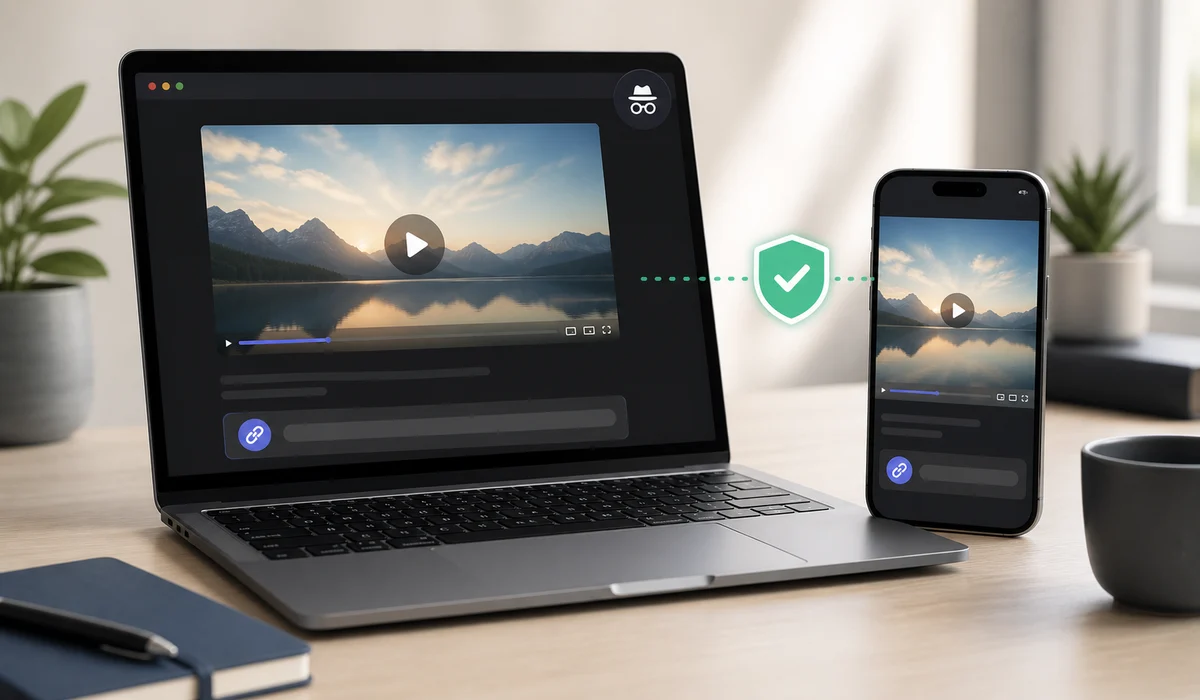
Once you log in, you will be able to view links that other people cannot. Using a private browsing mode allows you to test whether the link can be viewed without logging in. Try opening the link in a private browsing window and see if it opens successfully.
You might also want to try opening the link from a mobile phone, especially if your recipient is likely to view it there.
Before sharing the recording, please watch it to ensure that you did not include any personal information such as notifications, browser tabs, or customer emails in the capture. These details are easy to miss while concentrating on recording a walkthrough.
Please remember that hiding a download button does not make a video entirely safe. Someone could always use screen recording or photography of the screen to save a copy. To restrict who can access your recordings is much better than trying to rely solely on UI controls.
Media2URL offers different access controls for supported sharing workflows. Our public and private links guide explains how they work in detail.
Where video links are useful, and where attachments are still fine
Video links are the best way to demonstrate a client walkthrough or have a support conversation. Instead of writing long email threads about a bug, you can use a 40 second screen recording to illustrate the entire problem. You can then reference that video throughout the conversation by creating a shareable URL.
The same approach works for recorded team updates. People can watch the recording when they have time, and anyone who joins the discussion later can use the link if they have permission to access it.
If you only want your walkthrough to be available while it is being reviewed, File to Link lets you choose an available expiry option when creating the link.
A product demonstration is slightly different. Someone considering your software may simply want to see how a feature works without downloading a copy to their computer.
Still, do not make every little video into a hosted link. For example, if you create an 8 MB video that will fit in an email and your colleague wants to download the raw file so they can edit it, send them the raw file as you would any other attachment.
There's no benefit in introducing another service when an ordinary attachment does the job.
Additionally, make sure you follow your organization's data protection policy if your company requires you to use its own internal storage system.
Before you send the email
Before sending the email, verify that the URL is correct by opening the link outside of your account and that the appropriate permissions have been granted. Describe what is visible in the video and point out specific time frames in the video that may be relevant to the recipient.
If the video will be small enough to fit within your email's size restrictions, and if you plan on providing a copy of the video to the recipient, then attach the video as usual.
However, if the video will exceed the size limits of your email system, or if you wish to provide access to a larger version of the video without having to reduce the quality of the video so as to adhere to an attachment size constraint, then create a hosted link which allows you to send the full-sized video cleanly.
Frequently Asked Questions
How do I send a video that's too large for Gmail?
You may attach up to 25 MB of files to each personal Gmail account. If the total size of your attachments exceeds this amount, Gmail will automatically save the extra file(s) into your Google Drive and create a link to them within the message body. You may also upload the recording to an appropriate video-hosting website and send a viewing link via email.
Is it better to compress a video or send a link?
If a video is only slightly over the attachment limit, a little trimming or compression may be enough. If the video is significantly larger than the attachment limit, then a hosted link is more suitable, especially if reducing the file size would cause key parts of the video to become unreadable.
Can someone watch a video directly inside an email?
While some email clients can display embedded videos, the results vary. Therefore, most email marketing services allow users to create clickable thumbnail images which then take users to the web page where the video is hosted.
Does the person receiving my video link need an account?
This is dependent upon what type of host you have and the privacy settings. If you create a public link, then there should be no need for the person receiving the link to log into your account. However, if you create a private (restricted) link, authentication may be required. It's best to check the link in incognito mode prior to sharing.
Sources and further reading
The email attachment limits mentioned in this article are documented by Google, Microsoft and Yahoo. Google's Drive attachment guide also explains how sharing permissions work when you send files through Gmail.
For information about video playback in emails, see Mailchimp's video guide.