


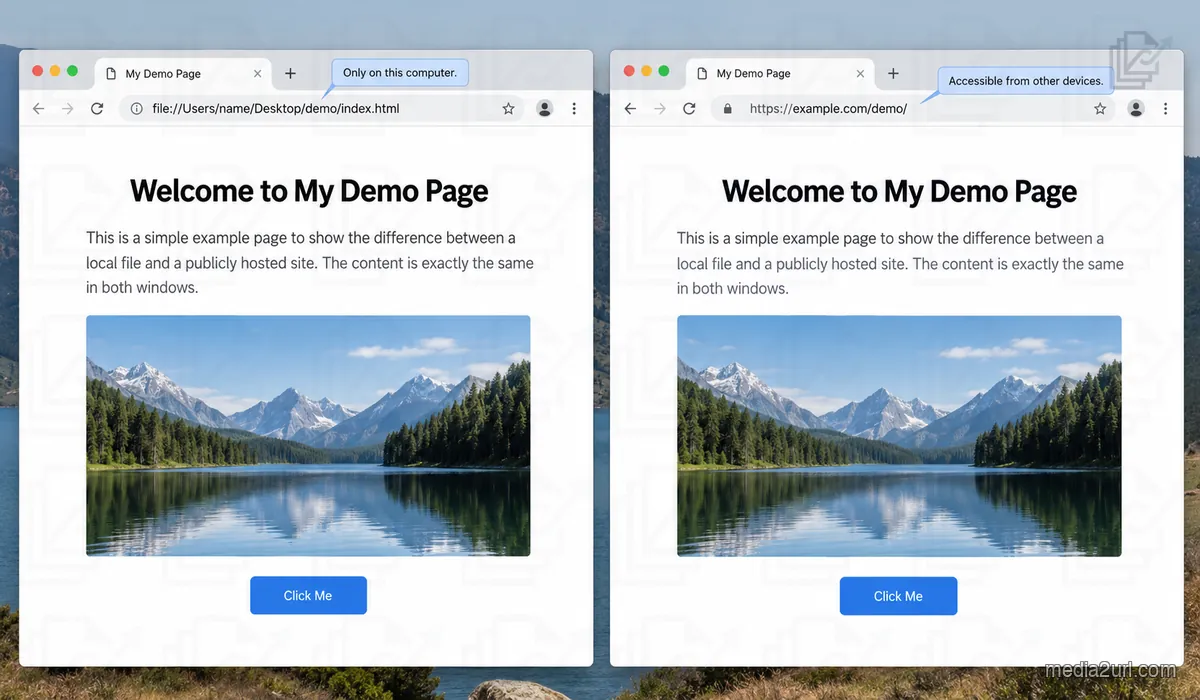
file:///Users/yourname/Desktop/project/index.html
That single sentence clears up a great deal of the confusion regarding sharing an HTML document. The reason it appears as a URL is that Google Chrome displays it in the URL bar. You can reload the document, bookmark it, and even use Chrome's Developer Tools next to it. Furthermore, the content of the HTML document may appear identical to what you typically see when browsing the web.
When Chrome opens that file on your computer, you have not visited a website. The distinction between visiting a website and opening a file on your computer can be difficult to see at first. However, once you copy the URL (the link) of that file, send it to another person, and then receive a response from them that says "the link doesn't work," the difference will be apparent.
Before checking HTML, JavaScript, hosting, etc., find out exactly what the browser is trying to open. If the URL starts with file:///, then even though the page is visible in Chrome, it does not mean that the page is now publicly accessible. When you view a page directly from your hard drive, you will see a file:// address. However, when you access a page via a web server, you will typically use an http:// or https:// address. This may seem like a minor technical issue; however, in reality, there are many differences between accessing a page via file:// versus via http:// or https://.
Chrome can open an HTML file without the internet
Chrome is capable of displaying HTML files even when there is no active internet connection. To test this capability, create a basic HTML document and save it as index.html:
<!DOCTYPE html>
<html>
<head>
  <title>Test</title>
</head>
<body>
  <h1>Hello</h1>
</body>
</html>
Double click on this newly created file and Chrome will display it. Turn off your internet connection, and then refresh the page, and the page should still load. This is because Chrome has access to the local version of index.html that is stored on your computer, so it does not need to connect to an external server.
The idea that "it works in my browser" is misleading at this point. The browser is only the viewing device. It doesn't matter if the page is saved on your computer or sent to you via a server many miles away; the pages will appear exactly the same on screen. However, how those pages are delivered is very different.
Suppose the file is here:
file:///Users/amit/Desktop/birthday/index.html
Amit cannot share his Desktop folder with Riya by giving her the file:/// path to that folder. When Amit gives Riya this path, her web browser will not go to Amit's computer and access his Desktop folder. Although Amit has provided the path to where the file is on his computer, the file itself remains on his computer.
A public internet address provides a common way for both Amit's and Riya's web browsers to access a web page:
https://example.com/birthday/
whereas a local file path does not provide a common way for two computers to communicate with each other.
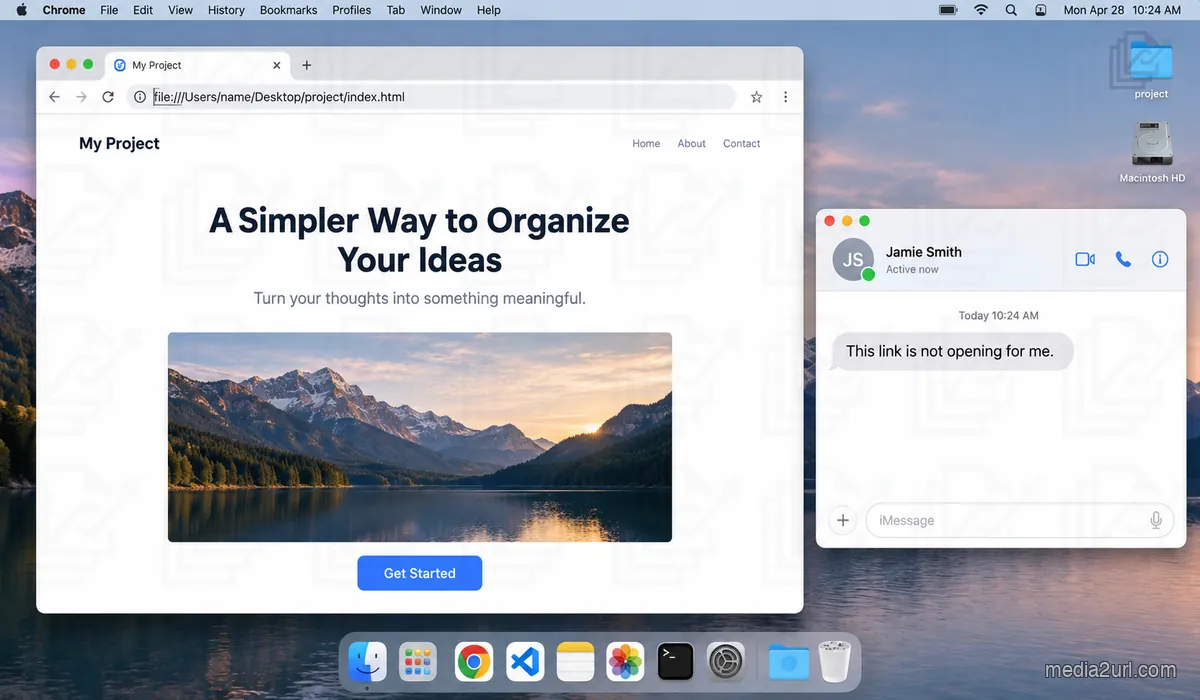
Sending index.html is not the same as sending its address
If you send index.html by email, the recipient will actually get the HTML file. They download it, and then their web browser opens their own copy. It could be perfect if everything needed for the page is in one file using inline CSS and JS:
<!DOCTYPE html>
<html>
<head>
  <style>
    body {
      font-family: Arial;
      background: #f7f7f7;
    }
  </style>
</head>
<body>

  <h1>Birthday Party</h1>
  <p>Saturday at 7 PM</p>

  <script>
    console.log("Page opened");
  </script>

</body>
</html>
However, if there are multiple files (such as external style.css, effects.js, and images), then the page you see is created from those different files being used together:
birthday/
    index.html
    css/
        style.css
    js/
        effects.js
    images/
        hero.jpg
        cake.png
When the browser opens the index.html page on your laptop, it will look for the CSS/JS files and images/fonts in the adjacent folders.
index.html might contain:
<link rel="stylesheet" href="css/style.css">
and farther down:
<img src="images/cake.png" alt="Birthday cake">
However, if you only provide the index.html file to someone else, their browser will have a set of directions to locate the CSS/JS files and images/fonts; however, they will not actually receive those files.
This means that while they may be able to view the page, it will appear as an unformatted document with no styling and broken images.
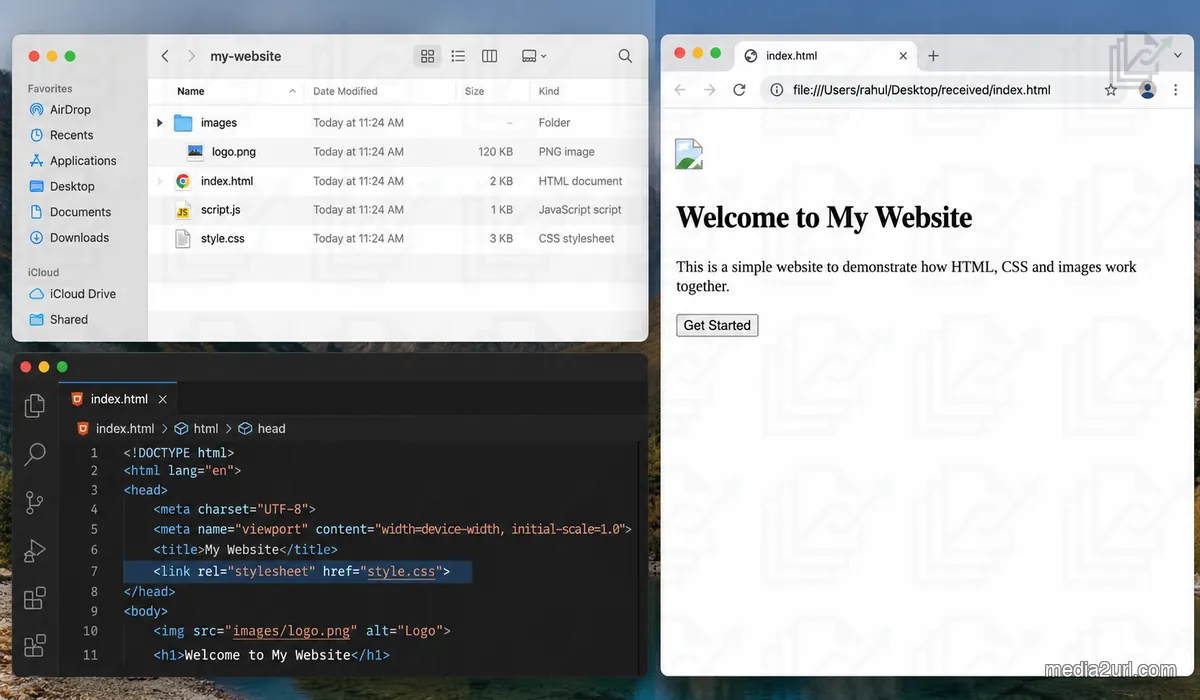
Therefore, if you wish for another user to download and open the project, you must provide the related files together:
index.htmland every CSS or JavaScript file it references- images, fonts, JSON files, and other assets the page loads
- the original folder structure, so relative paths still point to the right files
- a ZIP of the whole project when email or chat cannot attach a folder
I would check the paths before touching the design
Before you begin working on the design, check all of your asset paths:
- Compare each
hrefandsrcpath with the real filename, including capitalisation. - Open the browser's Network panel and reload the page to find missing requests.
- For a CSS
url(...), resolve the path from the stylesheet's folder.
If you have used a local disk path for an image, such as:
<img src="C:/Users/Sourav/Desktop/project/images/banner.jpg">
then this will only work on the same machine where the project was created. That path will not exist on any other machine.
Using relative paths to keep your project files together prevents the issue of absolute pathing:
project/
    index.html
    images/
        banner.jpg
and inside the HTML:
<img src="images/banner.jpg" alt="Banner">
Using src="images/banner.jpg" causes the browser to search for the image based on its relationship to the file index.html (the directory that contains index.html), and not based on the location of the directory on the user's computer.
Relative paths are more than just a filename; they tell the browser how to locate files. If the location changes, the result can change too.
CSS has its own little surprise
When using relative URLs within a CSS file, there are some unique issues.
Suppose your files are arranged like this:
project/
    index.html
    css/
        style.css
    images/
        background.jpg
Inside index.html, this can make sense:
<img src="images/background.jpg">
However, if you use background-image: url("images/background.jpg") in style.css:
.hero {
  background-image: url("images/background.jpg");
}
the image will disappear.
The reason for this is that relative URLs specified in external CSS files are resolved relative to the location of the CSS file rather than being resolved relative to index.html. Because your CSS file is located at project/css/, the base path is different.
You can easily determine whether this is happening by looking at the Network panel in developer tools and checking for a 404 error with an incorrect resolved URL.
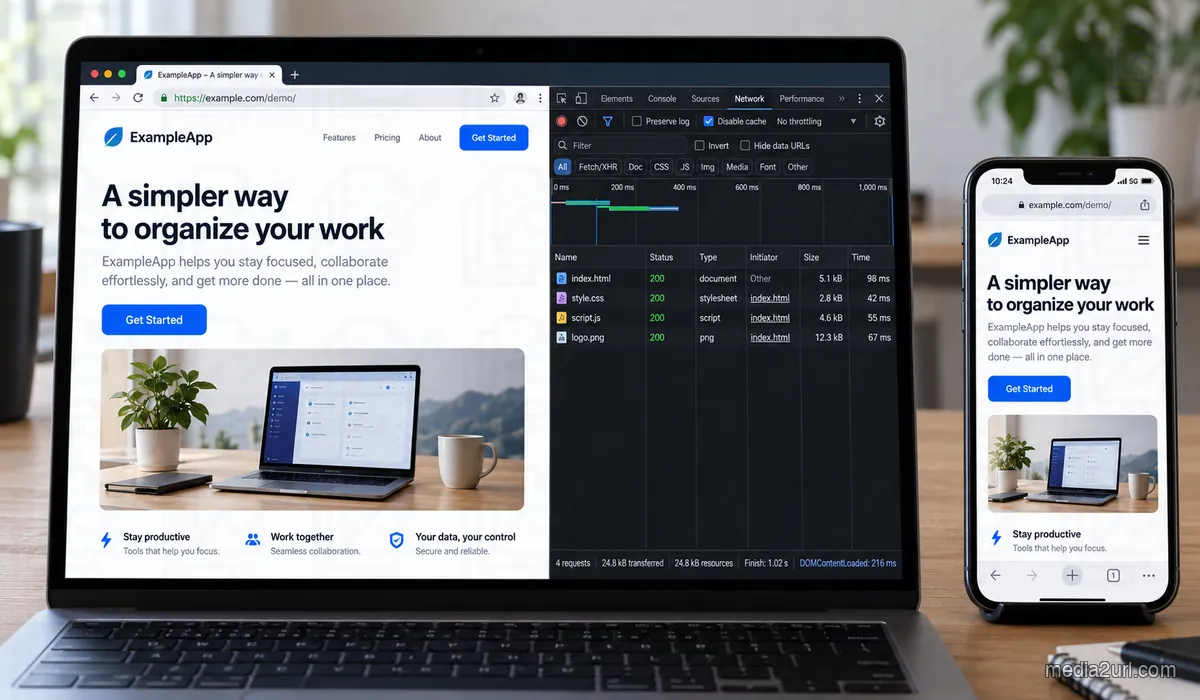
And then Live Server makes everything look fixed
And then there is Live Server that makes it appear as though things have been corrected.
When you use Live Server, your URL will change from file:/// to:
http://127.0.0.1:5500/
or:
http://localhost:3000/
Suddenly the page works properly. However, this is not due to Live Server repairing anything, but rather changing the delivery method from opening the file directly from your computer to using an HTTP connection.
As soon as JavaScript starts requesting other files or using features affected by browser security rules, the difference becomes easier to see.
JavaScript modules provide a nice example:
<script type="module" src="app.js"></script>
If you attempt to load JavaScript modules using file:///, you may experience CORS errors. On the other hand, if you test your code on a local HTTP server, you should be able to successfully load the JavaScript modules. Your files did not change; however, the environment did.
A small fetch() call can expose the same thing
The exact same issue exists with a simple fetch() call.
Suppose the project has:
index.html
data.json
app.js
and app.js contains:
fetch("data.json")
  .then(response => response.json())
  .then(data => console.log(data));
When using a local HTTP server, the fetch will work correctly as it would in a regular web browser.
However, if you open index.html directly via file:///, the security restrictions applied by browsers can prevent local files from being fetched.
Opening an index.html file with a double-click works well enough for static content such as HTML, but it is not representative of how many of today's advanced web features operate. A local server allows you to create a controlled environment where you can develop and test your site locally without making it available to everyone on the internet.
Localhost solves one problem and creates another misunderstanding
Once you can view the page on localhost, users will typically want to send the URL to others.
The URL:
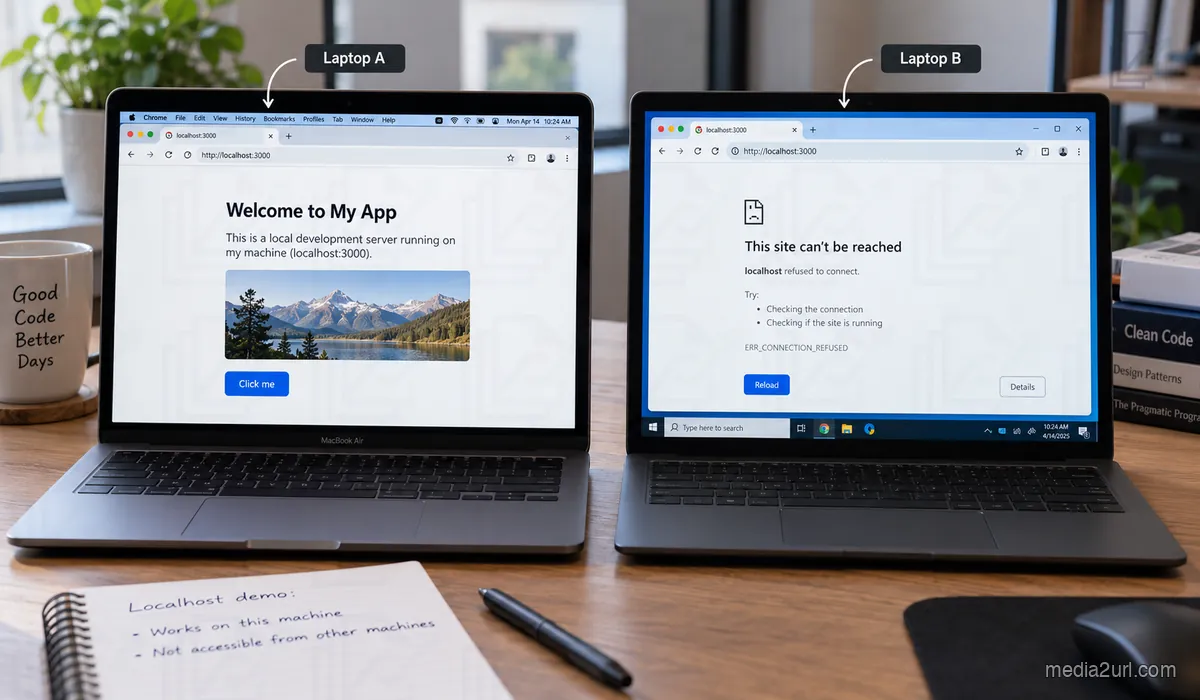
http://localhost:3000
has the appearance of being an actual web address. It has an HTTP protocol, uses CSS and JS files, and contains routes.
However, localhost will always refer to the specific device from which the request was made. When you access this URL, your browser will search for a local server on your device.
On the other hand, when someone else accesses this URL, their browser will look for a local server on their own device, not yours.
This is why when you provide a client with a localhost URL, the response is usually:
"It isn't opening."
| Address | What it points to | What happens on another device |
|---|---|---|
file:///.../index.html | A file on the computer opening it | The recipient needs the file and its dependent assets |
http://localhost:3000 | A server on the computer opening it | The recipient looks for a server on their own device |
https://example.com/page | A page served from an internet host | It opens if the host is reachable and access is available |
There are several local tunneling applications available for testing purposes; however, these applications are not a replacement for deploying the page to a stable, public web address.
One of the nastier problems is a page that is online but still depends on your computer
An https:// URL doesn't mean that all aspects of your web app are no longer hosted on your computer.
An example would be if you used a JavaScript call such as:
fetch("http://localhost:3000/api/products")
While in development mode, the local API server responds to this request.
Once you upload the application to the production environment, the visitor's browser runs the same script and attempts to connect to localhost:3000 on their machine.
Whose localhost? The visitor's.
Although the HTML for your web app is available on the Internet, it is still expecting its backend service to be running locally.
There can be similar problems with other parts of your web app (e.g., scripts, fonts, images) pointing to your local Downloads directory or un-uploaded files.
Before you think that the problem with your site is related to hosting, check your dependency paths.
Sometimes Windows hides a problem until the project reaches a server
Operating systems like Windows have a way to mask filename casing issues until the project moves to a server.
For instance, if you have a file called:
Flower.jpg
on your hard drive, and in your HTML code you refer to:
<img src="flower.jpg">
the case-insensitive local file system will most likely render it correctly.
However, when you upload that same file to a case-sensitive Linux server, Flower.jpg and flower.jpg will be treated as two separate files, and therefore a 404 error will result.
It would be wise to first look at the capitalization of the file name in your HTML code versus the actual file name on your hard drive prior to going down the path of attempting to configure your server.
Before investigating something complicated, rule out the boring problem.
There is a very simple way to find out whether your page has really left your laptop
When you finish writing your content and are ready to publish, try testing it using a device that does not know anything about your original project. Using a cell phone with cellular service is a great way to do so.
If the site displays properly on your phone, then your computer's local files, VS Code, and your local web server are no longer answering requests. Your phone simply connects to the public address you provided.
If the layout of the site looks good on your phone, however, one or more images do not show up, take a look at the image path. If the site loads successfully on your phone, yet one of your scripts doesn't seem to function as expected, open the browser console.
Use the symptom to choose your first check:
| What you see | Likely cause | Check first |
|---|---|---|
| The page opens without its styling | The stylesheet path or file is missing | Check the <link href> path and filename case |
| Images show broken icons | The image was not uploaded or its path changed | Check the <img src> request in the Network panel |
| It works in Live Server but fails on double click | The page depends on HTTP behavior unavailable to file:// | Open it through a local HTTP server |
| A shared URL tries to open the visitor's own machine | The page or script still uses localhost or 127.0.0.1 | Replace the local address with a hosted URL |
Additionally, before publishing your work, search your project for four things that repeatedly cause problems:
- references beginning with
file:///or pointing into Desktop and Downloads folders localhostor127.0.0.1inside scripts and API requests- drive-specific paths such as
C:/Users/... - CSS, JavaScript, image, or font files that are named in the code but absent from the project you are uploading
The search simply tells you where your project still knows something about your own computer.
This is also why an HTML publisher needs to think about the files around index.html
Because of this, an HTML publisher must consider the other files that are part of the project (such as stylesheets, scripts, and images) and not just index.html.
When we created HTML publishing in Media2URL, we knew that a simple single-file upload wouldn't cover all cases.
Projects generally include multiple files:
index.html
style.css
script.js
assets/
The purpose of the HTML to URL workflow is to allow users to publish static HTML projects with their original folder structures intact.
Please note that while HTML publishers can provide access to static files, they cannot host dynamic backend services such as Python, PHP, or databases.
A project using templates can expose this difference clearly. Template files can contain placeholders or server-side code that must be rendered by the application before the browser receives finished HTML. Uploading the template as a static page does not run that application code.
The phrase "works on my computer" is actually useful information
The term "works on my computer" can provide some great debugging insight.
When a page works in one environment, find out what makes up that environment. It might have the image that isn't working, it could be running Live Server, it might be listening to an API on port 3000, or the paths might just happen to be the same.
After comparing the two environments (the working one and the failing one), you'll no longer wonder why the HTML is broken and instead find out what the page wants to load that exists in the working environment, but does not exist in the failing environment:
What is this page trying to load that is available here but missing there?
That question can lead you straight to a filename, path, script, request, or local service.
A realistic example
Suppose you make a small portfolio using index.html, main.css, gallery.js and images. You open index.html locally and everything seems correct. You then provide your friend with only index.html.
Your friend receives unstyled headings as you provided her with only 1 file out of 5 that was part of the portfolio. If you zip the folder, she will have to download it, extract it and then locate index.html.
What you would have liked to have provided her with is a single link. To do this, you would need to host your portfolio online so that browsers can access each of those files as well as relative paths.
Your folder contains:
portfolio/
    index.html
    css/
        main.css
    js/
        gallery.js
    images/
        me.jpg
        project1.jpg
The differences between localhost, file:/// and a public URL appear to be the same to you when you view them in your browser; however, these differences become apparent when another person attempts to open your files.
If an HTML link does not function correctly, examine the address: file:/// indicates that your friend does not possess the file; localhost checks her computer for the file; and if some components of a webpage do not load properly on a public page, then the problem lies in the path to those assets.
Frequently Asked Questions
Why does my HTML file work on my computer but not on someone else’s?
Your web page displays correctly on your PC because the web browser has access to the HTML file(s) you have created. When other users open the page from their PCs, they must also be able to find all of the CSS files, JavaScript files, image files, font files, etc., that make up the page, along with any local services used by the page. Even if your page appears correctly on your PC, it may not function properly on another user's PC if the required environment does not exist on their PC.
Can I send a file:/// link to someone?
Sending the address text will not allow another user to access any files on your computer. An file:/// address represents a local file system path and is not hosted publicly on a web server. The person who receives the address will need either the actual files, or a hosted version of the files.
Why does my HTML file open but the CSS and images are missing?
When index.html is sent to someone else and it doesn't have the necessary dependency files with it. The links to css/style.css or images/photo.jpg will only function correctly if there are corresponding files located in the expected relative directory locations as specified by the link, or if the links do not refer to hardcoded file paths on your computer.
Why does my HTML work with Live Server but not when I double click the file?
Double clicking opens the project in a browser using file:///. Live Server serves the project to a browser using HTTP. These two types of access are handled differently by browsers. Many times JavaScript module and fetch request security issues arise when accessing the project via file:///.
Can I share my localhost URL with another person?
No, when you send http://localhost:3000 to another user's computer, they are sending the request to themselves and searching their computer for a web server instead of yours.
Why does my page work locally but break after I upload it?
Issues usually arise when using relative paths for assets, missing files, using incorrect case for file names, and/or referencing files that exist on your computer's hard drive. Please make sure you have uploaded every asset needed by your application and that each asset is referenced with a relative path.
Do I need hosting for every HTML file?
No, if you only plan to view the file locally on your computer, then you can just use an HTML file. However, if you would like other people to be able to see the file by clicking on a web link rather than having to download the file, you will need to host the file.
What is the difference between file:///, localhost, and a public URL?
When you open a local disk file with a file:/// address. When you connect to a server running on your computer, you use localhost. If you point to an Internet-accessible host using a public https:// URL.
How can I check whether my HTML page is really shareable?
Use a mobile device (e.g. smartphone) connected via cellular to access the published URL. If this works as expected on the mobile device, then your site will be accessible to others outside of your local development environment.
Can Media2URL publish a complete web application?
Media2URL works well for projects that are static HTML and use only HTML, CSS, JavaScript, and media files. Projects that are dynamic and require server-side runtimes (i.e., Python, PHP, etc.) or database access require hosting on a server.