

Convert a PDF to a Link or Direct PDF URL
Turn a PDF into a URL for a site, or share the browser page for a quick review. A QR code also makes the document easy to open from a printed handout.
A proposal, menu or brochure can be shared with several people through the same hosted PDF link. Choose a viewing page for a recipient who wants to read it, or a direct PDF URL for a website or service that needs the file itself.
Drag and drop files or paste from your clipboard
PDF filesA simpler way to send your PDF
- Direct PDF URLUse the hosted file in a compatible service.
- Document share pageSend readers a browser viewing link.
- QR sharingLet readers open the PDF from a printed code.
- Access & expiryChoose the settings offered for your account.
Before uploading, choose the visibility and expiry options available for your account. Those settings determine who can open the document and how long its link remains active.
FILE OR REVIEW PAGE?
Match the PDF link to the recipient
A direct PDF URL points to the hosted document file itself. It is useful when a website, download button or compatible system expects the PDF response rather than a Media2URL viewing page.
A share page is different because it gives the recipient a normal page around the document. When browser preview is supported, someone reviewing a proposal or report can open the PDF there before deciding whether to download it.
Does another system need the PDF file itself?
https://media2url.com/demo/pdf
Use
Direct PDF URL
Does a person need to inspect the document?
Browser preview · Download
Use
Share Page
Does somebody need to open it from paper?
Scan to open the document
Use
QR Code
Should access stop later?
1 Day · Where supported
Use
Expiry or available access settings
AFTER THE DOCUMENT UPLOAD
Preview the document and its link formats
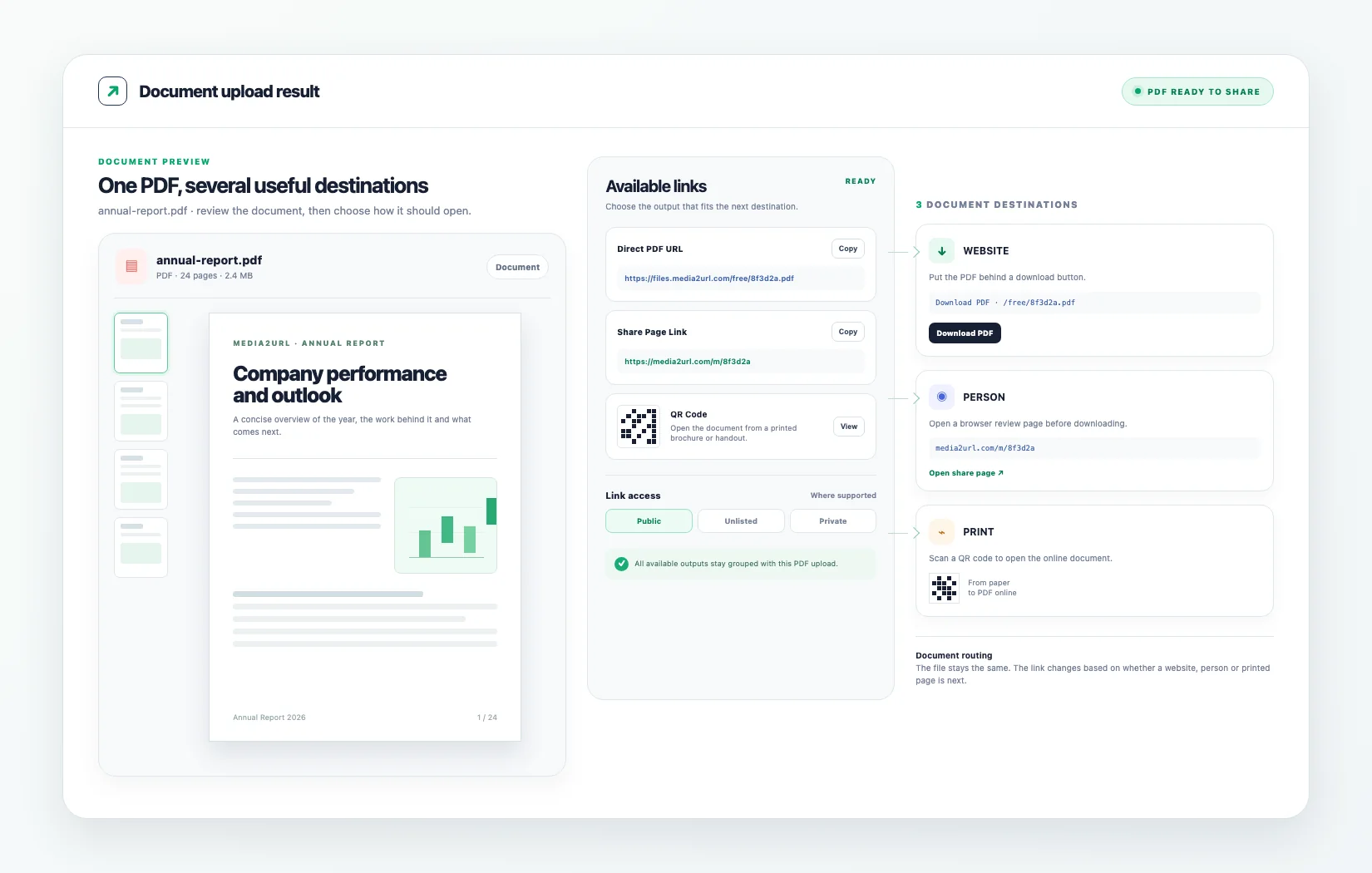
Available outputs after upload
Copy or open the format you needhttps://media2url.com/demo/pdf
https://media2url.com/demo/pdf/share
<a href="...">Download PDF</a>
[Open PDF](...)
Mobile access
Remove upload
ON A WEBSITE
Add a PDF to a website
A direct PDF URL is very useful if you want others to be able to view a file on your site without being directed to another file sharing page. For example, a company providing their yearly report or product catalog by clicking on a link within their site. Once the document has been uploaded into Media2URL, the generated direct PDF URL can then become the target of the link.
Whether the PDF will open in your browser or automatically download depends on what kind of browser you are using and how the PDF is sent to your device. You should try out the button once you have added a link to it, so that you know if users will receive the correct outcome when they click the button.
The expiration settings need to be considered. When you generate a PDF URL which has an expiration date of only 1 day then a download button that uses this URL will cease to function after the expiration of the URL. If you want to keep the document available on your site for longer than 1 day then select the appropriate expiration options (if they are provided) within your account prior to publishing the URL.
See our guide for placing direct PDF URLs in documentation or a resource page.
Annual Report 2026
Financial overview and company updates.
CLIENT HANDOFF
Hand over a proposal
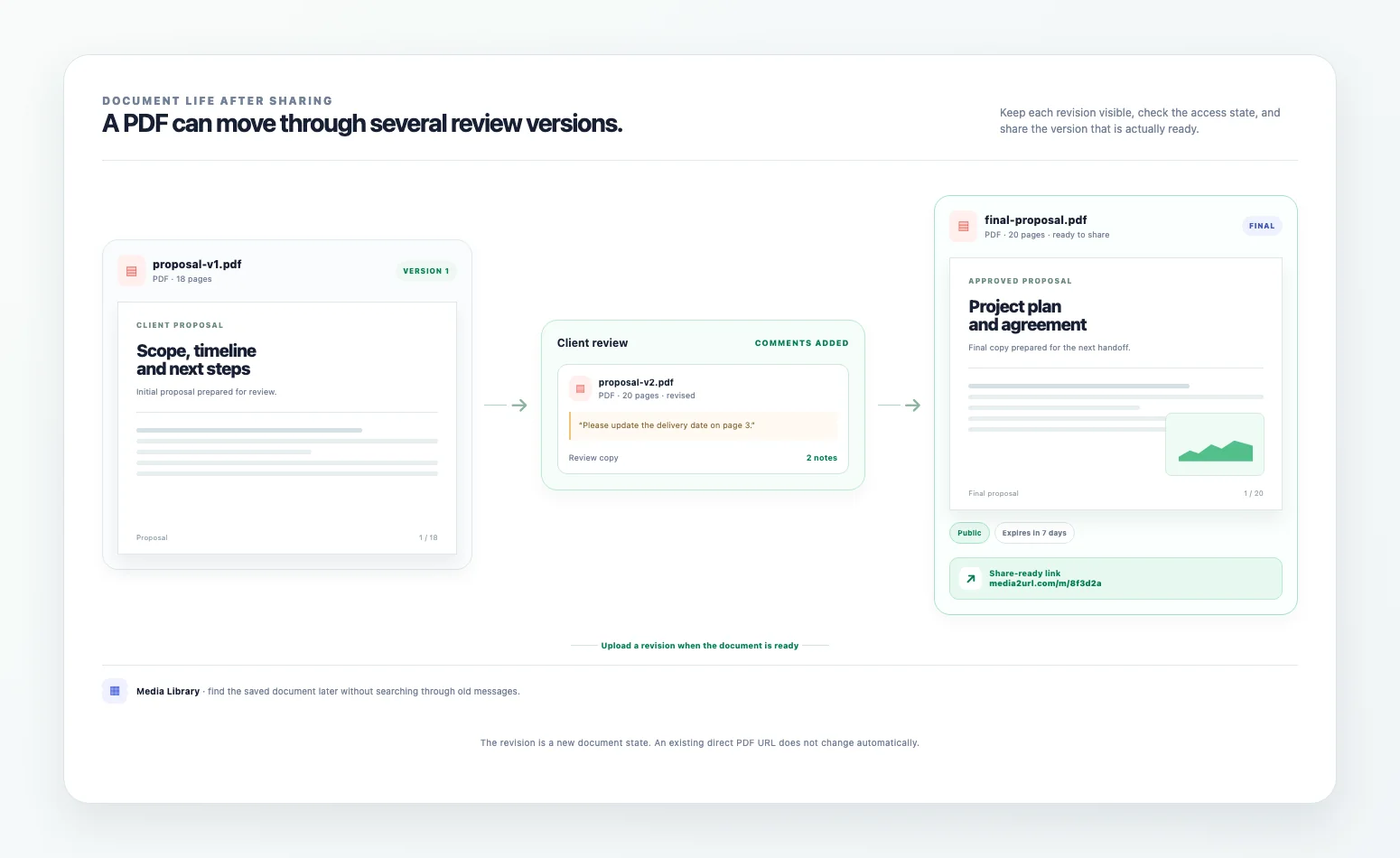
A proposal often moves through more than one review. Sending another attachment each time can leave several versions of the same PDF spread across an email thread, especially when the client returns with changes.
The share page gives the recipient one browser link to open for that handoff. When the latest PDF has been uploaded, the message can stay short because the document itself remains separate from the email.
Hi Sarah,
Here is the latest proposal:
https://media2url.com/demo/pdf/share
Let me know if you want anything changed.
Scan to open the PDF
FROM PAPER TO PDF
Connect a printed handout to the PDF
A printed brochure, menu or event handout cannot carry a clickable PDF link. A QR code gives the reader a way to move from the printed page to the online document using a phone.
The QR code should lead to the output that fits the situation. A share page works well when someone should see a normal browser page around the PDF, while another workflow may use the direct document URL.
Example output · placeholder values
PDF link examples
A browser may preview the PDF or offer it for download.
Direct PDF URL
https://media2url.com/demo/pdfShare page
https://media2url.com/demo/pdf/shareHTML link
<a href="https://media2url.com/demo/pdf">Open the PDF</a>These placeholder addresses use Media2URL's /demo/ path and have no file extension. Upload a PDF to receive its actual links and available embed formats.
DOCUMENT LIFE AFTER SHARING
When the document changes
A proposal may undergo many revisions prior to being accepted by a client. In addition, the same process applies to product catalogs or price lists, which require update after distribution.
When you store these files in your Media2URL account, you can access your Media Library to locate and organize your uploaded files rather than searching for the original file in previous emails.
Uploading a new PDF will not automatically update the file accessed via a previously established link. Each time you upload a file as a new item, it creates a unique link for that item. If you wish to maintain the same URL as before, check to see if your account provides features for replacing files or managing versions. If so, use those features to update the file accessed via the URL and confirm that the URL currently links to the desired version of the file.
Cover page
Summary
Internal notes / old contact information
BEFORE IT LEAVES YOUR ACCOUNT
Review every page
A PDF can look perfectly fine from the cover while information deeper in the document should not be shared publicly. Old contact details or internal notes can remain on later pages, especially when the file has already been edited several times.
Open the final document and check the pages that matter before creating a public PDF link. When the file is only meant for a short review, choose the available expiry or access controls instead of leaving it reachable longer than necessary.
DOCUMENT ACCESS
Set access for the document
A public brochure may be fine with an open link, while a client proposal or financial document can need tighter access. The right setting depends on who should receive the document and how long it needs to remain available.
The uploader shows the visibility and expiry choices available for your account. Password protection and additional download controls can depend on your plan, so use the settings shown for the actual file rather than assuming every option is available everywhere.
Visibility
Public
Expiry
1 Day
Password
Available where supported
Download
Available where supported
BEFORE AND AFTER
A complete PDF upload
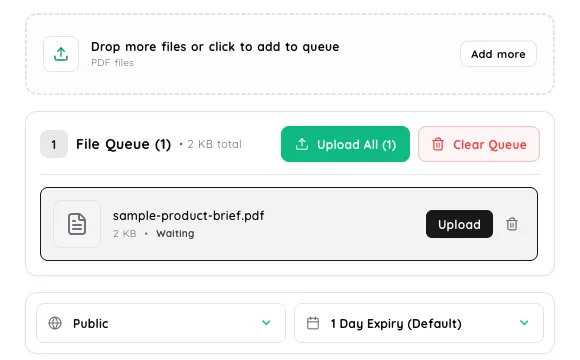
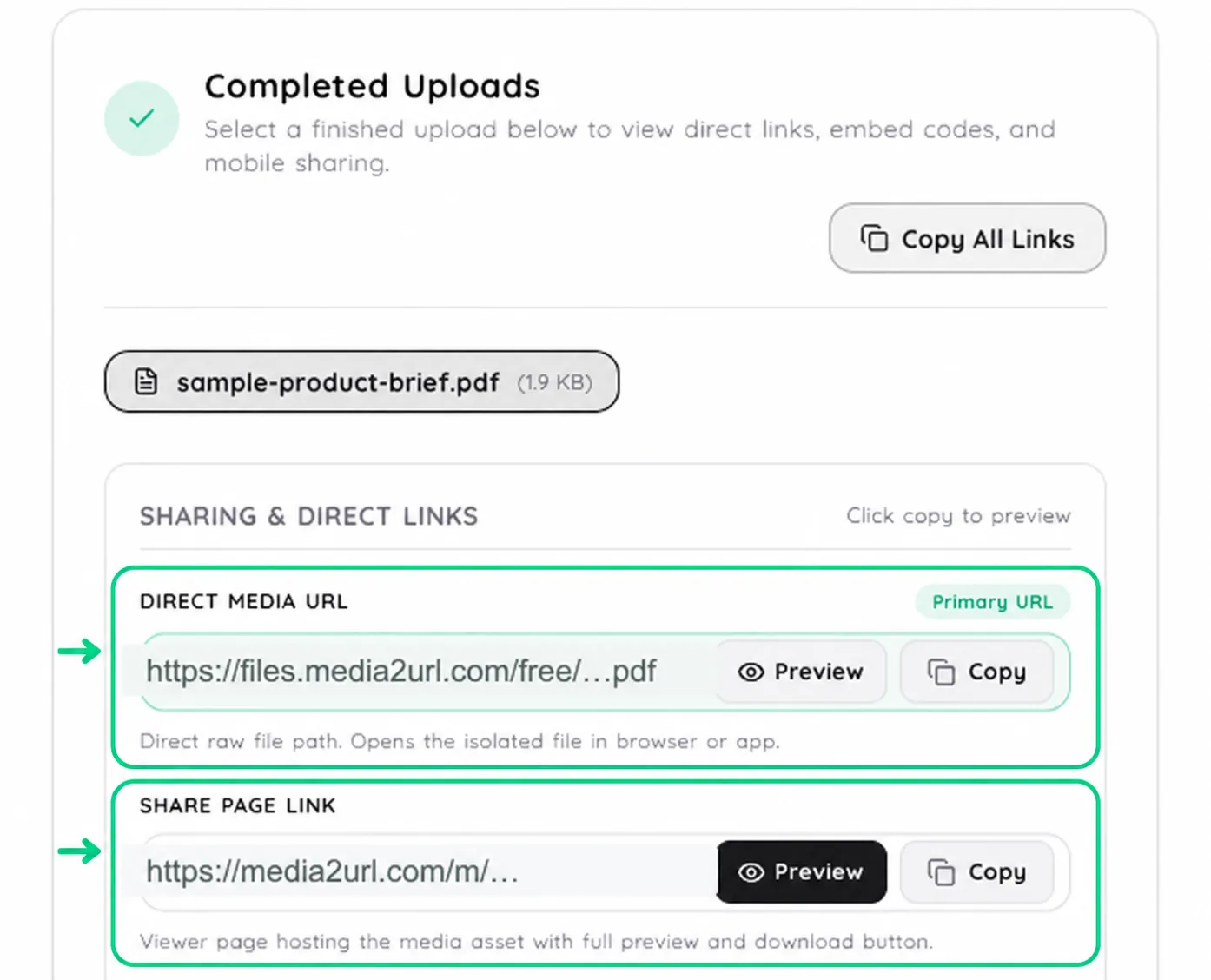
You can set visibility and expiry while the PDF waits in the queue. Once it is uploaded, the result gives you a direct file URL and a share page for browser viewing.
LINKING IS NOT DOCUMENT EDITING
Prepare the PDF before uploading
The normal PDF to Link workflow provides PDF hosting for the supported document and creates the available links for it. It does not automatically run OCR, rewrite the contents or make scanned pages searchable as part of the upload.
When the document needs page changes before it is shared, use the PDF Workspace instead. That is where supported PDF preparation tasks belong, while this page stays focused on creating a PDF URL for a document that is already ready.
DOCX or ZIP files belong in the File to URL tool because they follow the general file workflow instead.
Creates the available PDF URL and share page
The document stays as uploaded.
PDF sharing questions
Which PDF files can I upload?
The uploader accepts PDF files that pass Media2URL's current upload policy. The available file size depends on the limits for your account, and the document still needs to meet the platform rules before a link is created.
Guest limits, when available, are shown near the uploader so you can check them before choosing a file.
How do I turn a PDF into a link?
Start with the finished PDF rather than a draft that still needs page changes. After the document is uploaded, Media2URL gives that file its available link options, including the direct PDF URL and the share page. The direct address is useful for a website button, while the share page suits a person who needs to review the document in a browser.
Should I use the direct PDF URL or the share page?
Use the direct PDF URL when a website, download button or compatible tool needs the hosted PDF file itself. Use the share page when the document is being sent to someone who should open and review it in a browser.
Can someone preview the PDF in a browser?
The share page can show the uploaded document in the browser when PDF preview is supported there. The recipient may also see a download option when the file settings allow it, so the share page can work well for review before download.
Preview behavior can vary by browser and device, so do not treat it as a guarantee for every environment.
Can I control PDF access after upload?
Access depends on the settings available for the account that owns the PDF. A public brochure may need an open link, while a client proposal can use expiry or tighter access when those controls are available. Password and download choices depend on the plan, so the controls shown for that PDF are the reliable guide.
Does the PDF to Link tool run OCR or make a scanned PDF searchable?
No. The PDF to Link tool is focused on hosting the uploaded document and creating its available links. It does not run OCR or turn scanned pages into searchable text as part of the normal upload flow.
If document preparation is needed first, use the relevant PDF Workspace tools where those capabilities are supported.
Why Can't Someone Open My Shared PDF Link?
When you first make a PDF link available, it will likely work properly; however, once the link expires or the file is deleted from your site, the link will no longer function. If a user states that the document is not opening, verify if the link is still valid and whether the user's access settings permit him/her to view the document.
You can additionally test the link using a different browser, such as one you have not previously signed into Media2URL. If the link loads successfully, but the PDF preview does not display, you should attempt to access the PDF directly through its URL or use the available download option. Different browsers and devices process PDF previews differently; therefore, a preview issue does not necessarily indicate that the original file cannot be downloaded.