Media2URL
Video processing studio

Video processing suite: Trim, compress, convert and extract audio

Oftentimes, a video needs some minor editing prior to being shared. For instance, you could simply edit out the initial portion of the video, lower its file size, convert a portion of the video to a GIF, or maintain the audio track while removing the visual element.

Media2URL integrates the various video editing capabilities that are supported by the software into the same environment as your uploaded content. This allows you to edit a video file, examine all of the available options and then save the resulting file according to how you plan to use it.

If you have a completed video that you do not want to edit, the video upload and link tool will host your video and provide you with a shareable URL.


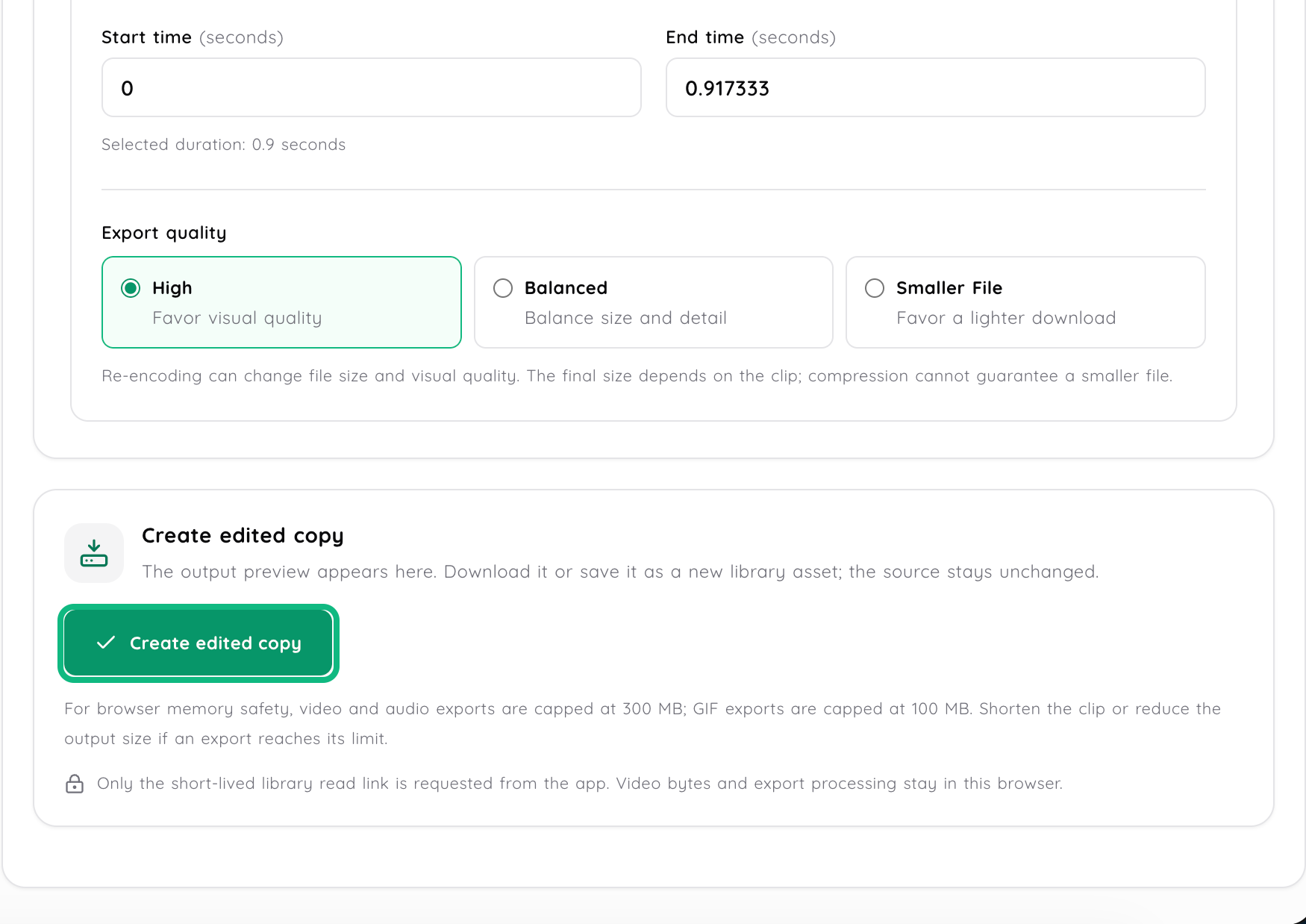
Video editor dashboard with trim start and end fields, export quality choices and the highlighted Create edited copy action
Review export quality and create an edited copy in the browser while keeping the source unchanged.
Inside the dashboard

A focused video workspace with browser-local editing

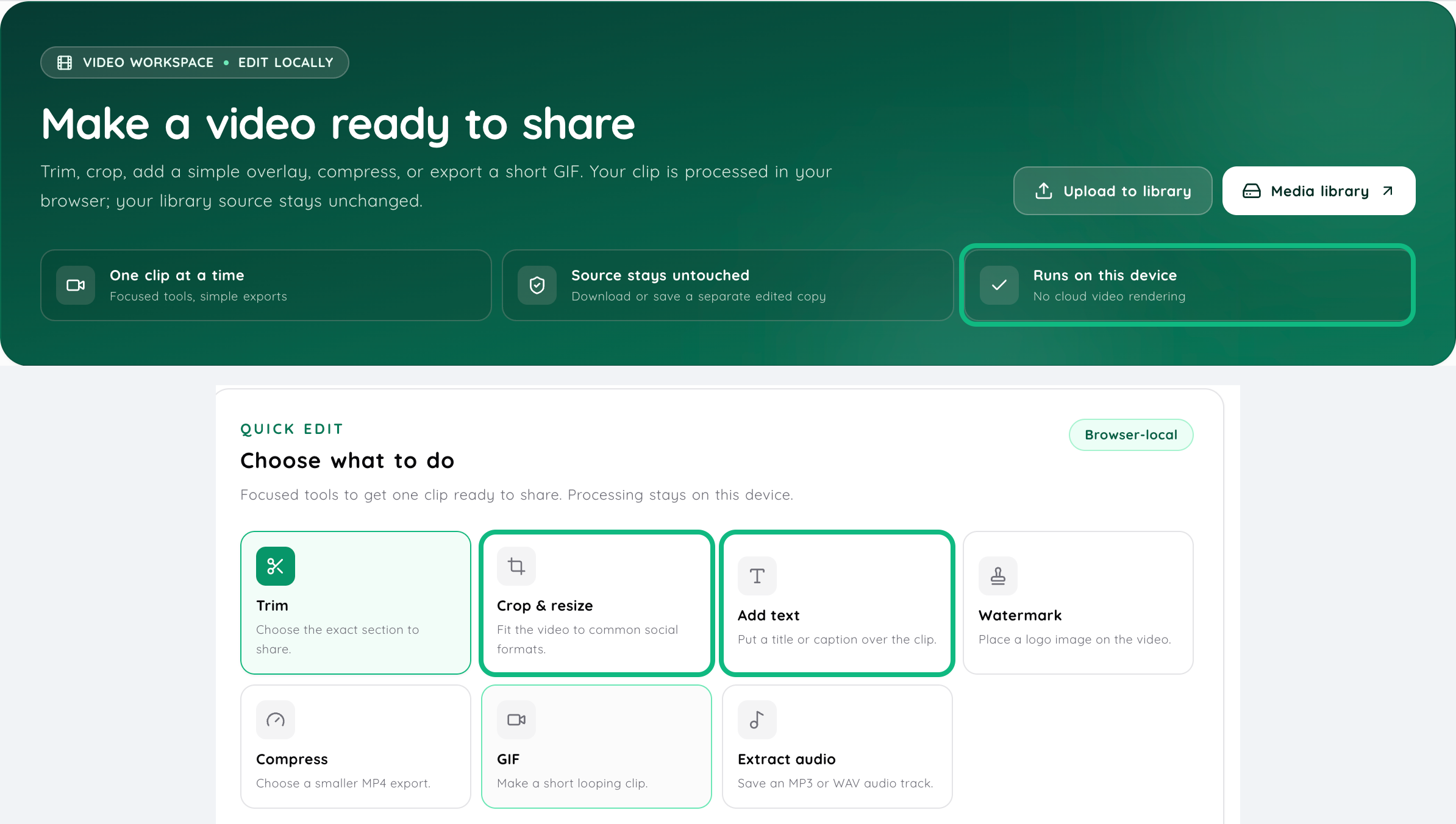
This is what you'll see in the actual dashboard view where both your Video Workspace and Quick Edit Options are displayed. You can see the Green Call Out Marks for on-device processing notification, Crop & Resize and Add Text.

Media2URL video tools dashboard collage showing the on-device processing note and Quick Edit options, with Crop & resize and Add text highlighted
Two supplied dashboard captures, combined vertically. Green outlines mark Runs on this device, Crop & resize, and Add text.
The workflow

Start with the video and choose what actually needs to change

The video doesn’t have to be processed through every method available. You should begin by defining the problem that you wish to address, and select the tool which is best suited to help you resolve this issue.

A large video uploaded to your computer could be compressed, but if you have a very long screen recording then you will likely need to trim it. If you are showing an action on the screen that takes less time than a few seconds, then you may find that creating a animated GIF would make more sense. On the other hand, if you recorded an interview, then you may only want to keep the audio.

  1. 1

    Select a video from your library

    Open a supported video file that is currently stored in your Media Library, or add a new video file to the system. Depending upon the type of video file you are using and your user status, you will have several different ways to process the video.

  2. 2

    Choose the required operation

    Select one of four choices: Trim Video, Compress & Transcode, Video to GIF, or Extract Audio depending upon the desired result.

  3. 3

    Review the available settings

    Choose the start and end of the region to process, or change the options that are provided with each operation. When possible, view a preview of what the output will look like.

  4. 4

    Save or replace output

    You can save the processed result with the options provided by the tool. If the option exists, you may save the result as a new library file, connect it as a new version or replace the original.

Focused utilities

Four video tasks that do not always need a full editor

The use of a full-featured video editor is warranted if you intend to modify an entire production. However, it may be superfluous if you only wish to trim a recording, decrease the size of a file, generate a short GIF, or extract the audio from a video. The following tools are designed for these smaller tasks of video processing on video files that have been imported into your Media2URL workflow.

Video trimming

You can remove the first part of your video that was unnecessary, as well as the last part. This will allow you to reduce the length of your screen recording, save money on the amount of time that someone else spends waiting for a demonstration to begin, and only give them access to the part of the video they need to view.

Video compression and transcoding

A smaller size video may be simpler to upload, download, and share, however, there are typically trade-offs involved in reducing the size of a video. These tradeoffs include choosing between bitrate, resolution, and encoding. Your choice of settings should based on what you plan to use the video for and the level of detail you would like to maintain. Rather than assuming the smallest output will always provide the highest quality, utilize the compression options provided by the software to create a balance of quality and size.

Video to animated GIF

Create an animated GIF from a short section of a video, if the repeating visualization of that section provides more context to what is occurring than a static image would. Animated GIFs are great for demonstrating how a user interface opens, how the status of a button changes, or for creating a simple sequence within documentation.

Extract audio from video

When you've finished with your visual content and only require the audio portion, you may want to continue using the audio track. Some examples of how this can be helpful include sharing recorded interviews, presentations or other spoken content in an audio format rather than providing the entire video.

Encoding fundamentals

Video compression is a trade off, not a magic switch

Compression can reduce the amount of data used to represent video content, which has a tendency to grow very large due to containing numerous frames over time, typically with accompanying audio. However, the compression settings applied at the time of encoding will influence the size and quality of the finished product.

Resolution

This is the width and height of the video display. When you reduce these numbers, you are reducing the amount of visual information you need to keep track of.

Bitrate

The amount of data used throughout the course of a day will depend upon the level of bitrate. While reducing the bitrate will reduce the size of the file, if you reduce the bitrate too low, you may notice that the quality of your images declines.

Codecs & Containers

H.264 is a codec that is contained within an MP4 file. WebM is a second container format, and it usually contains VP8 or VP9 codecs.

In the case of a short help video, it may be better to use a smaller video size instead of trying to preserve all of the details. However, when you do a demonstration of your product, and there is very small text within the user interface, you will have to find a good compromise between reducing the video's file size (which will affect the clarity of the text) and maintaining the text's legibility.

Format selection

A GIF is useful for short motion, not every video

The use of an animated GIF is most effective when the visual content is brief and the motion itself conveys the intended message. Unlike traditional video/audio playback systems, the GIF format utilizes image frames to display motion.

When the clip requires sound, standard playback options, or a longer series of scenes, then it is typically better to keep it in the original video format. When you want the user to view the video in its original format rather than having the scene converted to a GIF, you can use the Video to URL option.

Task boundaries

Extracting audio and transcribing speech are different tasks

Audio extraction allows you to keep the audio portion of a video, then save that audio as an audio file if the program you are using supports this process. However, this function does not convert spoken words into written text.

An example is that if you extract the audio from an interview that was recorded, you will have a useable audio file to listen to again or use in other ways. In order to create a written transcription of the interview, it will be necessary to perform a different type of conversion such as speech to text.

Decision framework

Choose the operation based on the problem

Trim the video

When you have recorded all of the relevant information, however, the start of your recording was too early, the end of your recording was too late or you waited unnecessarily during the recording process.

Compress or transcode

When you need to use a smaller version of the video because of how you plan to share it, or if another available option (supported output) would work better at the final destination.

Create a GIF

A short silent video that will be repeated over and over again in the same place in your documentation, changelog, etc., but doesn't require a whole video player.

Extract the audio

When only what was said is important, and you don't need the video.

Asset management

Keep the original when you may need it again

A shorter version of a video solves the immediate problem of having too much content. However, once you have shortened a video you will not be able to get back any of the parts that were taken out. In addition, if you use a lower resolution copy of a video you will lose some of the details that were lost when the video was processed.

When the process allows you to choose to save the modified product separately, this option can be better if there is a possibility that the unmodified video will need to be accessed again. Saving the modified video over the original video is only recommended if you are certain that the modified video is the one that should be kept as the official version. You can create different versions of your videos and store them in the Media Library.

Practical scenarios

Where video processing helps

Support bug reports

In a five-minute screen capture, there may be only a few seconds of footage showing the actual issue. Therefore, you should cut out all the extra setup time from your video so that whoever is analyzing the bug can quickly get to the relevant parts of the video.

Documentation and changelogs

When a small interface action is to be displayed in a documentation or a changelog, turn it into a GIF. If you have to demonstrate something longer or use sound, keep the content as video.

Podcast and audio repurposing

When you have extracted an audio track from a recorded interview or presentation (and the visual portion of the recording is no longer needed), the extracted audio track will be able to use any of the same sharing options as the original output.

Client review and approval

The review recording can have long sections that the client has previously viewed. Create a shorter processed version of the recording if the original recording is too big for viewing purposes, or create a shorter processed version of the recording by removing the parts that were not modified.

A project may include images, audio, and/or a PDF media kit in addition to a video. The content creator workflow provides instructions on preparing these types of files for review prior to publication.

Processing boundaries

Video processing rules and quotas

  • Depending on which plan you have, there are processing limitations. There may be variations in file size limits and available video operations based upon the specific account and/or workspace.
  • Larger video files will require more time for processing. The duration of the video, the resolution of the video, and what you chose to do with the file are all factors in determining how much work the file will need.
  • The decision to change resolution should be made based upon what you want to achieve with the video. While downscaling may help to minimize the size of the video file, whether this is an appropriate option will depend on the final destination of the video, as well as the amount of detail that needs to remain in the video.
  • When the source remains relevant, keep the source. If the program provides separate saving and replacement choices, make your decision based on whether you'll need the original video at a later time.
Questions about this workflow

Frequently asked questions

Compression is generally a compromise between reducing file sizes and maintaining visual qualities. Reducing bit rates, resolutions, or altering the way that data is encoded may allow for reduced file size; however, as compression becomes greater, it will become easier to recognize quality degradation. Select the appropriate compression settings for your video depending upon where the final product will be displayed, rather than just selecting the lowest file size achievable.

The available video editing tools will be compatible with all of the format options listed as being available for use with your specific account and the type of editing you have chosen. Examples of video formats that are currently being referenced within this workflow include: MP4, WebM, and MOV; however, the actual processing compatibility can vary based on both the type of file you are attempting to edit and the level of service you are subscribed to. Therefore, please do not assume that each possible video editing function will be compatible with every video format option.

No. An animated image format like a "GIF" cannot contain both video and audio. When the only thing that needs to be communicated visually is the movement within the image, then you should use the "GIF" format. However, if there is also audio required to convey your message, then you will need to continue using one of the available video formats supported.

The process of extracting audio requires a video that is supported by the software, has an audio track, and can be processed by the software you are using. The limits and output options available to you will vary depending upon the video file you choose to process and the type of account you have. If there is no sound in a recording (silent), then there is no audio track to extract.

Trimming modifies which section of your timeline remains after cutting out unwanted parts. Compression modifies how many bits of information are required to create or transmit the remaining portion of your video. Your video may require either trimming, compression, both, or none based upon the issue you wish to resolve.

No. MP4 is a type of media file, while H.264 is a type of video compressor (codec) that can be found in MP4 files. WebM is another type of media file, but it uses video compressors like VP8 and VP9.

When the lower resolution works with the way the video will be watched. A smaller resolution means less data needs to be coded, but if the resolution is too small then the details of fine text and user interfaces may be difficult to read.

The current page displays the saving/replacement options available for supported workflow processes. Based on whether the source video must remain within your library, choose the option displayed by the tool.

Next steps

Explore related video and media tools

When processing is finished and the video needs a hosted URL.