

Media2URL
Animation workspace

GIF studio for speed, frame reduction, optimization and video conversion

A GIF can function correctly but appear too long, large, or too short for the area in which you intend to display it.

GIF Studio offers several methods to modify your animated image. You have options to change the rate at which the animation plays back; remove frames; alter the available color options; reverse the order of the animation; and create a video format if saving the animation in GIF format is no longer feasible.

After you have completed the creation of your GIF, and it simply requires hosting, you can utilize the GIF upload and link tool to obtain its URL.

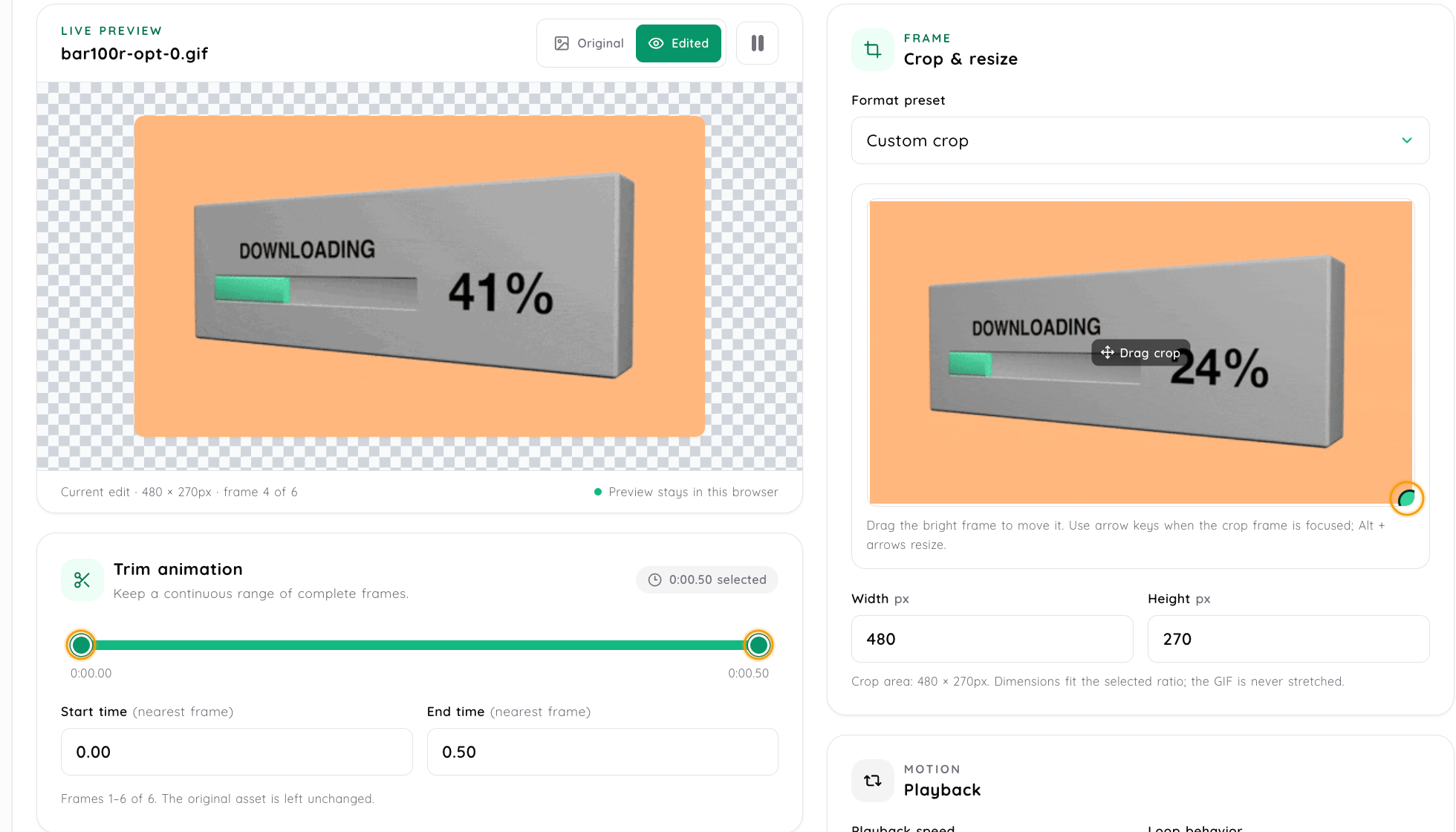
GIF Studio editor for bar100r-opt-0.gif showing the live preview, crop and resize workspace, and frame-based trim controls
Set crop boundaries and the frame range while the original GIF stays unchanged.
The workflow

Start with what feels wrong about the GIF

You don't have to alter every aspect of an animated GIF simply because you're given control. If a GIF appears to be moving slowly, it may be as simple as changing its speed. Similarly, if you're creating a massive animation, you might want to consider using fewer frames or producing your final product in a different format.

First, open the GIF to determine exactly which part of it requires correction and then select the appropriate tool to fix that specific portion.

  1. 1

    Pick an animation from your library

    Open an existing GIF that has been saved in your Media Library or upload a different animated image that you would like to edit.

  2. 2

    Choose what you want to change

    Choose whether you want to use speed control, reduce frames, change color settings or convert a GIF file into a video.

  3. 3

    Check the result before saving

    Before you generate the new file, preview the proposed changes. Consider the actual change in position, not just the approximate size.

  4. 4

    Save the version you want to use

    Use the option of the particular program to save your completed work. Then, once you have finished, continue to use the supported method of sharing or linking to your newly created document.

Browser-local optimization

Tune color options and check browser memory

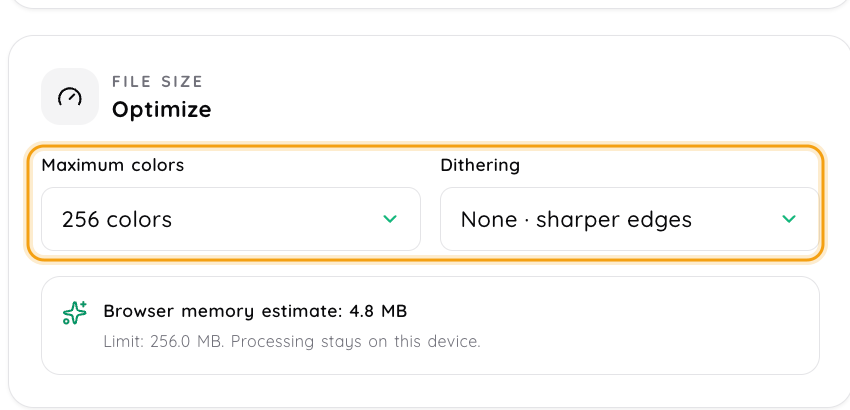
Set a limit on how many colors will be used in the animation and select a type of dithering to use. The panel displays an estimate of the amount of browser memory that will be needed to view the animation, which allows you to consider resources required for the animation prior to editing the video.

Your GIF is processed locally on your computer. Your original GIF will remain exactly as it is now, unless you select a process for outputting.

GIF Studio optimization panel showing a 256-color limit, no dithering, and a 4.8 MB browser memory estimate
Review the color and dithering controls alongside the browser memory estimate.
Animation mechanics

Why an animated GIF can become difficult to share

The amount of frames a GIF uses to create an animation depends on how long the animation will run. As well as the number of frames used in the GIF, there are also other factors that affect the size of the GIF such as its size, color depth, etc.

Two GIFs with identical lengths may have vastly different file sizes. Rather than attempting to apply all possible optimization settings to each individual GIF, it is generally much better to identify which aspect of a specific animation is causing it to be larger than required.

Change the speed when the timing feels wrong

A short interface GIF can seem excessively slow if there is a long wait time before each subsequent action. However, the opposite can occur if an animation moves too fast for the viewer to recognize what has changed. Speed controls allow you to alter the rate of the animation without altering the basic sequence of the GIF. This will help make the animation easier to follow, rather than just selecting the fastest possible speed.

Fewer frames can reduce work the GIF has to carry

An animation has many individual frames. However, each frame does not contribute equally to the overall visual movement. For instance, if there are multiple frames showing a nearly identical visual state, then you could potentially reduce the number of frames to decrease the size of your GIF. There will be a trade-off. If you remove too many frames, the visual movement may become choppy or disconnected, which means you should view the animation itself prior to determining whether the smaller file size is actually a better outcome.

Colour reduction can help, but it changes the picture too

The use of a limited number of colors in GIFs will have an impact on how they look, and how much space they take up. When an animation has gradient effects, shadows, or photo details, the way that it is affected will vary greatly compared to when an animation is just a simple screen capture of an application's interface using only flat colors. If your software offers you the option to limit the number of colors used in your image, compare the new image to your original image prior to saving it. While having a smaller file size is always a benefit, if the quality of the image suffers to the point where text, icons or other important visual details are significantly less clear, then the reduction in file size is not worthwhile.

When keeping the animation as a GIF stops making sense

In some cases, the better option than continuing to optimize your GIFs is to convert them into a video format. If your GIF is particularly long or has a high level of visual detail, it might be more cost-effective to produce a video rather than trying to create a very large GIF. When you convert a GIF to a video, you change the nature of the media that you are using. The resulting product will not be a GIF anymore; therefore, how it can be used within your website (embedded) or played on devices may vary.

Format decision

GIF or video: which one should you keep?

Keep the GIF when...Consider video when...
The animation is short and simpleThe animation is long or visually complex
It does not need soundAudio or normal video playback matters
It needs to behave like an animated imageThe destination works better with video
A repeating visual is the main purposeFile efficiency matters more than keeping GIF format

It's okay to use GIFs for some of your UI animations in the documentation. GIFs will probably work better for short animations and videos are likely better suited for long demonstrations.

When using Video to Link, if you choose to save the result as a video, you can create either a hosted video URL or browser playback page for each.

Playback behavior

Reverse or repeat only when it helps the action make sense

When it's time to examine the motion of something as if it were going backward, then reversing an animation makes sense. Loops are important when an action is supposed to continue being performed rather than stopping after it has been completed once.

A constant bounce may be appropriate for certain interfaces, however, do not use a constant bounce solely for its appearance. The continuous loop should help the user comprehend what they are doing.

Decision framework

Which change should you try first?

Change the speed

If the GIF is the correct duration, yet the action seems either too slow or too fast.

Reduce frames

When there are too many movements for the viewer to truly understand what is going on.

Adjust colours

If you need to create an animation that is compact in terms of file size and has a more basic color scheme, then as long as there aren't any critical details lost in the simplification of the colors, this option would be suitable for you.

Create a video version

When the animation becomes too large or complex for a simple GIF.

Practical use

Where these changes are actually useful

Documentation and help guides

A brief GIF could be used as an alternative to showing a video, which would require the user to initiate the playback of a video, when you want to illustrate how to open a menu, change a setting, etc. If the GIF becomes overly complex or takes too long to load, then instead of including all frames from the original recording, consider reducing what the animation is attempting to convey.

Product updates and changelogs

Many times a product update will only require a single visual, as opposed to a whole screen recording. It may also be helpful to adjust the playback speed or remove any additional animation frames from the update so that the user can observe the new behavior and not waste time viewing the rest of the video.

Bug reports and developer discussions

An ongoing animation is beneficial if you only experience the problem at certain times. Focus on that specific behavior in the GIF, as this allows the individual trying to fix the problem to find what they need without having to filter through irrelevant movements.

Forum and chat sharing

Some forums, chats and other platforms have restrictions on the size of files that can be uploaded. When your original GIF exceeds these limits, either remove some content from the GIF or convert it into a different format and then review the uploading specifications for the platform that you wish to post it on.

Processing guidelines

Before changing an important GIF

  • The GIF format doesn't have an audio track. When sound needs to be a portion of your users' experience, you can either create the content in the form of video or use a video processing workflow.
  • Processing time for long animations may require more effort. The amount of processing needed for a GIF depends on several factors, including the length of the animation, the number of frames included in it, and the type of processing that is chosen.
  • Video conversion alters the way that embedded content behaves. An MP4 output is a video file, therefore, it should be treated as such and not as an image.
  • If you think that you will use your original at some point in time, then keep it. If you have to make modifications such as reducing the number of frames, changing the colors, or adjusting the speed to create a better sharing copy, do so. However, remember that you can always use your original again to create another version of the video.
Questions about this workflow

Frequently asked questions

When an animation is very long, complex, or does not function well as an image file any longer, it may be more appropriate to convert the animation into a video. Video encoding handles this kind of dynamic content differently than a GIF. However, the disadvantage is that you end up with a video. The video has video playback and embed behaviors rather than being treated as an animated image.

The answer will depend upon which aspects of your images you have changed. When you reduce the number of frames in an image it affects the way the image appears to move. On the other hand when you reduce the amount of colors in an image it may affect the appearance of gradient transitions in the image and other fine details of the image. You should always view the processed GIF in full screen mode prior to replacing the original image with the processed image. A smaller file size does not necessarily mean that the file is better.

Yes, when you have a choice of speed control for the GIF you've chosen. You can change how long each frame will display by using the controls provided, then view your creation in real-time as an animation to see if it is too fast or slow. The "best" speed to use isn't necessarily the fastest, but rather the speed that allows you to easily understand what is happening within the image.

The use of a direct GIF URL is possible as long as the Markdown rendering allows for the use of remote images. The rendering of the GIF is dependent on the manner in which the destination website/documentation platform processes GIF files. If the destination blocks remote media, or changes the GIF file, it is recommended to test the final page to verify if all aspects are working correctly; do not assume that each Markdown environment operates similarly.

The size of a GIF is determined by how long it is, the number of frames within it, the size (dimensions) of the image, and the visual complexity of the images themselves. As an example, an interface animation that has been made into a .gif will behave differently than a screen recording of the same duration and created as a .gif.

In general, no, not like frame rate control. Speed control changes how fast an animation plays, but frame reduction changes how many frames are left to be displayed. Therefore, use whichever control is appropriate for the problem you have. Do not treat both controls as being equal optimizations.

Most GIF animations don't include an audio track. If you want to include audio with your media, consider using video formats or the Video Processing workflow instead.

Yes, as long as you might want to create an alternative version at some point. Changing the frame, color and/or timing can be good for some locations, but may not be appropriate for others. Creating a second copy of the processed image will provide you with a backup option should the requirements change.

Next steps

Explore related animation and media tools

When the GIF should become video or the media really belongs in a video workflow.

For keeping the original and processed versions organised.