Media2URL

Screenshot to URL for Quick Sharing

Capture a display, window, or browser tab to make a screenshot URL for a bug report, ticket, or review. You can also upload an existing screenshot.

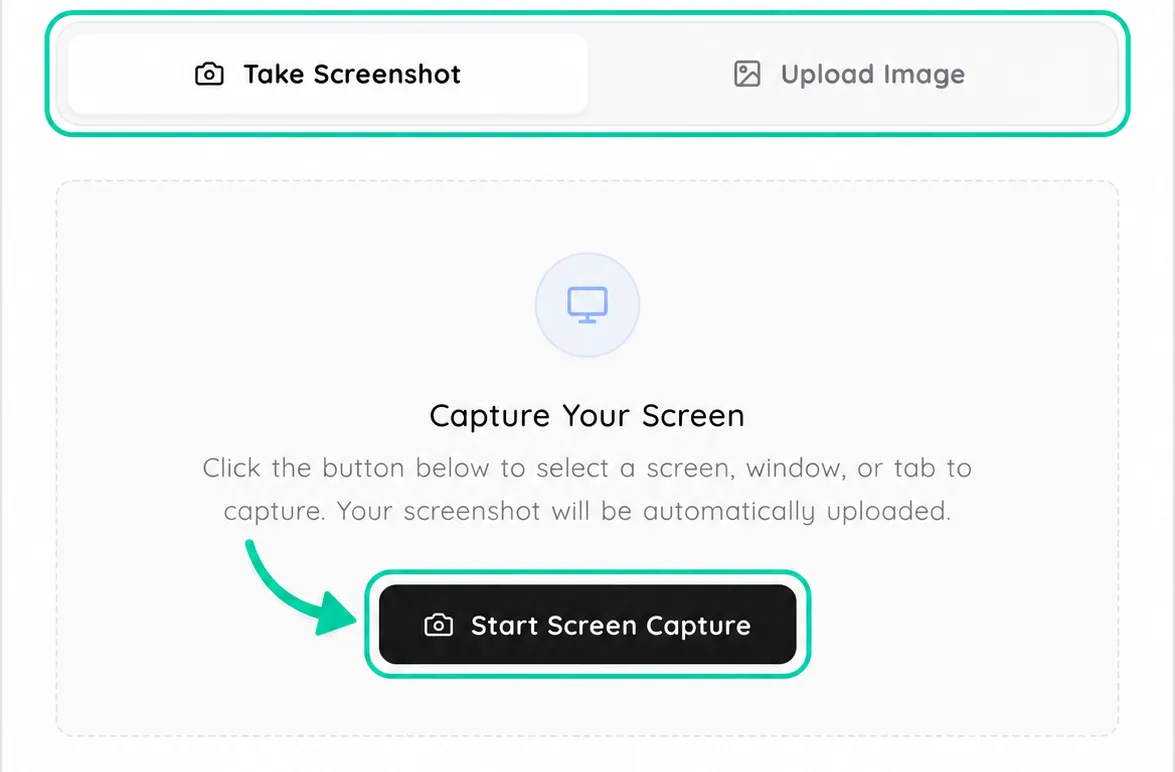
Capture Your Screen

Click the button below to select a screen, window, or tab to capture. Your screenshot will be automatically uploaded.

TWO WAYS TO START

Capture a view or upload a saved screenshot

TAKE SCREENSHOT

Choose this when the issue is still visible on your screen. The browser asks for permission first, then Media2URL captures one still frame from the screen, window or tab you selected.

Start Screen CaptureBrowser permissionscreenshot.png
UPLOAD IMAGE

Choose this when the screenshot already exists on your device. Select or drop the saved file and continue with the privacy or expiry options available for the upload.

error-screenshot.pngUploadGenerate URLs
WHAT ACTUALLY HAPPENS

Choose what the browser can capture

When you choose Start Screen Capture, the browser first asks what you are willing to share. Depending on browser support, that may be a full screen, an application window or a browser tab. Media2URL cannot see the selected view until you approve that browser prompt.

After you choose the source, the tool captures one still frame and prepares it as the screenshot used for the upload. The screen sharing session ends after that capture, so this workflow is different from continuous screen recording.

Screenshot to URL uploader before capture, with the Take Screenshot and Upload Image modes visible and the Start Screen Capture button highlighted
Before: choose Take Screenshot or upload an image already saved on your device.
ONE FRAME, NOT A RECORDING

One frame, then screen sharing stops

The capture tool takes one still frame from the source selected in the browser permission prompt. After that frame is captured, the screen sharing session ends before the image continues through the screenshot upload workflow.

This means Screenshot to URL is not a screen recorder. It does not record your screen continuously. If several actions or changing states need to be shown in sequence, a short recording may explain the problem better than several unrelated screenshots. See Video to URL when a moving explanation is the better fit.

permission starts
source selected
one frame captured
screen sharing ends
PNG upload
One still frame continues through the normal screenshot upload workflow.
WHERE THE SCREENSHOT GOES

Build a useful support report

A screenshot is usually captured because something needs to be explained somewhere else. That might be a support ticket, a developer discussion or a design review where the other person needs to see the exact state of the screen.

The useful output depends on that destination. A human reviewer may prefer the share page, while documentation or a forum that accepts image markup can use one of the generated formats shown after the upload.

SUPPORT EVIDENCE TRAIL
1

Problem appears

checkout-error.png

A small error is still visible

2

Capture evidence

Browser tab captured

One still frame, not a recording

3

Choose destination

Support ticket

The case needs visual context

4

Send

Share Page

Open it in a normal browser

5

Case resolved

Review expiry or access

Keep the evidence only as long as needed

SUPPORT ISSUE

Checkout could not be completed

Show the smallest screen, window or browser tab that gives the other person enough context.

Share page in support ticket
DEVELOPER DISCUSSION

Markdown · ![Error screenshot](https://media2url.com/demo/screenshot)

BBCode · [img]https://media2url.com/demo/screenshot[/img]

Teams handling repeated customer issues can also see the Support Teams workflow for organising screenshots and other case files.

SCREENSHOT TO LINK TOOL

When a support ticket needs visual evidence, send the screenshot that shows the issue clearly. A new capture and an existing screenshot both get a hosted link, so the next person can open the same frame while reading your report.

COPY THE FORMAT THE DESTINATION NEEDS

Choose a format for the ticket or document

A bare screenshot URL works when the destination asks for an image address, but forums and documentation tools may expect markup instead. The result panel keeps those formats beside the uploaded screenshot so you can copy the value that belongs in the next workflow.

Direct Screenshot URLShare PageHTMLMarkdownBBCodeQR Code
SCREENSHOT OUTPUTS
Direct Screenshot URLhttps://media2url.com/demo/screenshotCopy
Share Pagehttps://media2url.com/demo/screenshot/shareCopy
HTML<img src="..." alt="Error screenshot">Copy
Markdown![Error screenshot](...)Copy
BBCode[img]...[/img]Copy
QR CodeShare page QRCopy
Delete Linkhttps://media2url.com/demo/deleteCopy

Each output field has its own copy control. If clipboard permission is refused, select the visible value and use the browser's normal copy command.

Example output · placeholder values

Screenshot URL and embed formats

Screenshot URL

https://media2url.com/demo/screenshot

HTML

<img src="https://media2url.com/demo/screenshot" alt="Issue screenshot">

Markdown

![Issue screenshot](https://media2url.com/demo/screenshot)

These placeholder addresses use Media2URL's /demo/ path and have no file extension. Capture a screen or upload an image to create a real result.

AFTER THE CAPTURE

Check the captured frame and its links

Once the captured frame or saved screenshot finishes uploading, the result panel keeps the preview and available screenshot links together. You can check the image first, then copy the output that fits the place where the screenshot needs to go.

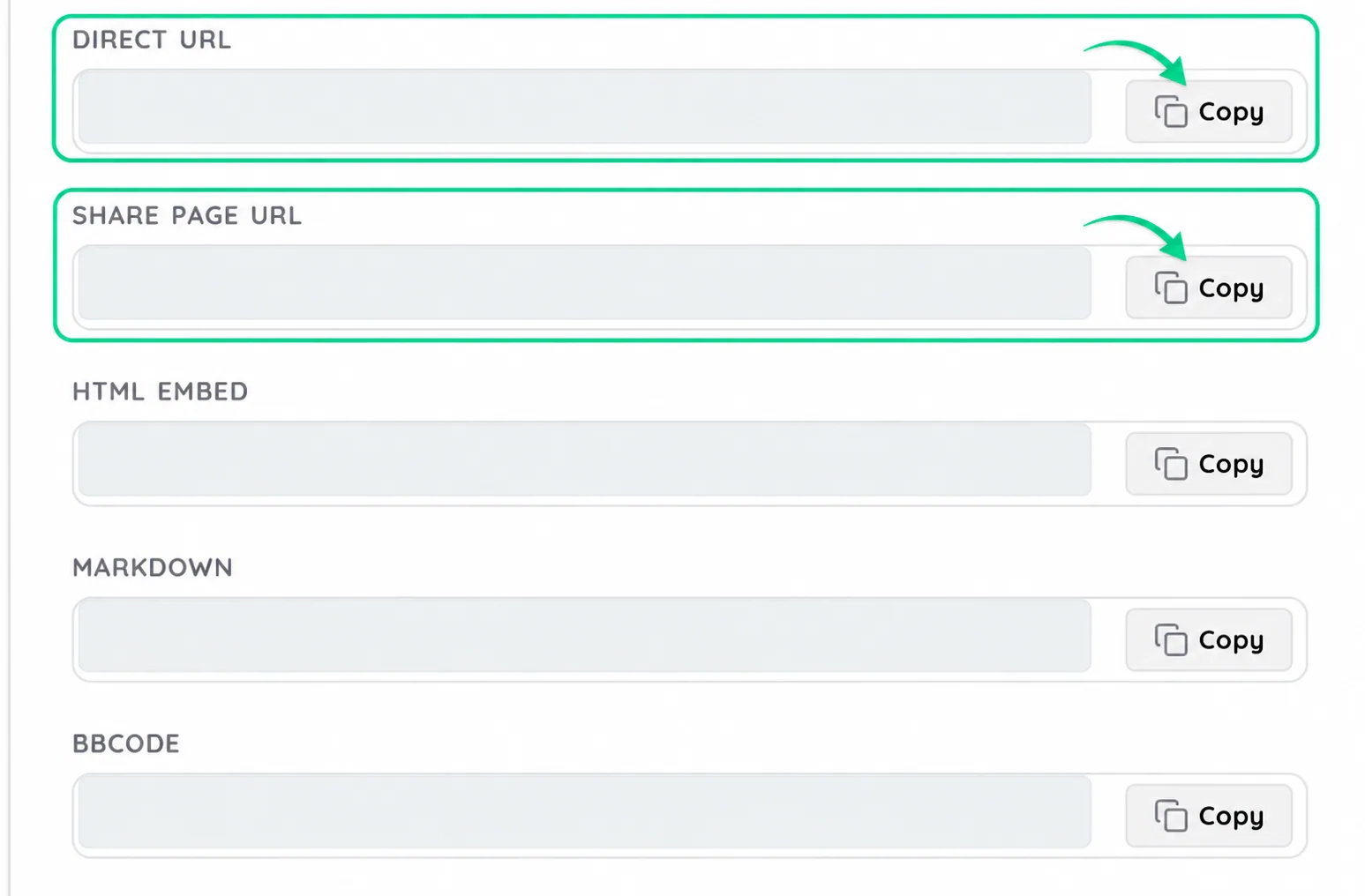
The direct screenshot URL points to the hosted image itself. The share page is usually easier when another person should open the screenshot in a normal browser before deciding whether they need the original file.

The captured image is prepared as a PNG before it enters the normal upload flow.

Privacy and expiry selectors stay close to the upload controls, subject to account availability.

Screenshot to URL completed upload result with Direct URL and Share Page URL copy controls highlighted, followed by HTML, Markdown and BBCode fields; generated values are hidden
After upload: copy a direct URL, a Share Page URL or an embed format. Generated values are hidden in this example.
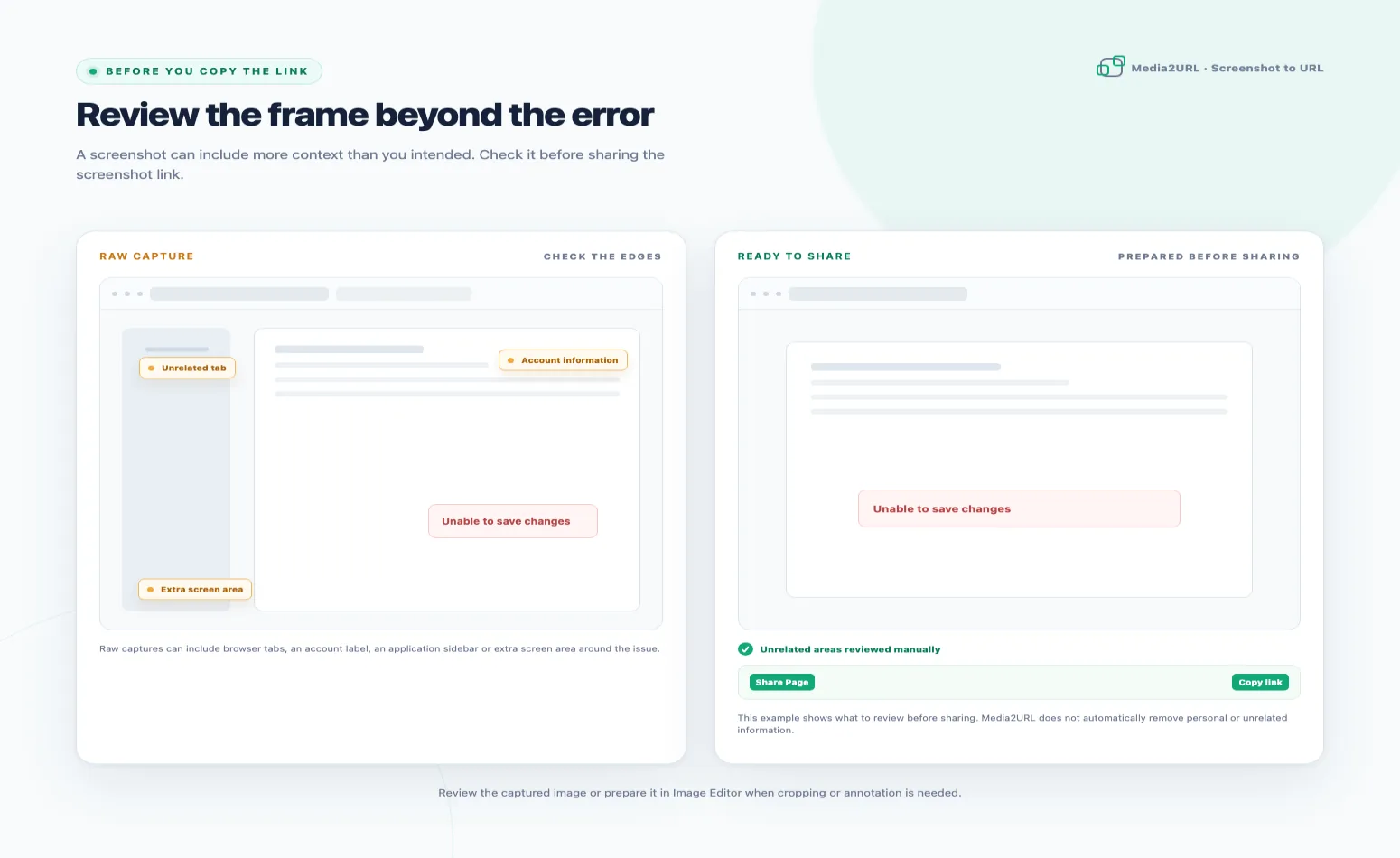
Screenshot privacy review showing unrelated browser and account information checked before sharing a screenshot link
BEFORE YOU COPY THE LINK

Check the edges of the screenshot

A screenshot taken to explain one error can reveal much more around it. Browser tabs, account names or email addresses may still be visible even though they have nothing to do with the problem you are trying to share.

Review the captured image before copying its link. If only one area matters, capture a smaller window or prepare the saved screenshot in the Image Editor before sharing it publicly.

This example shows what to review before sharing. Media2URL does not automatically remove personal or unrelated information from a screenshot.

TEMPORARY SUPPORT EVIDENCE

Set a lifetime for support evidence

Support screenshots are often useful only while one issue is being investigated. When the evidence is temporary, choose the visibility or expiry options available for your account before sending the screenshot link.

After the case is resolved, review whether the link still needs to remain available. Expiry controls access according to the selected setting, but do not treat expiry as automatic permanent deletion unless the product explicitly guarantees that behaviour.

If you already have a normal image and do not need screen capture, use Image to URL. You can choose an expiry option available for your account if the image only needs to remain available for a limited time.

Expiry

Choose the available duration before sending the link.

Visibility

Use the privacy option that matches the case.

Review

Check the screenshot again when the issue is closed.

Before sharing your screen

Screen capture requires browser permission, cancelling the prompt prevents capture, normal upload limits still apply, and the tool does not automatically insert a generated link into Slack, Google Docs, Microsoft Word or another external application.

Screenshot to URL captures or uploads. Need to edit first? You can crop and annotate in the Image Editor before sharing.

The browser chooser and available screen, window or tab options can vary by browser and operating system.

SCREENSHOT QUESTIONS

Frequently asked questions

Choose Take Screenshot and allow the browser's screen sharing prompt. Select the screen, application window or browser tab you want to capture, then let Media2URL take the still frame and upload it.

After the upload finishes, the result panel shows the available screenshot URL, share page and other supported outputs. You can then copy the format that fits where the screenshot needs to go.

Yes. Open the Upload Image tab and choose the screenshot that is already saved on your device. Once the file passes the normal upload checks, the result panel provides the available screenshot link and sharing formats.

This avoids starting another screen capture when the image already exists.

Where the browser's screen sharing interface provides that option, choose the browser tab you want to share instead of selecting the entire screen. Media2URL receives the source you approved and captures one still frame from it.

The available sharing choices can vary by browser and operating system, so the chooser may not look the same everywhere.

The result panel shows the outputs currently supported by the screenshot workflow. These include the Direct URL, Share Page URL, HTML, Markdown, BBCode, Delete Link and QR code. Each displayed output has its own copy control.

No. The capture workflow takes one still frame from the screen, window or browser tab selected through the browser permission prompt. The screen sharing session ends after that frame is captured before the screenshot continues through the upload workflow.

A screenshot captured through the tool is prepared as a PNG. Existing screenshots can also be uploaded as PNG, JPEG, WebP or GIF because those formats are accepted by the current upload policy. File-size and account limits still apply.

A screenshot used for a short support case does not always need to stay available for as long as one kept in documentation. Use the visibility and expiry settings shown for the current account, while private access or other controls only apply when they are available for that plan.

When you click Start Screen Capture, your browser should ask which screen, application window or browser tab you want to share. If the permission window does not appear, your browser or device might not support the required screen capture feature, or the necessary permission may have been blocked.

Try using a current desktop browser and check whether screen recording permission is allowed in your browser and operating system. If you cancel the browser's sharing prompt, Media2URL will not capture the screenshot.

If screen capture is unavailable on your device, you can still take a screenshot using your device's normal screenshot function. Save the image, return to Media2URL and select Upload Image to create its URL.