

Direct File Links: What They Are and Where You Can Use Them

Quick answer
A direct file link returns the file itself, sometimes after a redirect. It can load an image, feed a media player or trigger a download, depending on the response and the receiving application. Check the final content type, access permissions and link lifetime; a familiar filename alone does not prove the URL will work.
In this article12 sections · Jump to what you need
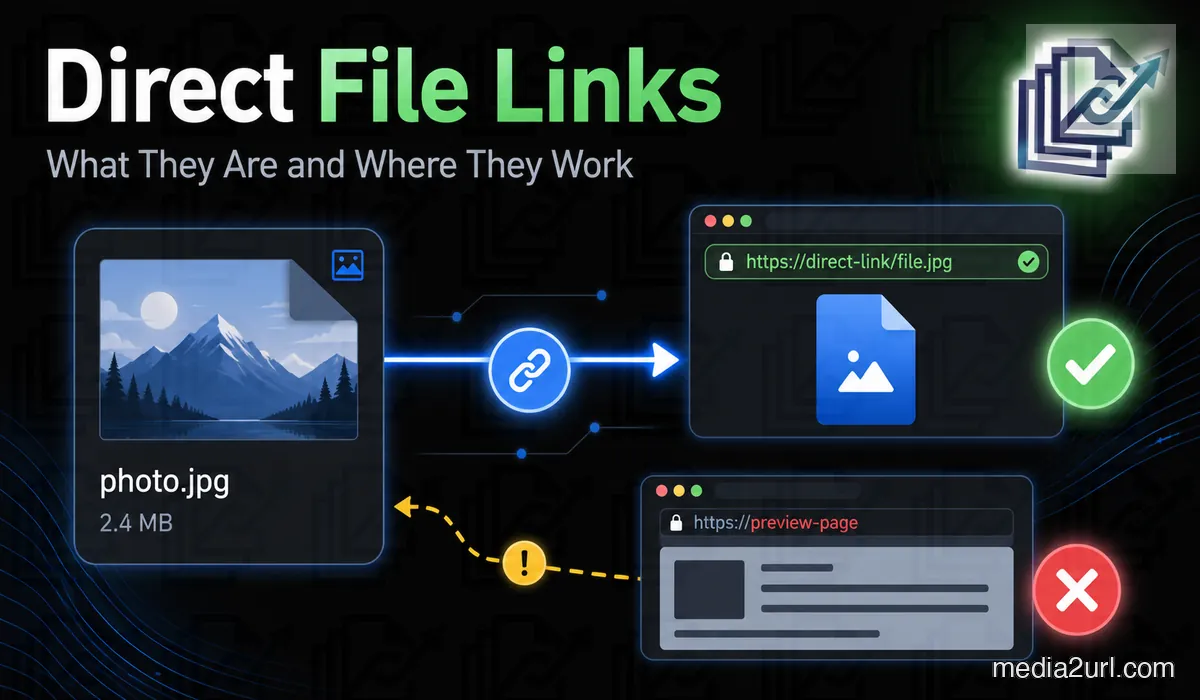
A file is on-line, however, when you are going to use that file next, you will need to provide the actual file and not just the page that was created around it. This situation arises with images within HTML, a download link for a PDF, an audio player, or a video player. For every one of these types of files, the location of the file must be accessible in such a manner that the site/app that uses it can understand.
A direct file link is the URL that provides access to a file, either directly or through a redirection. This document will explain how this works with different file formats, what the server returns to the browser, and what to look for when your link doesn't work the way you want it to.
If you only need to choose between Media2URL's Direct URL and Share Page after an upload, the Direct URL vs Share Page URL article covers that decision separately.
What is a direct file link?
A direct file link is a web address (URL) that provides the user with the actual file. This may occur directly upon clicking the link, or it could require the user to go through one or more redirects before accessing the file. Direct file links do not direct users to pages with files embedded in them.
For example, this address could return a WebP photograph:
https://files.example.com/product-photo.webp
You could place it inside an HTML image element, provided the image is publicly accessible and the receiving website supports its format.
Now consider another address:
https://example.com/share/product-photo
This might open a page containing exactly the same picture, along with its filename and a download button. It would be convenient to send to a customer who wants to see the photograph, but the address wouldn't necessarily work inside an HTML image field.
Both types of links have their uses. The difference lies in how the server responds to each request for each type of link.
A direct URL may contain many different forms of endings (e.g. .jpg, .png) and does not need to end with one of these. Many hosting providers provide images via URLs that are generated identifiers or other types of URL structures. If the receiving application receives the image as requested from the URL, then the fact that there is no .jpg or .png at the end of the URL will not be an issue.
A URL that ends in .jpg may provide a web page displaying an error message. Therefore, you cannot determine if a URL is direct just based upon the file extension.
What does the server actually return?
The browser will send a message to the server for each URL you open. In return, the server will send back the data requested along with additional information (headers) that tells the browser how to deal with the data.
One of those headers is Content-Type.
A JPEG photograph would normally be returned with:
Content-Type: image/jpeg
A PDF commonly uses application/pdf, while a normal webpage is generally served as text/html.
For example, if you are looking for a picture from a specific URL, and the URL gives you HTML instead of a picture, then there is a chance the server has given you either a photo gallery or a login screen. Content-Type can be a good indicator that a file exists and is accessible, however, it is not evidence that the file is correct.
A direct link can download the file instead of displaying it
When clicking on a URL and a download begins, some individuals may believe that the URL was not a direct link to the file. However, this is not always correct.
A PDF file can be accessed through two separate links with varying results in the user's web browser. One link will open the PDF within the built-in PDF reader, while the second link will prompt the user to download the file.
The variation lies in Content-Disposition.
A server can suggest normal browser display:
Content-Disposition: inline
It can also ask the browser to treat the file as a downloadable attachment:
Content-Disposition: attachment; filename="catalogue.pdf"
Both methods deliver the file directly. Your browser's settings and its support for the particular format can influence the final result.
This distinction is useful when you're creating a download button. You may want customers to save a PDF rather than opening another page containing a preview.
Where direct links are useful
The type of link that you will require depends on the location of the file. A photo within your site will have other requirements than a brochure that you send to a customer via email, although both may be uploaded using the same web host.
Adding photographs to HTML
An ordinary HTML image tag (<img>) uses its src attribute to tell the browser what image to load.
Here's an example:
<img
  src="https://files.example.com/product-photo.webp"
  alt="Blue ceramic coffee mug"
>
When someone visits your website, their browser will request the image at the URL listed in src. If you use a cloud storage preview link in src, the browser may receive an entire HTML document. Since the browser cannot render an HTML document as the image you want to provide, this is not a valid way to load images onto your website.
A URL that requires a user to sign-in to access the content can also create a similar issue. In cases like these, use the direct image URL provided by your hosting provider. Then test the result on the actual webpage.
For a screen capture that needs a hosted address, Screenshot to URL can capture the screen or accept a saved screenshot.
Images in Markdown and forums
The manner in which images are inserted into posts using Markdown is unique.
Here's what the same photograph would look like:

The text contained within the square brackets identifies the photo, and the URL directs the platform to locate the photo.
Many forums utilize BBCode as an alternative to Markdown:
[img]https://files.example.com/product-photo.webp[/img]
While the syntax of each differs, the need for hosting remains virtually identical. The platform requires the image content itself and not simply a web page displaying the image.
If you can click on the link to view the image, but cannot get the image to appear in your post, verify that you have provided the URL to share the photo and not the URL to access the photo. The same Markdown image syntax can display an animated GIF when the platform allows remote GIFs. If you need a URL for a supported animation, use GIF to Link.
Audio and video players
A direct file URL can be utilized to enable users to listen to the recorded material directly on your web page.
For example, HTML can load an MP3 into an audio player:
<audio controls>
  <source
    src="https://files.example.com/lesson.mp3"
    type="audio/mpeg"
  >
</audio>
Videos use a similar arrangement:
<video controls>
  <source
    src="https://files.example.com/tutorial.mp4"
    type="video/mp4"
  >
</video>
These examples assume the browser supports the format and the server permits access to the recording.
When you use larger media files, you are faced with a new issue. Users who fast forward through an interview that lasts for an hour could potentially download only the portion of the recording they wish to hear instead of having to download the entire recording once again. If the server is capable of providing the user with only the requested segment of the recording, it can do so using the HTTP status code 206 Partial Content.
Therefore, if your users are experiencing problems attempting to skip forward through the recording even though it has downloaded completely, you should determine if the server supports partial file requests.
Dropbox shows why redirects can be confusing
The direct file link does not always result in a file download after the initial request. In some cases, the hosting service may direct the browser to a different URL where the requested content is located.
Dropbox offers an example of this behavior; the regular sharing link will take you to a preview page. Dropbox states that dl=1 tells the browser to download the file and raw=1 tells the browser to display the file.
However, there is a catch with raw=1: Dropbox states that if you change a sharing link to include raw=1, you will cause a redirect. This means someone could view the photo in their browser but not be able to use the same URL to access it using another program. Redirecting is one way to explain why the user was unable to use the same URL to access the photo in both applications.
[!NOTE] Dropbox Redirect Behavior: Dropbox officially documents that appending
raw=1to a shared link causes an HTTP 3xx redirect to the final storage server. Applications that do not follow HTTP redirects will fail to load the media.
Someone might successfully open the photograph in a browser and then discover that an importer refuses the same address. The redirect is one possible explanation.
This doesn't mean every redirected URL is unsuitable for direct file delivery. The important part is where the request eventually ends.
Our Dropbox direct link guide explains the differences between dl=0, dl=1 and raw=1 in more detail.
Before blaming the URL, check who can access it
Another simple test only requires that you open a second browser window. You then copy the URL of the image, paste it into the new browser window, and view the page in Private mode.
If the file asks you to login, then your regular browser session is likely hiding a permission restriction. Cloud storage links are a good example of this type of restriction. While the person who posted the image has access to view the image since he/she is logged into his/her cloud storage account, someone else who visits the site would not be able to view the image without being logged into a similar cloud storage account.
A Private mode will help identify when this type of issue occurs. However, a Private mode will not allow you to determine if an external program can read the format of the file, nor will it provide you with any redirection information on how to get the file to its destination. Therefore, if the link continues to be available, but the file fails to reach its destination, examine the response from the server more closely.
Checking the response yourself
For somebody comfortable using Terminal, curl can show the HTTP response headers:
curl -I -L "https://example.com/file"
The -I option requests headers, while -L tells curl to follow redirects.
Look at the final status code and content type. If the original address redirects, you can also see the responses along the way.
The only drawback to making HEAD requests using curl is that many web servers treat HEAD requests differently than standard GET requests. Therefore, if your results appear strange, verify that you can retrieve the specified file prior to determining whether or not the URL is invalid.
For reference, these are some of the response details worth inspecting:
| Check | What it can reveal |
|---|---|
| HTTP status | Whether the request succeeds, redirects or fails |
| Final content type | Whether the server reports the expected file format |
| Redirects | Where the original address eventually leads |
| Content disposition | Whether the browser is asked to display or download the file |
| CORS headers | Whether the server permits the browser access required by a script |
| Byte range response | How the server handles requests for part of an audio or video file |
It's not necessary to examine each header every time you upload an image. Start by identifying the issue you're attempting to resolve and then review the information related to that issue.
Checking a URL with Media2URL
Media2URL has created Link Doctor for when you would like to test a public URL that is supported by Media2URL but don't want to go through the process of manually testing it.
Link Doctor will follow redirects and report on what the HTTP response looked like, such as the final content type, CORS information, and how the byte range behavior is for supported media.
Link Doctor will not fix a missing external file, nor will it circumvent a restriction put in place by another service. Do not enter private signed URLs or credentials into any public URL testing services.
The image displays, but JavaScript can't use it
When you put a photograph hosted at a different location than your website on your site, it displays properly; however, when you try to use an editor that runs within your web browser to alter the photograph (e.g., cropping), the editor will not allow you to do so. This is likely due to "Cross-Origin Resource Sharing" (CORS).
Browsers treat each instance of displaying an external image differently. A standard HTML image tag typically allows you to display an image from a different domain than your own without having to receive permission from the host of the image to access its content.
However, when an editor uses HTML Canvas technology to manipulate images, the editor requires that the host of the image grants permission to access the image content via appropriate CORS headers. If the host does not grant this permission, then the editor may not be able to read the image's pixel information, even though the image itself is visible.
If the image element itself shows a broken picture, I wouldn't start by assuming CORS is responsible. The URL may return the wrong content or require a login. Those problems need to be checked separately.
For other reasons an image can fail to display on a website, see our image link troubleshooting guide.
A direct link might be temporary
When you get a file response, it is not clear how long the URL will continue to exist. Many hosting providers produce URLs that allow access to files for a set amount of time. After the specified time, the provider can stop allowing additional requests to the file.
For example, Amazon S3 produces pre-signed URLs which expire based upon your configuration. Google Photos produces media URLs that expire after one hour.
A temporary address might resemble this:
https://files.example.com/photo.jpg?expires=...&signature=...
This is only an illustration. The presence of query parameters doesn't prove that a URL expires, since plenty of ordinary links use parameters too.
Your real-world problem is what occurs when you provide the URL to users. If you include a temporary image URL in an article that users will continue to view for several months, the image should display correctly initially; however, when the URL expires, the image will no longer be visible. Ensure that the URL being provided will be available continuously.
When an image only needs to be shared for a defined period, Image to Link lets you choose an available expiry option as you create the link.
Direct doesn't necessarily mean public
A direct link to a file can deliver a private file to a person with temporary permission. A direct link can also require the user to log in before the server will deliver any files. Direct access to files and publicly accessible files are two separate things. Some hosting services allow a user to view a photo directly, but will not allow them to view the same photo if it is displayed on another site.
Just because you found another person's photo on a publicly accessible web page doesn't mean that you have the right to copy and paste the photo into your own site, or use the photo for commercial purposes. You must first find out whether the person owns the rights to the photos they post online. If you are uncertain about ownership, do not use the photos without asking.
When Media2URL gives you more than one link
If another site or app wants to access the file you're hosting, then you should use the direct file URL. Your share page is designed for people who want to open a standard web page that surrounds the file. Download output is best when you want to save the file. If you are deciding which one to copy after an upload, the Direct URL vs Share Page URL article goes through that choice in detail.
Before publishing the link
When a URL seems correct but isn't working, start by looking at what you've done. Are you trying to copy the direct file address, or are you trying to copy a web page that contains the file? To see if an image from a website is working, try using the URL on the web page that you found it on. To see if an audio or video file works, try to play it within the application (player) in which you plan to use it.
When you need a hosted address for a new recording, the Audio to Link tool creates the available audio URLs after upload. For a finished video that needs a shareable URL or browser playback, use Video to Link. If the issue continues after doing these things, then take a look at the final response.
Frequently Asked Questions
Does a direct file link need to end in a file extension?
No. An address that doesn't end with .jpg, .png or .pdf will often still be able to download a legitimate document. It's the ultimate response from the server that indicates whether the file is valid.
Can a direct link pass through a redirect?
Yes, a hosting service may redirect the request prior to providing the file. One example of this would be Dropbox's documented use of raw=1 behavior. The application receiving the URL will need to process these redirects appropriately.
Is a direct download link still a direct file link?
Yes, there is a possibility. A server can send a user's browser the exact file requested, but ask the browser to save the file as an attachment. This will result in a download of the file rather than the user being able to view the file within the browser.
Why does an image open in my browser but not on my website?
Your current web browser may have been logged into the same account that is displaying the image. Additionally, the URL may provide a preview page or prohibit access to the URL by external sites. Therefore, you should check the last response from the URL and then test the URL without using your regular account.
Can I use a temporary direct URL on my website?
You can do this, but the file will go away once the web address is no longer valid. For visitors to have ongoing access to the files you make available, it is best to use a URL that has been designated to be accessible for the time you want visitors to be able to find the files.
Is a direct link always publicly accessible?
No. There are two different methods for providing files to users. One method is by directly giving them the file, while the other is by allowing the general public to view files. If you have granted a user permission to access a file, you may provide them with a temporary signed URL that will allow them to download the file.
Related guides
Our Dropbox Direct Link guide explains how Dropbox's sharing parameters affect the response. If you're deciding which Media2URL address to use, Direct URL vs Share Page URL covers that choice in more detail.
You can also read What Is an Image URL? or follow the image link troubleshooting guide when a photograph refuses to display on your website.