


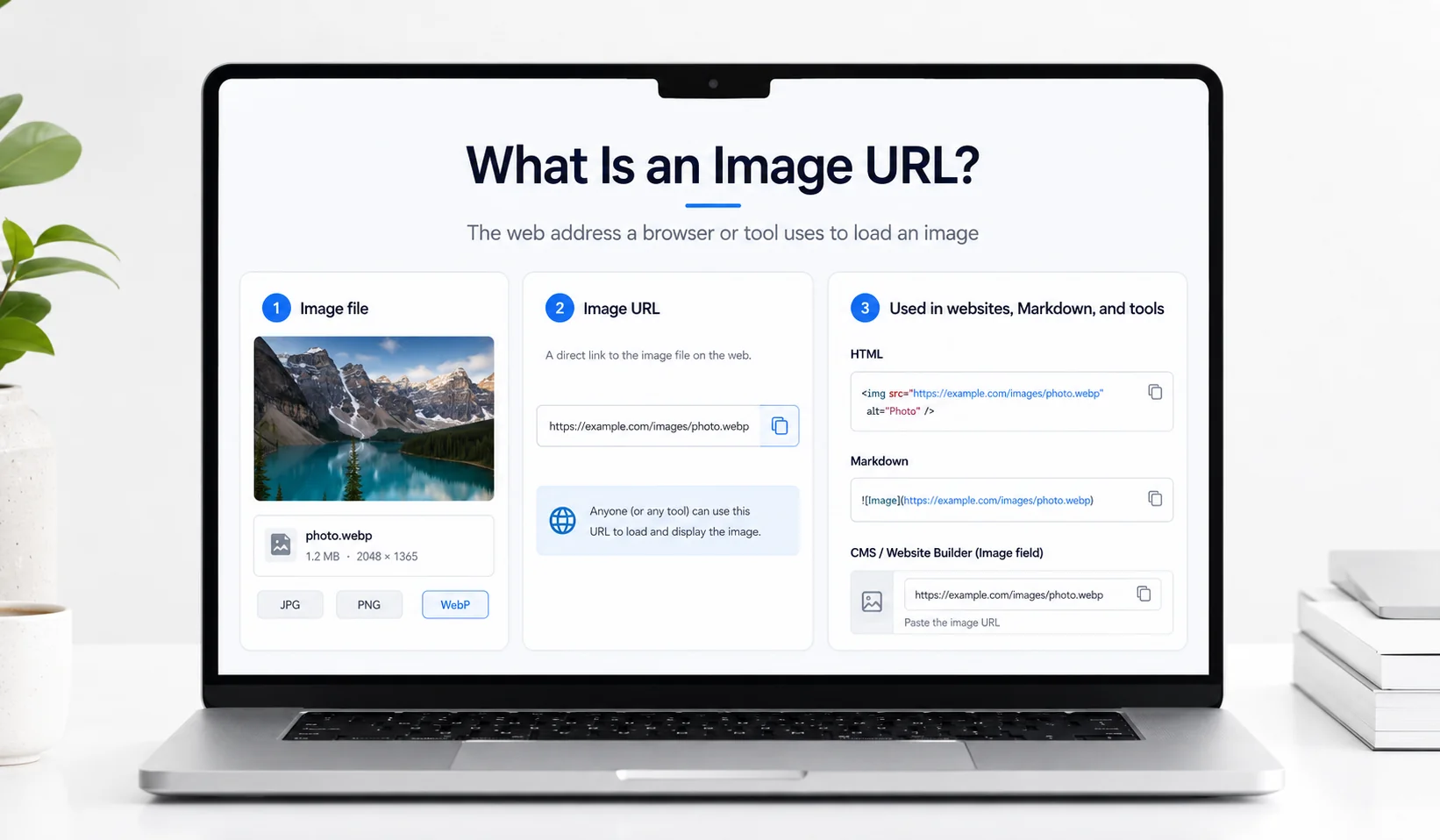
A website building program requires a web site where a user can enter a URL (Uniform Resource Locator) of a digital file (such as a photo) so that the file will be retrieved from that location. This is simply a term that describes the Internet location where other computers/browsers/applications will find the file.
After you have saved the image to a location that can be accessed online (such as your own server), you may use the URL of the image within your HTML, Markdown, product catalog, or any other program that will allow for referencing images from outside sources. Your image file will remain in its original hosting location; however, the URL will provide the next website with the knowledge of where to find the image.
That location on your computer does not have to be named like a typical file. It only needs to lead to an image that the site you are sending it to can access.
What an image URL looks like
If you have a digital picture called "photo.jpg" inside your "Downloads" directory, then you can view this image from within your web browser using any application that supports viewing files from your local hard drive. However, a user who is browsing your site will not be able to locate the digital picture on your personal computer.
Now imagine uploading it to a website that stores images. After the upload, the file might have an address like this:
https://example.com/images/photo.jpg
Imagine you are going to upload that photo to a website that will store photos. After you upload the photo, the file will be located at some address (e.g. https://example.com/images/photo.jpg). This is what is called an image URL. Your website will need to use the photograph in order to show it on the site. Your website visitor's browser will request the photograph using the image URL. The server will then send back the photograph if the photograph is still there and the visitor can see it.
Looking at the actual address (https://), you can see what type of scheme was used to make the request. The host is example.com, and the path that points to the image is /images/photo.jpg.
Not all image addresses look this tidy, though. A photograph delivered through a content delivery network might have a URL like this:
https://cdn.example.com/a8f2/image?w=900&format=webp
The extra information that appears after the question mark in a URL can indicate to the server that you are requesting a specific version of the image.
Therefore, you can't always tell if a URL points to an image simply because of how it ends. You don't need a URL to end with.jpg or.png for the URL to point to an image. In some cases, a service will use a very long identifier rather than a easily identifiable filename. In other cases, a service may create several different versions of an image based upon the parameters in the URL.
Where image URLs come in handy
In most cases, you won't have to find the URL for an image. For example, if you're using WordPress to add a photo to a blog post, the system's media library will usually automatically generate the URL for the image. Most other web design systems also handle this task. You choose a photo on your computer and then let the system handle generating the URL.
When you're making a product page and the photo you want to use can be accessed via a different service than what you're using to build your site, your website builder will usually allow you to enter a URL to the external image. Rather than taking up space on your own site by uploading another copy of the image, you'll be able to simply copy and paste the URL of the hosted image, as long as the service allows you to display that image on your site.
If you were writing the page in HTML, the equivalent would look like this:
<img src="https://example.com/images/photo.jpg" alt="Product photograph">
The src attribute in HTML contains the URL that the web browser will retrieve. Similar HTML can be produced by your website builder, and as such, providing a valid image URL is all you need to do to have the image displayed.
The same idea works with Markdown
GitHub README files are a familiar example. You may want to add screenshots to explain how a project works, but the document itself uses Markdown rather than normal HTML.
To display a hosted screenshot, you can write:

Instead, you have to write out the image's location inside the brackets, and the link to the image in the parentheses. Then when the Markdown file is rendered, the program will try to download the image from the specified URL.
For an animated image, GIF to Link hosts supported GIF files.
Certainly, the image must also be able to be viewed. If you paste a link to a private gallery into Markdown, the image will not suddenly appear.
The same type of layout applies to product catalogs. If you have hundreds of products listed in your spreadsheet and each product has a picture associated with it, you do not need to put the pictures directly into the spreadsheet; instead, you can put the URL for the picture into a column in your spreadsheet.
When those product images are ready together, Bulk Image Upload creates individual URLs for a batch.
An e-commerce platform that is compatible with your store will be able to access those images through the import process of your products. Automated tools may also be used in a similar manner by taking an image URL from one application and transferring it to another. However, not all platforms accept external image URLs; some require that you upload photographs into their own media libraries.
An image URL and a page showing an image are not the same thing
The same is true for a gallery page which can show a photo in its entirety, but will return a regular web page instead of a photo file. In most cases when someone else's website requests the URL of an image source, they are looking for the URL that provides the photo.
A share page remains beneficial for users who want to view an image within a web browser. However, a simpler concept exists as well; an image URL represents the location where a user can obtain the image. The Direct URL vs Share Page URL article explains that choice in detail.
Getting an image URL for a photograph on your computer
You may not have uploaded the image anywhere yet. It is currently located on either your laptop or phone. However, the app that you use to upload files does not support regular file uploads. Therefore, you will need to find another way to host your image online.
If your current web site includes a media library, it may be possible to upload the photo to that area of your site and obtain the file URL. Typically when you upload images via the media library of WordPress, it creates an address for the images. Alternatively, if you do not have a media library, you can use an image hosting service to generate the address.
The Image to Link tool at Media2URL allows users to select an image from their device in one of the supported format types. Once uploaded, the Image to Link tool will generate a list of links associated with the uploaded image, including the URL where the image is stored.
You will typically provide this direct URL if you need to use your photo on a third party site that requires the photo's source. If all you are doing is sharing the photo with someone else, then you can share it via the "share" page.
There are two factors to consider prior to selecting the best location to host your image: the length of time your image will be hosted. For example, if you plan to share an image with others in a group setting for only a limited amount of time (such as for a discussion), then you may choose to use a temporary hosting service. On the other hand, if you plan to use an image on a public website for an extended period of time (such as for several years), you should select a more permanent hosting service.
The web page that was using that image will likely cease to display the image when the address has expired, or the file itself is deleted. What occurs with the file after its initial use depends upon the policies of your hosting provider regarding storage, as well as the settings for links.
One photograph, several websites
A practical benefit to having a reusable image URL is that you can reuse an image multiple times across your website. For example, if you create a promotional graphic, and then add it to your landing page, you may want to include it in a blog post as well. Additionally, you may want to include the graphic in another part of the campaign that requires the graphic for a completely different section of the campaign.
As long as every app will let you upload your image separately, you may be able to do this with as many apps as possible. However, once you make changes to the design, you now have to find and replace all of the separate images that were created when you uploaded the image into every app. If you use a good hosting service, then each page can use the same image URL. In essence, you are saving the image in just one place and using that URL to use the image in other apps.
Replace the current image with the new design and keep the same URL to avoid having to update each of the pages. However, if there are older blog posts where you would like the original image to remain intact, then you will need to create a new image for the revised design.
Media2URL allows you to manage the replacement of your files as well as maintain a record of all previous versions (history) of these files, for those that qualify. This means that you can make changes to a file that is currently being used, and keep using the same URL that was initially created for that file. Also, you have access to a control panel where you may select from a list of past versions of the same file to be restored.
Another issue with replacing an image is that although you updated it, a user's web browser or a CDN (content delivery network) could still display an old version of the image for some time. Having the same URL makes things simpler; however, this doesn't guarantee each person visiting your site will see the new design right away.
What if each website needs a different image size?
A product photo may be seen as a tiny thumbnail in a catalog, and then as a large picture if a customer clicks to see the full description of that item. Using the exact same large file to serve as a thumbnail, as well as a larger version of that same product photo will result in using more data than is required by the smaller layout. To create all of the sizes needed for each use would become a long, tedious process.
The Media2URL allows for image transformations controlled through the URL on supported images. Transformations include modifications of the image size and how the image will be delivered. The results of the transformations can be outputted in various formats including WebP and AVIF. This enables a compatible web site to obtain a specific format of the image instead of the need to create and upload each modification.
Editing the photograph itself is a different task. For instance, if you would like to place a watermark on your photo, or if you wish to draw an arrow that points to something within the photo, then you would utilize an image editing software program. The Media2URL Image Editor offers features to make these types of modifications to your photograph, in addition to being able to adjust and crop your photograph.
If the image URL works in a tab but not on the website
If the image URL loads properly in a separate browser tab, however, fails to load on the site, then the URL could require authorization that the user doesn't possess, the hosting provider could block requests sent to other sites, the image link could have expired, or the site itself might be preventing the image from being displayed. Try loading the exact URL that was unable to load in the location that it was failing, then reference the image link troubleshooting article if you would like to delve deeper into why this issue occurred.
Do you really need to manage image URLs yourself?
Most often, a website editor which allows you to upload directly to it handles the image URL for you; so, you do not need to worry about the mechanics of the URL. However, there are times when knowing how image URLs function is necessary. For example, if a different service requires a URL to an image you have hosted, if you are editing HTML or Markdown and wish to include images, or if you have multiple programs needing access to the same hosted photo.
A product catalog that contains hundreds of image URLs relies on the accessibility of those images. If you move the images, remove an old hosting account or update the image URL and don't update the catalog, then your images may disappear from your listings.
Frequently Asked Questions
What is an image URL?
A web address (or URL) used by a web browser or other application to fetch an image. Unlike a file location on your own machine, a publicly accessible URL for an image allows other machines to request the photo from the server hosting it.
Does an image URL have to end in .jpg or .png?
No. Many times the image's address will contain file extensions that you recognize, but many times it will contain an identifier or other parameter. What is important is that the server provides you with the image data in a format that your receiving program can process.
Where can I use an image URL?
You can find these in HTML and Markdown, as well as product catalogs and compatible automation tools that pull hosted images through image URLs.
What's the difference between an image URL and a share link?
Direct images provide the actual photograph, while share links typically open a web page containing the photograph and additional controls. When a website requires an image source, it will most likely require the direct image URL.
How do I get an image URL for a photograph on my computer?
After you have uploaded the image to a website, CMS Media Library or appropriate image hosting service, you can obtain a direct link (URL) for the image if other applications require access to the actual image file.
Why does my image URL open in a browser but not on my website?
You might be linking to a "preview" version of the page, not directly to the image itself. Or, it's possible that the hosting provider has restrictions on who can view images from other sites. To see if there is an issue with the URL you're using, try viewing it while not logged into your account and see what response the server gives you.