


There are many different types of "broken image" issues; however, one of the most frustrating is when the image appears to load properly (you can view the image when pasting its URL directly into your browser) but then doesn't appear correctly when used within another application such as a website, product listing, Markdown file, or image field.
Rewriting the URL will probably not change anything. It is unlikely that re-uploading the image will help either.
The explanation is simple, however; finding out why takes some effort. Opening a URL yourself and requesting a web page with that same URL is not necessarily the same thing. For example, your browser may be displaying a page around the image, you may have opened the image in a browser that has a user account currently logged into, or you may be sending the request in a manner that the image hosting service allows, whereas if you attempted to send the request from a different website, the service would refuse it.
The image could be in perfect working order during each of those scenarios. Therefore, I would focus on examining the request.
Before touching the image, find out which part actually failed
When you treat every single "broken image" issue as a single problem, you make solving it much harder than it needs to be.
In reality, there are several completely different problems that result in the exact same empty boxes appearing on your web pages.
| What happened | What I would investigate first |
|---|---|
| Your browser opens a nice page containing the photograph, but the website cannot display it | Check whether you copied a viewing page instead of the image source |
| It works in your normal browser but not for another person | Check whether your account or saved login is providing access |
| The image opens directly but disappears only when another website embeds it | Look for restrictions on use from other websites |
| The browser receives the image successfully but nothing appears on the page | Stop blaming the image host and inspect the page itself |
For example, a user may have copied a viewing page rather than the actual image source; a user may have been required to log into a system in order to view an image; there may be limitations placed on the ability of users on other sites to access images; and finally, there may be some form of CSS or page layout blocking the image.
Therefore, before you upload yet another copy of the image, find out if the browser was unable to retrieve the image or if it was able to retrieve the image but unable to display it.
Those lead you in completely different directions.
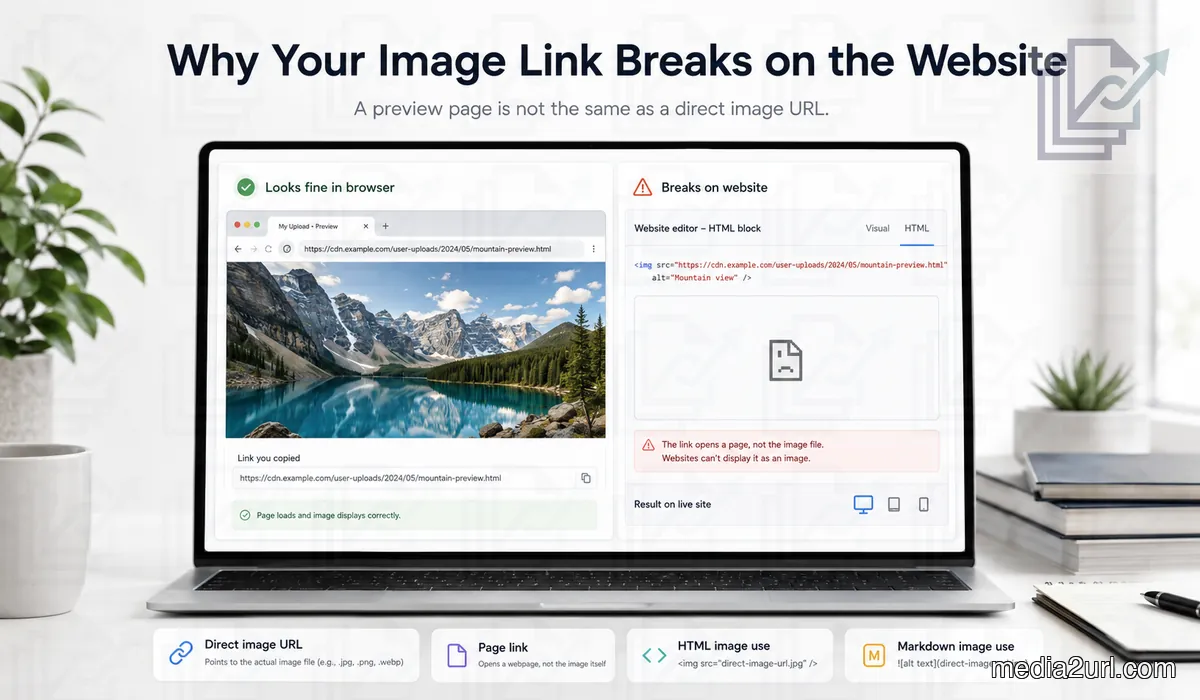
The link that shows the photograph may not be the photograph's URL
I would begin at this point if someone stated, "The link worked when I opened it."
Let's say you take a picture of a product and use a large Copy Link button to copy the link:
https://example.com/photo/blue-chair
When you click on the link, you will see a photo of a chair, as well as its file name, logo and download options.
However, what was loaded into your browser was a web page and not the image file (which is required by the <img> tag) that you wanted.
Your product catalogue may instead need something closer to:
https://cdn.example.com/media/blue-chair
When the product page uses that address inside an image element, the browser can request the media itself:
<img src="https://cdn.example.com/media/blue-chair" alt="Blue chair">
The image URL doesn't necessarily need to end with .jpg, .png, or .webp.
It's common for CDN-generated URLs to be used, and the image response received from the server isn't required to reveal either the original file name or extension. What you receive from the server is far more important than how the URL appears.
This same error can also occur within Markdown:

If you use a regular viewing page inside the brackets, the Markdown parser will often fail; however, if you click on the URL manually you will view the photo.
Use the direct output when another website requires the image. Use the share page when someone wants to see the page surrounding the upload.
This is exactly why Media2URL keeps direct file URLs separate from share pages. The distinction is covered in more depth in our Direct URL vs Share Page URL guide.
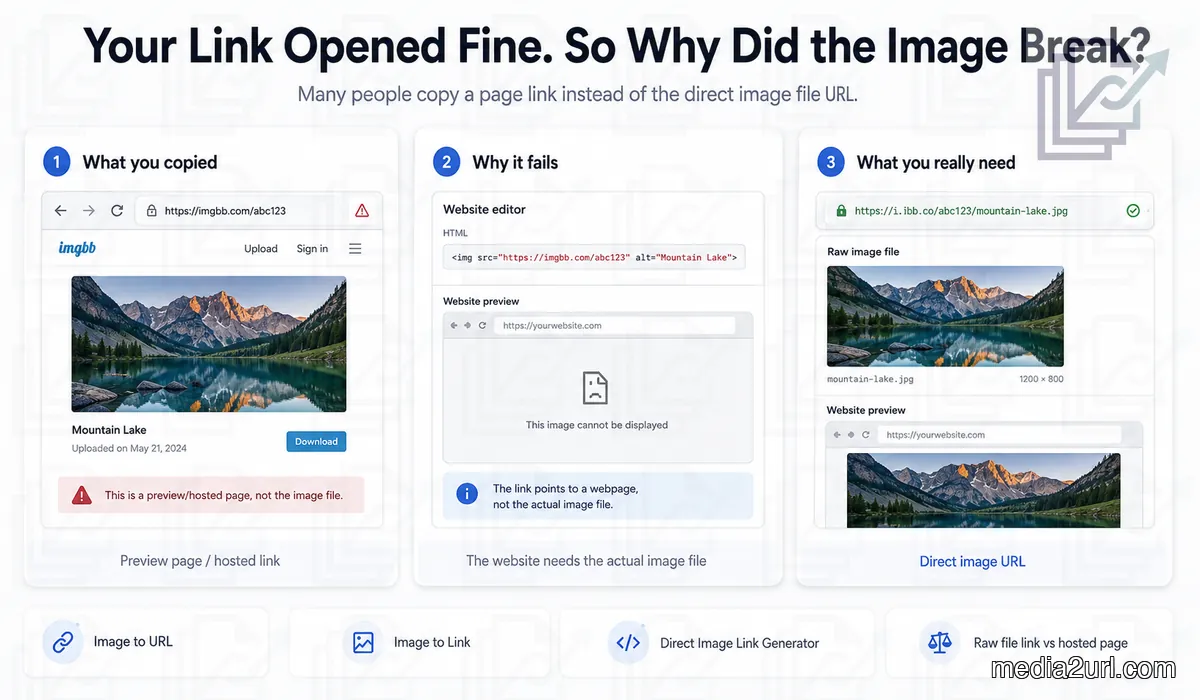
Your browser may be giving you special treatment
A seemingly correct link can function as long as the hosting provider recognizes your identity.
You uploaded the photo while logged into an account. Within ten seconds, you copied the link to the image and attempted to access it in a different browser tab. Since the hosting provider is still aware of your active session, they will provide the image to you without requesting any further information.
Visitors to your site do not share your active session; neither do individuals accessing your site from a mobile device.
Therefore, opening a private browsing window at the beginning of your troubleshooting efforts can be beneficial. Enter the precise URL of the image into the private window, without logging into the hosting service.
Should a login screen appear, the image is not available for public viewing. If the image loads correctly within the private window, then your login status was not what caused the problem.
Making the file public is not automatically the right solution, of course. A private photograph should remain private. What changes is the way you need to deliver it.
Media2URL separates this question from the type of link itself. Our Public Link vs Private Link guide goes into that part separately.
The host may be happy to show you the image but refuse to serve it on another site
If the URL does lead to the image and it displays correctly in a new private browsing window, however, it does not display once you embed it into your blog; then you should consider whether or not the image hosting service will allow their images to be viewed from other websites.
One of the main reasons for this is "hotlink protection." Hotlink protection, such as what is provided by Cloudflare, checks the HTTP Referer header of every image request. Requests that originate from another website may be rejected while direct URL requests in the address bar of a browser are allowed.
Hotlink protection was designed to prevent other websites from using up your bandwidth. If you are the owner of the image hosting service, make sure that this setting is turned off. Otherwise, it would be much easier for you to host the image on a service that allows for images to be embedded into other websites rather than having to use complex and unreliable methods to circumvent hotlink protection.
A link that worked last week can still be the problem today
Not every broken image fails at publication. A product listing may appear correct upon publication and have lost its image after three days.
A common reason is a temporary signed URL with an expiration parameter:
https://cdn.example.com/photo.jpg?expires=1800000000&signature=example
After the expiration of the URL, the image remains in the repository, however, the URL is no longer valid.
Generating a new temporary URL merely delays the failure; the long-term assets of a website require permanent URLs.
Deletion of files, moving of files, or migration of files can also lead to sudden 404 errors on existing URLs. Aggressive caching by either the content delivery network (CDN) or browser may also result in displaying an out-of-date image after it has been replaced.
Link failure that occurs initially versus link failure that occurred after a long period of time will require separate troubleshooting approaches.
Check what the page actually received
If you have already performed the previous checks and they haven't solved the issue, then you should go to the page containing the missing image, and view the Network tab within your browser. Once you have opened this tab, reload the page.
Now, find the request that was made for the image. It doesn't matter if you can't read all of the information in this tab; first see if the page even requested the image and what was returned.
If no request was sent for the image, then the page might be attempting to use a different URL for loading the file, or it may be waiting to send the request.
If the request was denied, then the problem lies either with permission issues or the image host.
If the request was approved and a standard web page was returned instead of an image, then it is very likely that the URL you used to copy the address for the image is actually a viewing page or a login page, not the image itself.
There are times when the image does make its way into the browser, however, it remains invisible on the page due to either being hidden or having no usable dimensions.
For a public URL, Link Doctor can make this check easier by showing where the address redirects and what the final response contains.
Think differently about images that are used in ten places
When you take a screenshot of something to show a single co-worker, it has different needs than when you create a product image that is displayed on thousands of web pages. When you need to capture or upload that evidence before sharing it, Screenshot to URL provides the workflow.
When an image will last long-term, it becomes essential to provide reliable access to that image. For example, if a company uses the same logo image as a resource across many different areas (i.e. website, documentation, emails, applications) then if anyone removes the file from the original location, or updates the public URL for the file, all of the locations where the file is referenced could potentially break.
We considered this factor when developing Media2URL. Once a file is being utilized by multiple resources, providing consistent access to that file is more important than providing a way to replace the file with a new one.
With Media2URL files that qualify for managed file replacement, you can update the active file without changing the URL used to reference the file. Previous versions are retained through the supported version history, so a replacement can also be rolled back when needed.
Before uploading the photograph again
Usually nothing is different, yet when a link works in some locations and doesn’t work in others, uploading another copy of the same image seems like progress.
To determine if there are issues with the image link, first try to view the exact URL that is being called on the original page inside a private browsing session. If you get a complete webpage, then look for the direct image URL. If you find yourself having to log into the site to see anything, then you may be having difficulty accessing the content.
After viewing the request made by the original webpage to load the image, and assuming that the image was downloaded successfully, turn your focus to how the webpage handles the request for the image.
The real issue is not just whether the image link will load; it’s how the webpage responds to a request for a specific image.
Frequently Asked Questions
Why does my image link work in a browser but not on my website?
Opening a URL manually can sometimes be successful even though that address cannot be used for embedding. You may be opening a share page, using an existing login, or making a request that the server handles differently than an embedded request.
How do I know if I copied a share page instead of the image URL?
Notice what is around the photograph. A full page with navigation, branding, a file name, or control options for viewing are all good signs. Testing the address in the image field itself is even more useful.
Does a direct image URL have to end in .jpg or .png?
No, a CDN or hosting URL generated can provide an image that is valid and does not display the original file name or extension.
Why does the image open directly but fail when another website displays it?
Image hosting sites can block requests made by outside sources. One reason for this is hotlink protection, especially if you are able to directly access the image, but an embedded request is denied.
What does a 403 error on an image mean?
The server received the request but refused it. There may be a permission issue, hotlink protection, or other access restrictions preventing access to the requested file.
Why does my image work on desktop but disappear on mobile?
Responsive markup using the srcset attribute may result in a different image being requested. Even if the desktop URL works, an image selected for a smaller screen may be missing or blocked.
Is every external image problem caused by CORS?
No. Ordinary external images can often display without needing CORS permission. It is only when your application needs to use the actual image data (e.g. draw it onto a canvas) that CORS is required.
Can a working image URL expire?
Yes, there are links with limited-time access that will expire at a specified time. If you want an image to be visible on your site long term, use a hosting arrangement intended for permanent availability.
Why is the image request successful but the picture is still invisible?
The issue might be within the page. For instance, CSS could have hidden the element or given it zero dimensions, another element may have covered it, or a responsive layout might use different settings.
Can Media2URL help me inspect a strange image URL?
To view redirected pages, use Media2URL Link Doctor on supported public URLs to see the redirection path and the final response. If your problem is deciding between the media address or the viewing page, read the Direct URL vs Share Page URL guide.
Related resources
If you need to choose between the addresses provided after an upload, read our Direct URL vs Share Page URL guide.
You can also use Link Doctor to inspect supported public URLs.