


A client is waiting on a proposal. You create the PDF using PDF to Link, and then you share the link. You receive a reply within minutes from the client stating that the PDF is requesting access. Although this is frustrating, at least you are aware of the issue.
The alternative error is harder to catch. The client opens the file easily and forwards your email to another individual who is able to open the exact same link as well. No one receives an error message, therefore, you will probably not consider reviewing your sharing options again.
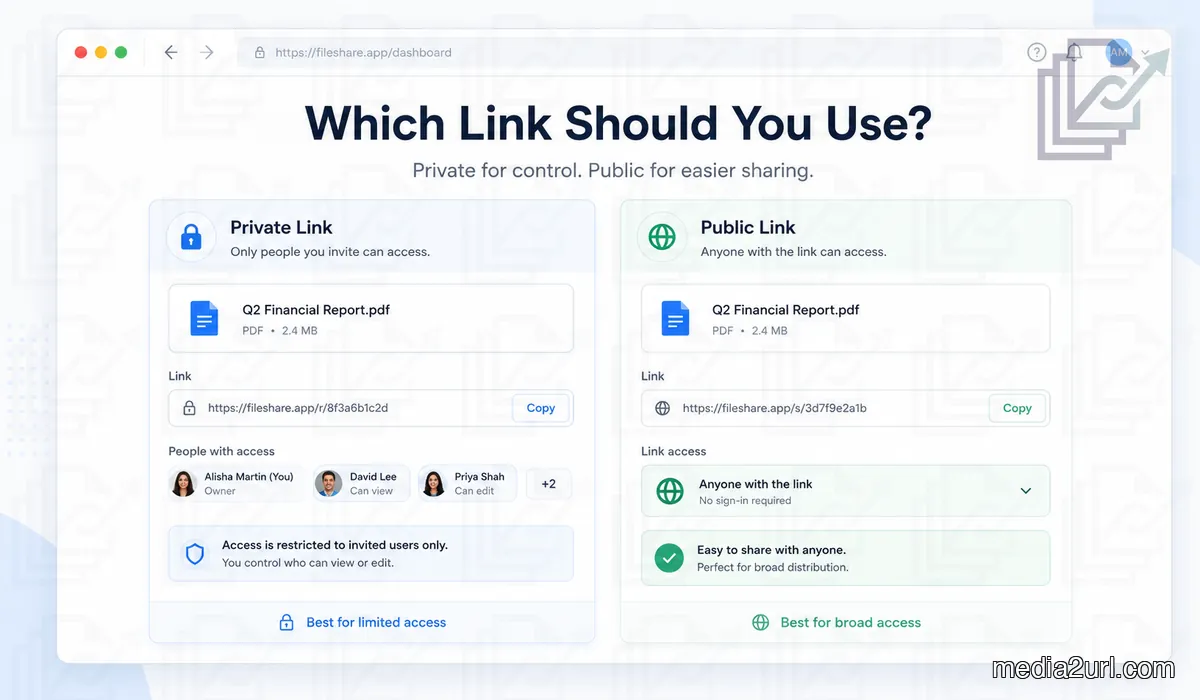
This is what determines whether you will share a public link or a private link. It is more than just choosing the label that you think will make the user feel safer; it is also about determining who can access the file once the URL begins to circulate.
For example, if you publish a brochure on your site, it is meant to be viewed by as many people as possible. On the other hand, if you create a proposal for one specific client, that document would likely only be viewed by that client. Even though both files may be in PDF format, their intended audiences are significantly different.
What changes when you choose Public or Private?
When you set up a link to share files with others on your team, you're creating a simple way for them to access the content. This is great for files that are meant to be widely available. For example, a company brochure, a public press release, or a downloadable resource can be accessed by anyone who gets the link. If every person who wants to see the content must request permission first, this can make using the file very frustrating.
Private sharing provides an additional level of security. When a user clicks on the link to view a file, the platform will verify if the user's account is currently logged into the platform. If the user's account was previously invited to join the platform, or if the user has access to the file via a shared folder, then the user will be able to access the file immediately.
Google Drive shows this through choices such as Restricted and Anyone with the link. OneDrive uses different names, including Anyone, People in your organisation, People with existing access, and Specific people. The labels are different, but the practical choice is familiar.
Do you want someone else to be able to access the file if they receive a forwarded version of the link?
Yes, if it is a company brochure. No, if it is a quote with pricing negotiated with a single client.
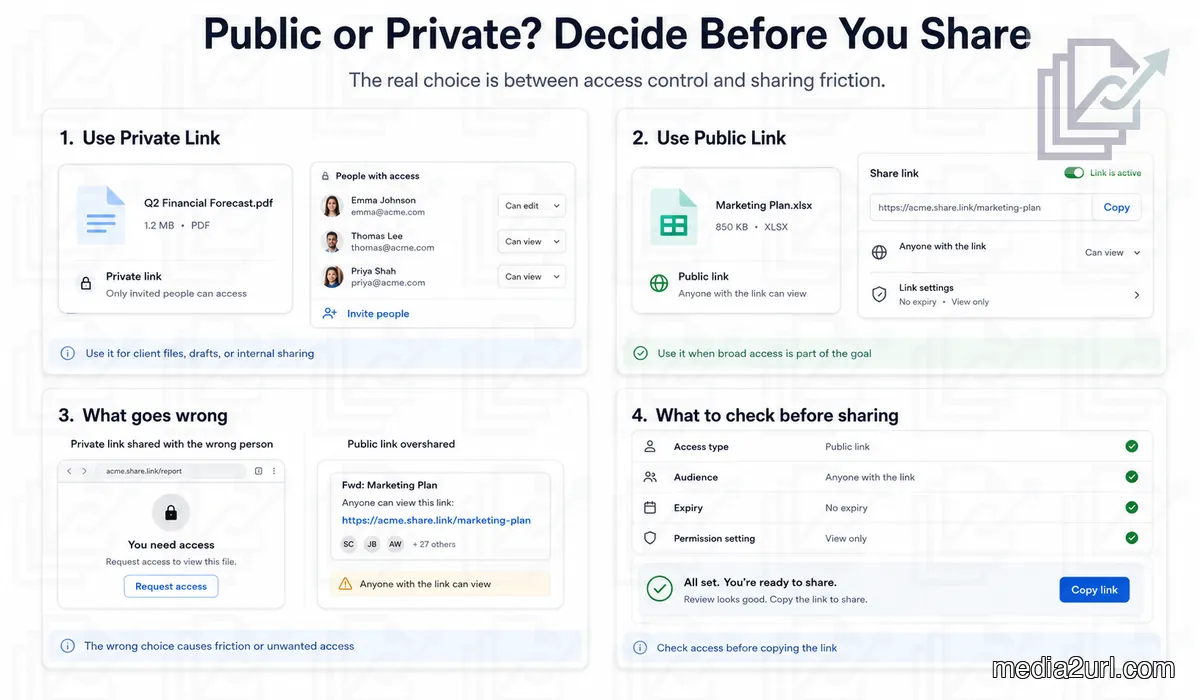
The choice between Public and Private is based upon what is best for the specific use case, rather than simply choosing Private.
Public sharing can be exactly what you need
The use of a media kit is a great illustration of this. When a media kit is used, it will be expected to travel. A reporter may take your logo and provide it to an editor. This editor may then forward an approved photograph to a designer who will create the layout for the story at some point during the same day.
You do not want each individual involved in this process contacting you to obtain permission to view the files. Since the files were approved for release to the public prior to being made available via the media kit, providing access to these files is the primary purpose behind why a media kit was created in the first place.
Similarly, a brochure that is linked to a website can be viewed by anyone who visits the site. Therefore, allowing all visitors to view the brochure without requiring them to log in does nothing to protect anything that would otherwise be valuable. All it does is add another step to the process which can potentially cause a person to become confused or lost along the way.
Where this becomes problematic is when there are materials that are publicly accessible and unfinished materials that are sitting side-by-side. For example, a marketing folder may contain both approved photographs and draft copies of documents that are still being discussed. It is far simpler to give the entire folder broad access than it would be to separate the draft copies from the approved photographs; however, doing so gives the draft copies the same audience as the finished photographs.
That setup can be forgotten surprisingly quickly. A few months later, another person sees the folder as a collection of public assets and adds something there without knowing that some files were supposed to stay inside the team.
The access did not suddenly become wrong. The contents changed while the old permission stayed in place.
The link can travel further than you expect
Most people who forward an email do not view it as a security decision; they just want to share the document with a coworker.
If a proposal is sent to two coworkers, they can both forward the email. If they each send the email to two of their coworkers, there will then be six individuals who have the URL. You only sent the initial two emails.
Whether those six people can access the document depends on the level of accessibility associated with the link.
If the link provides unrestricted access, then receiving the URL may be sufficient for them to gain access to the document. However, if the link has a restrictive access level, the four additional people can obtain the exact URL and still receive an access request since no one provided authorization for their account.
Files can be confidential while the environment where they reside can provide much broader access.
The wider issue shows up in cloud security research as well. Tenable reported in its 2025 Cloud Security Risk Report that 9 percent of the publicly accessible cloud storage resources it analysed contained sensitive data. Among those sensitive resources, 97 percent included information classified as restricted or confidential.
Those figures describe the cloud environments Tenable studied. They are not saying that 9 percent of ordinary sharing links on the internet expose confidential files.
Still, the situation behind the numbers is easy to recognise. A file can be sensitive while the place containing it has much wider access. That can happen because a folder was reused, more people were added later, or nobody revisited an old permission after the file changed.
Sometimes the link is not the reason someone can open the file
Shared folders are a good place to look, as you can provide individuals with access prior to creating a new link.
For example, if there were 10 individuals that had access to a project folder. Then someone added a financial document to the folder, but only 2 of those individuals needed the financial document. Changing the most recent link created to share the folder does not always remove the access the other 8 individuals currently have through the folder.
Typically, Google Drive will allow individuals that have access to the folder to access the files within the folder. Once a workspace becomes busy, it is easy to forget which permission came from a file and which one came from the folder around it.
This is one reason separating files by audience saves trouble later. Public marketing files can live together, while private customer documents do not have to rely on a growing collection of exceptions inside the same folder.
Removing a link also has some limitations. Someone might have been given direct access to the file earlier, or they may still have access through another shared folder. Therefore, deleting the last URL generated does not necessarily eliminate all other ways to access the file.
When a document is sensitive, looking at the actual people who can access it tells you more than looking only at the link you most recently copied.
Private links have their own annoying problems
It is possible for a restricted link to be created correctly and still confuse the user.
One of the most frequently seen cases is when someone has multiple Google accounts. When you provide them with a restricted link via their work email address, and they use their mobile device (browser) which is logged into their personal account to view your email; they will receive an access request.
On your side, the work email is already there, so the file looks correctly shared. The problem is simply that the service is checking another account.
In many situations where a file must remain confidential, providing users with the ability to change accounts is a better alternative than making the file public (Anyone with the link) so that the warning goes away. The extra account check is the reason another person with the same URL cannot immediately get in.
A public brochure is different. There is no real benefit in checking the identity of every visitor when everybody is already allowed to read it.
Editing is another setting sitting close to this one. It is easy to mix the two because they often appear in the same sharing panel.
Just because someone can access a file does not mean they have permission to modify it. A public brochure can remain as read-only, while a private spreadsheet being used by coworkers may need to be modified.
Google Drive separates these through Viewer, Commenter, and Editor roles. Other platforms do something similar, even if the names are different.
There are really a few separate choices happening on the same screen.
| Setting | What it changes |
|---|---|
| Audience | Who can open the file |
| Permission | What those people can do after opening it |
| Lifetime | How long that access stays useful |
| Link type | Whether they open a share page, the file itself, or another available URL |
They do not all need the same level of restriction.
Sometimes the link only needs to work until Friday
When a designer submits a design at the start of each week, they will likely expect some type of response by Friday. After approval of the final product, the initial review link has served its purpose. Therefore, there is no advantage in keeping the URL of that review link active for another year.
It would be more efficient to set an expiration date on review links. Dropbox and OneDrive provide expiration controls in eligible sharing situations, while Google Drive also supports expiring access in some work and school account workflows.
Media2URL has temporary sharing and expiring link controls for supported files and plans.
When we decided how Media2URL would manage the control options available with its links, it seemed reasonable to separate the expiration feature from the privacy features since each answers different types of questions. For example, a publicly accessible document containing information about a current event may require quick access for 10 days. An internally accessed document containing information used in business processes may require long-term availability.
The first document has a wide audience with a short useful life span; whereas, the second document has a narrow audience with a longer useful life span.
Old links are where it is easiest to overlook. While people pay attention to a link during a project's active period, that link can continue to function well beyond when the email exchange surrounding the link has faded into obscurity. Saving the original file for archival purposes is acceptable; however, maintaining all of the temporary sharing links active is a separate decision.
Passwords and Unlisted links are useful, but they are not Private
A password-protected link can work very well in many different types of cases. A professional outside reviewer may require access to a particular file for only a couple of days; therefore, requiring them to create a user account on your site in order to review the requested file would likely be over-kill.
The reviewer would simply receive the URL via email, input the required password, and then be allowed to view the file.
The use of the password indicates to the service that the individual attempting to access the file knows the password, but does not identify the individual. Additionally, if the initial reviewer forwards the link and password to another individual, that individual may also be able to access the file.
Private links that require users to log into an approved account differ from password-protected links as the identification of the user accessing the link is used as part of the access control mechanism.
Neither approach is automatically better. They are useful for different situations.
Unlisted is different again.
Media2URL provides Unlisted sharing pages which are designed to remain accessible via the URL provided to users; however, they will not appear within standard search engine results. This can be particularly beneficial when providing clients with previews of content prior to publishing it publicly.
However, please note that an Unlisted sharing page is not a private link. If an Unlisted URL is forwarded without any additional access controls, any user who receives the forwarded URL will be able to access the file. Therefore, while preventing a page from appearing in search results is beneficial, it is not the same as restricting access to specific users.
The phrase "Anyone with the link" can create the same confusion. A file can be available to people who know its address without being intentionally published for search, but that still means the address itself can travel.
Hiding the Download button only changes part of the problem
There are some platforms that allow you to take away the download function. This is helpful if a user will only be viewing a document within the browser, and therefore doesn't need to save the original.
However, taking away the download option does not give you total control over what happens once the file has loaded into their browser.
Taking away the ability to download files doesn't stop people from saving content in other ways. For instance, someone can easily capture a screenshot of the content. Or they can use a second camera to capture a picture of their computer screen.
In many instances where a document is being reviewed casually, both of these actions are acceptable. Taking away the download option provides users with a clear understanding of what they are supposed to do with the document, and limits the amount of casual downloading.
However, if you are sharing a highly confidential document, simply hiding the download option is not a viable alternative to removing that sensitive page from the document prior to sending it.
When someone can view something, you have crossed a new line.
Public or Private does not tell you which kind of URL to copy
In addition to public vs. private access, there are also two types of links used to access hosted files: Direct URL and Share Page.
These links answer a slightly different question than public vs. private access. Public vs. private access answers who has access to the file. Direct URL and Share Page describe where the link takes you.
Share Pages will open as regular webpages that contain your file. Share Pages usually include a preview of the file, the name of the file, and some additional options for interacting with the file. Direct URLs will take you directly to the hosted file itself.
Direct URLs are particularly useful for when other websites or applications need to download your media. Public files can have Direct URLs; private files can have Share Pages.
We separate these options in Media2URL, because even if you restrict access to the page containing your file, as long as people can still access the file itself via another method (i.e., via Direct URL), you haven't really restricted access to the file.
If the main confusion is which URL belongs in HTML and which one is better for sending to another person, the Direct URL vs Share Page guide covers that separately.
How we handle access inside Media2URL
Media2URL is designed to accommodate different settings for each file.
For example, a product image hosted on a public site will need to load for average users. Conversely, an internal PDF may only be accessed by individuals within a particular work area. Additionally, a design preview may need to be easily viewable by a customer within the next seven days; however, you probably do not want this file indexed by search engines.
Media2URL has several types of access: Public, Unlisted, and Private. Password protection can be applied to supported files. Other methods for managing access include setting expiration dates and limiting how many times a file can be viewed or downloaded.
While Media2URL offers numerous ways to manage access to your files, we do not anticipate that you will use each method for every file. For instance, a public brochure generally will not require a password. Also, if a client accidentally opens a file with the incorrect user account, then that file should not automatically become public.
The Security & Access Controls page explains the available Media2URL options in more detail.
Finally, a file can transition from one state to another. When the intent of a file changes, it is typically appropriate to review its current permissions. The permissions that were correct at the time of the draft may no longer be the correct permissions once the file is published.
What if the wrong link has already been sent?
If a link to your file is too restrictive, you can often tell immediately as the recipient will be unable to access the link. Check which account is being used to attempt access; then grant the correct access to the user if they should be able to view the file.
Links that were too permissive require additional verification. While revoking or deleting the public link is helpful, you should check the permissions of the parent folder and any direct invitations, as others could potentially have another method of accessing the file.
Once a user has downloaded a copy of the file, revoking access to the original URL will not prevent them from keeping the downloaded copy on their computer.
For an ordinary brochure, that may not be a concern. If confidential company or customer information was exposed, the situation needs to be handled through whatever process your organisation uses for that kind of incident.
Before copying the link, picture it being forwarded once
That is the check I would use.
If the person you sent the message to then shares the file with a colleague; should that colleague be allowed to open the file right away?
Yes, for a public brochure, media kit, or approved website asset, this would likely be appropriate. However, for a proposal, internal report, or unpublished document, you may want to limit the ability of other users to access the file until after they complete an access process.
After you have reviewed that, evaluate the overall sharing configuration in relation to the file. For example, maybe the user only needs to view the file; maybe you need to allow access to the file for a week; or maybe you need to provide access to more people than you were aware of.
The optimal sharing configuration is not necessarily the one with the highest level of restriction. Rather, the optimal sharing configuration is the one that allows the intended users to access the file in a manner consistent with their normal business practices without granting identical access to anyone who happens to receive the URL.
Frequently Asked Questions
What is the difference between a public link and a private link?
The most general type of link is broadly accessible, which allows users to view a file without needing to be added individually. Links that are private or restricted typically verify whether the user or account currently has permission.
When should I use a public link?
Public access is a good option when files are created for use by a large group of people such as brochures, media kits, authorized website assets, and downloadable resources. If you require every person who accesses your website to request authorization, then the files will be more difficult to use.
When should I use a private link?
Private access fits files that need a limited audience, such as client proposals, financial documents, internal reports, or unpublished work. Someone receiving the URL should not automatically mean they have permission to access the file.
Is an Unlisted link private?
No. Unlisted only impacts whether or not the sharing page is indexed normally by search engines. A person with the URL will still be able to access the page.
Can a public link expire?
Many services allow you to set an expiration date/time on links or access. If you want people to have access to your content for a certain amount of time, but you don't want that content accessible after that period has passed, this is the way to do it.
Is a password protected link the same as private access?
No. Password verification checks if a user knows the password. Access to a private account verifies if the user has permission.
Does disabling downloads stop somebody from saving the file?
No, not completely. While the regular Download option will no longer exist, a user that has access to the content could find other ways of capturing it.
Why can somebody still open my file after I remove a shared link?
It is possible they are currently accessing the file via a folder, a direct invitation, a workspace membership, or another route. Removing a single URL may not always remove existing permissions.