

Direct Media URL
Use this address in an "img src" attribute or a field that loads an image from an external URL.
Image to URL conversion is useful when a site, post, or message needs the image file itself. Upload a picture to copy its direct address, a share page, or HTML and Markdown embed code.
Drag and drop files or paste from your clipboard
JPG, PNG, WebP, GIF, and other accepted image filesA CMS image field or Markdown document needs an online address it can load. A path to a file on your device will not work. Need to crop, resize, or annotate first? Prepare your picture in the browser Image Editor, then upload your finished image to generate direct CDN links.
Example output · placeholder values
A still image can be embedded or opened directly.
Direct image URL
https://media2url.com/demo/imageHTML
<img src="https://media2url.com/demo/image" alt="Sample image">Markdown
These placeholder addresses use Media2URL's /demo/ path and have no file extension. Replace them with the URL from your upload.
The image to URL workflow
If you want to display an image hosted on Media2URL inside a webpage, you can use its direct URL in an HTML img element. The src attribute tells the browser where to load the image, while the alt attribute provides a description of it.
After uploading the picture, copy the Direct Media URL and use it in the example below. Make sure you copy the image URL rather than the Share Page Link, as the share page opens a normal webpage instead of the image file itself.
<img
  src="YOUR_GENERATED_IMAGE_URL"
  alt="Yellow flowers in a glass vase"
>
For a comparison, see the direct URL versus share page guide.
Use this address in an "img src" attribute or a field that loads an image from an external URL.
Send this page when another person should open the picture in a browser and review it.
Copy the generated snippet into an editor that supports its format. The image tag or Markdown markup is already included.
Save the removal link if you need to take the image down before it expires. A QR code gives someone with a scanning device another way to open the file.
REAL USE CASES
Choose the format the destination accepts: an image URL for a source field, Markdown for a compatible editor, or a share page for someone reviewing the picture.
Imagine you are modifying an existing page on the internet. Your page has an area for uploading images and the site requires that you provide a web link to the image rather than allowing you to upload the file directly from your computer. Once you have uploaded the image using Media2URL, use the "Direct Media URL" option to obtain a direct link to the image. Then enter this link into the image upload section of the site. If the site supports external hosting of images, the site will then display the image located at that particular URL. To ensure that the image displays properly prior to submitting the changes, view the preview of your page.
Example
Image URL
https://media2url.com/demo/image
Best output: Direct image URL
A README or documentation page can use Markdown to show images. An image that you only have on your computer cannot be seen by people reading the document online. Once you have hosted the image, find the Markdown code created for the image and paste it into the document. Check the preview to make sure that the image shows up in the right spot.
Example
Best output: Markdown format
Many product catalogs and import sheets have a column that identifies the image file that goes with every product. Rather than including the actual image file in the sheet, you include the web address where the image is stored. You can use the Direct Media URL if the system you are importing into allows for images hosted on other sites. Also, be sure that the image URL you provide will be active for at least as long as the product is listed. This also applies to an ecommerce product catalogue.
Example
Best output: Direct image URL
When a client needs to see a design or screenshot, sharing its page link can be easier than sending another email attachment. The Share Page Link opens a browser page that displays the image. Before sharing it, consider whether the file should be public or whether another access option fits the content better.
Example
Here is the image for review:
https://media2url.com/demo/image/share
Best output: Share page
See the product flow
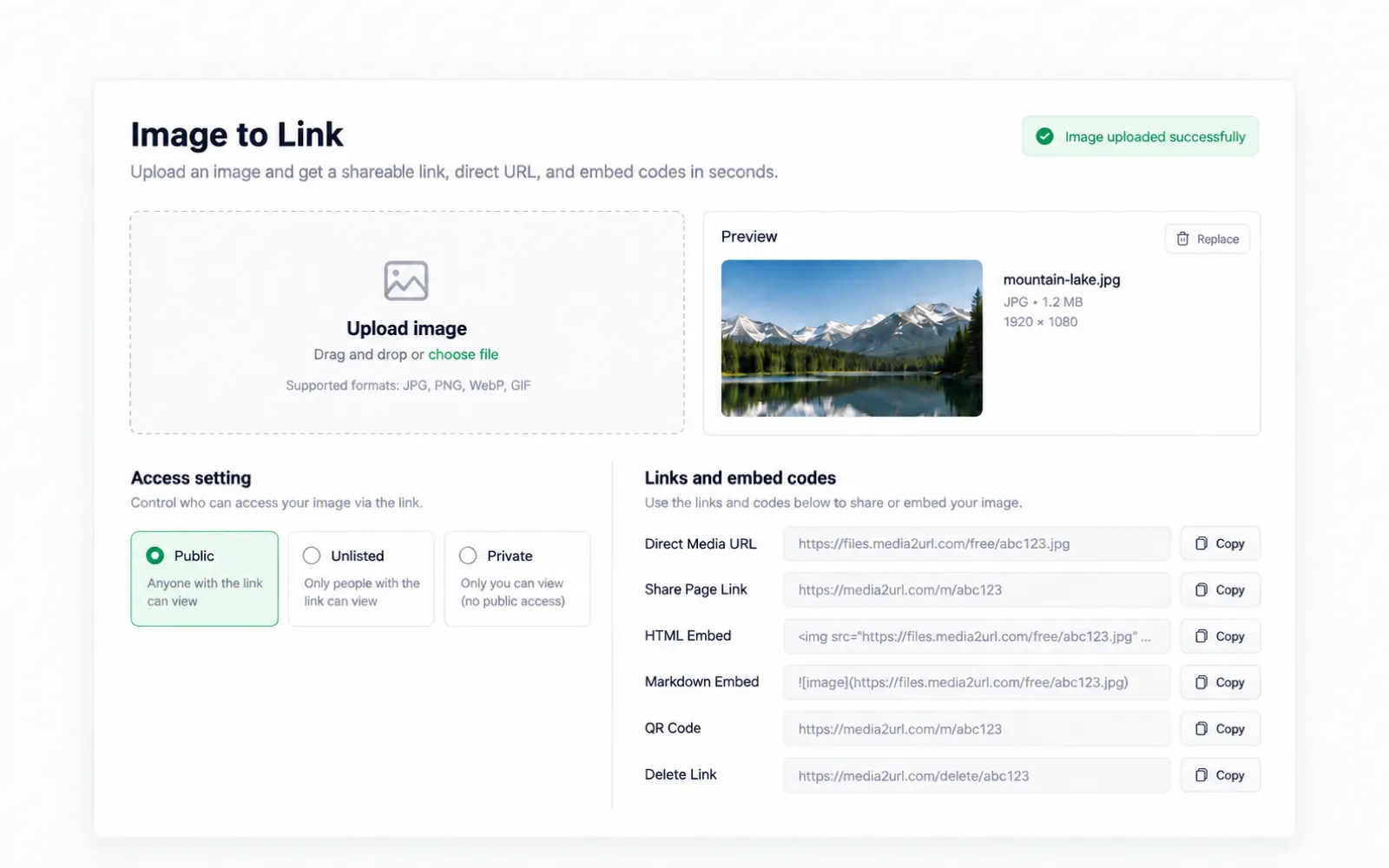
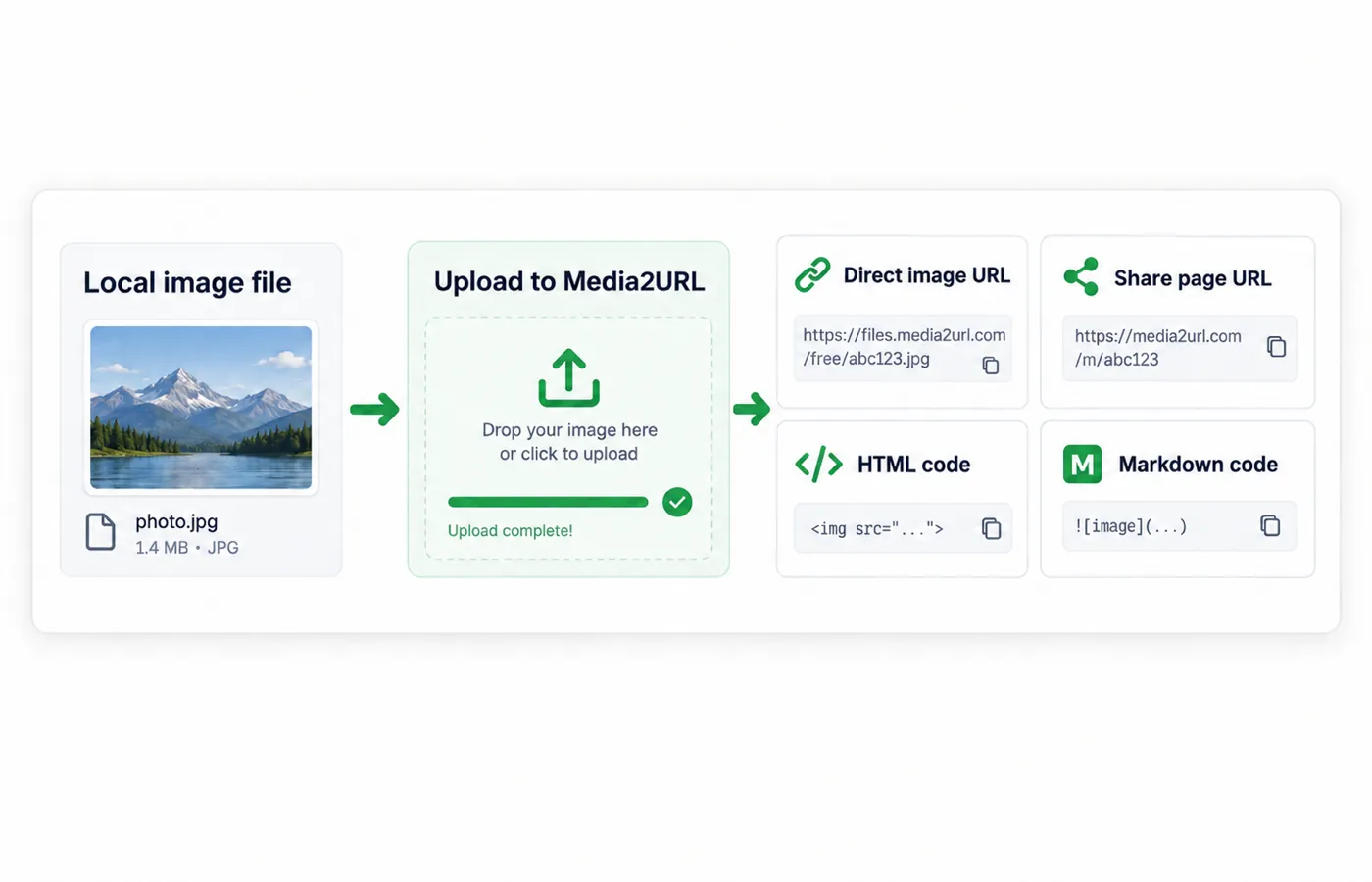
Once your image has been successfully uploaded, our image to URL tool will display all of the available link options and embedding formats in the results section. The direct media URL provides access to the hosted image itself; the share page link takes you to a browser page where users can see it. In addition, if you wish to include your image within a web site or document, Media2URL allows you to obtain either the generated HTML or Markdown code so that you may do so.
The options that will be available to you depend on the type of image you are uploading, as well as what your account is set up for. Therefore, you do not need to upload an image twice in order to find a different way to link to it.
How it works
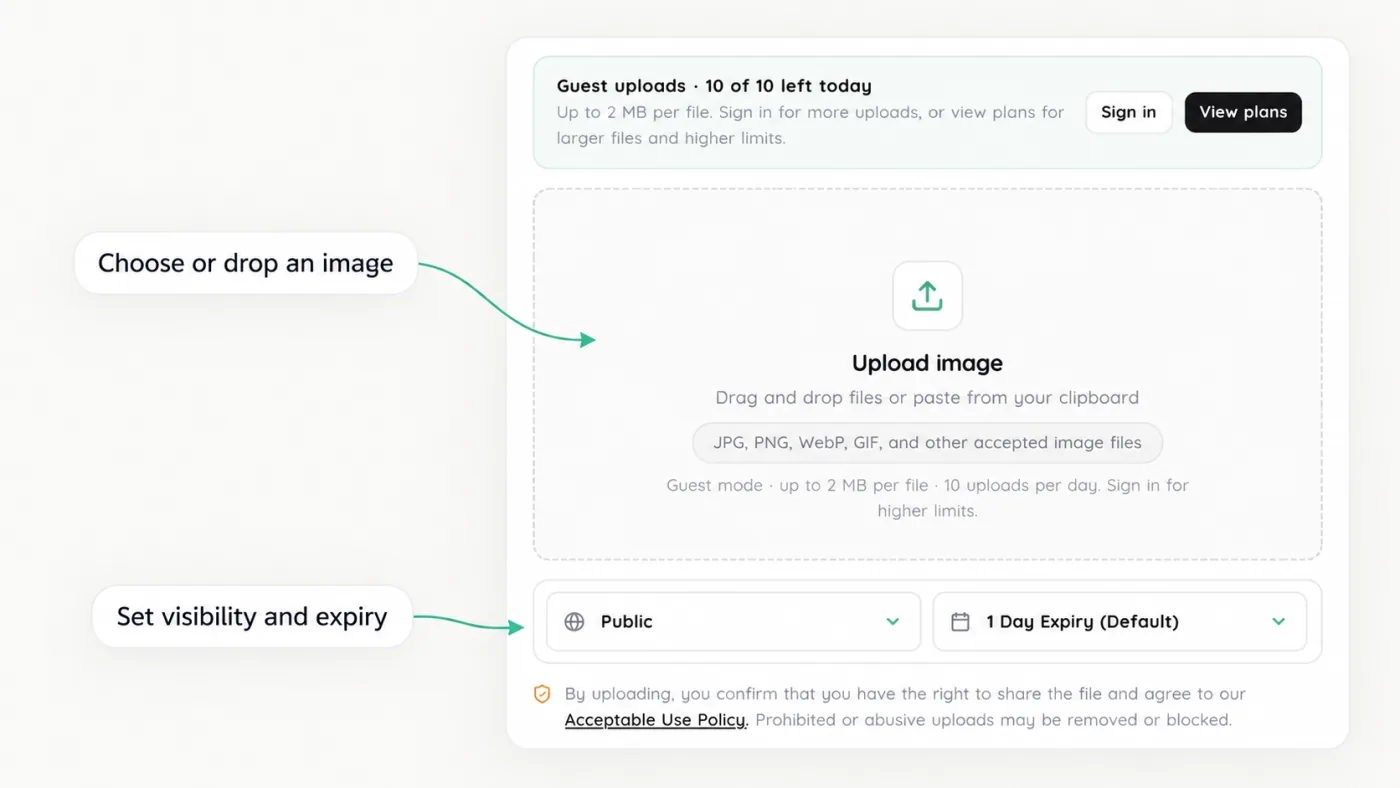
Select a saved picture, drop it onto the uploader or paste it from the clipboard. JPG, PNG, WebP and other supported image formats use the same queue.
Check visibility and expiry before starting the upload. Once it finishes, the result lists the available links and embed formats for that image.
For a website that needs the image itself, copy the Direct Media URL. If you want someone to open the picture in their browser, use the Share Page Link instead. You can also choose the generated HTML or Markdown code when the destination supports those formats.
For a brief definition, learn what an image URL is and how direct media links work.
Before and after
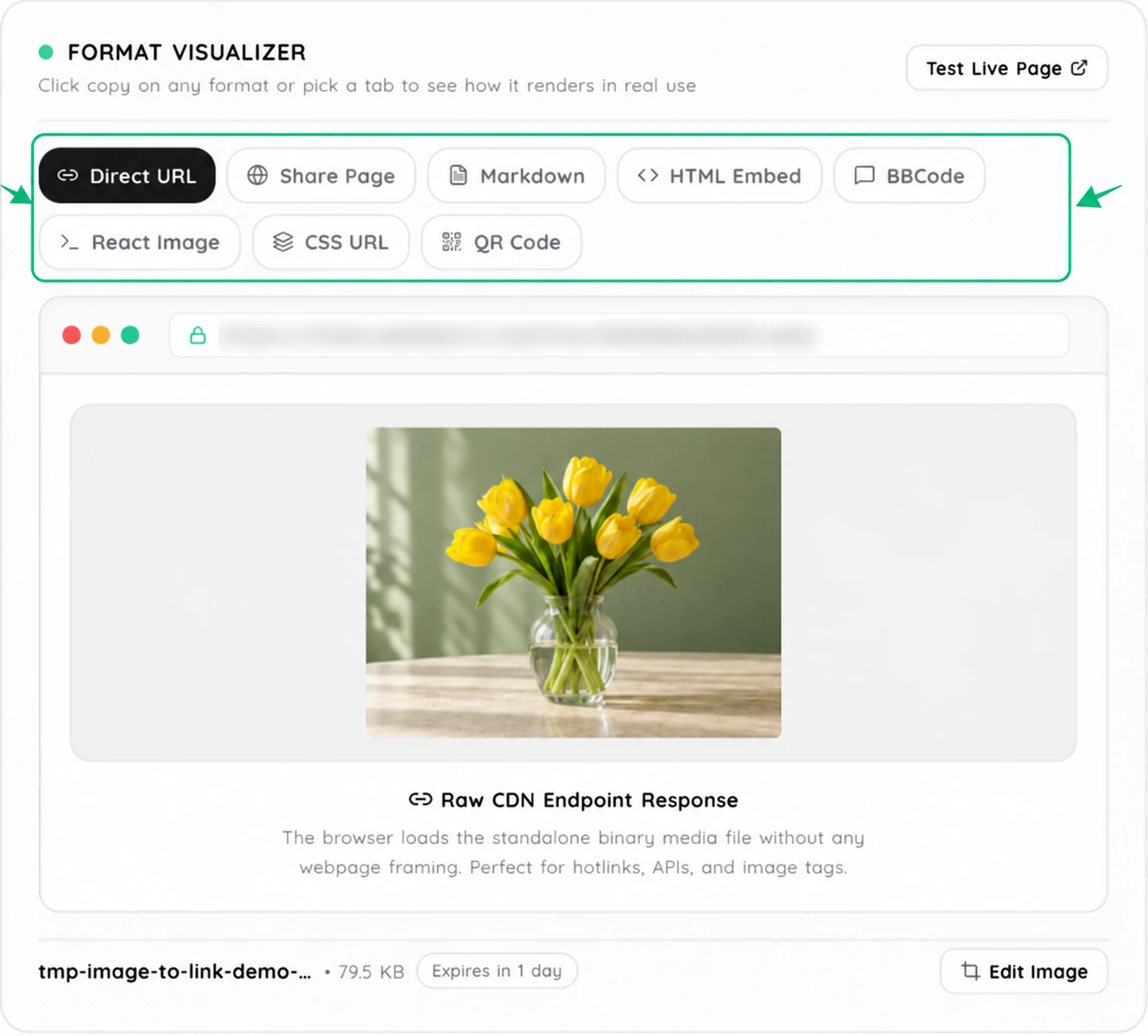
The first screenshot shows a tulip selected in the uploader. Its finished result includes a direct image URL, a Share Page, embed options, and a QR code.

The image URL may be functional at the time of adding it to your site, however, this doesn't guarantee its functionality will last. The expiration date and accessibility of the link will affect if users can view the image. Before you use an image URL in a blog post or product catalog, verify these two factors.
Imagine you have uploaded a photo of your product, and set the expiration date for 1 day. When you publish your product page, the photo will load properly. After one day passes, the photo will no longer load at that URL. Users who visit the product page after this time may experience a blank space where the photo should be.
When you want to keep your photos online for a longer time, select the best expiration option for your needs from what is available through your Media2URL account. Each of the options will be based upon your subscription level, and therefore, you should check each one out prior to making your photo accessible to others via a public website.
The image must have an associated direct image URL that can be accessed by the users that will use the image. For example, if you plan to put the image on a public website then users typically do not need to sign into your Media2URL account or provide a password to see the image.
You can verify this by copying the direct image URL into a browser window where you are not signed in and checking that the image opens. Then view it on the destination site too, because some sites limit images hosted elsewhere.
If you regularly use image hosting for a website or project, saving the files to your Media2URL account makes them easier to find later. You can return to the browse and manage stored assets in the Media Library instead of searching through old messages for the original upload.
The uploader accepts image files that pass Media2URL's server policy. JPG, PNG, WebP and GIF are common examples. SVG is rejected by the current upload policy.
Usually, yes: those terms mean the web address that loads the hosted image. A Share Page is different because it opens a webpage around the image.
Upload a supported picture through the same image uploader. Once it finishes, copy the Direct Media URL for an image source or the Share Page Link for browser viewing. JPG and PNG do not need separate tools.
Yes. Choose from the visibility and expiry options available for your account. After a link expires, it no longer serves the image. Additional access controls depend on your plan.
To start, verify if you used the direct media URL rather than the share page link. An image file expected by a web site will most likely not accept a standard web page as an acceptable image source.
Open your selected URL in a second web browser to determine if the image can still be accessed. If the image has been removed from the site, then the URL used to access the image will no longer provide access. In addition, if you find that the URL provides access to the image, however, when you visit the destination web site, you do not see the image, then you should check if the destination web site supports external image hosting.