Media2URL

Video to URL Converter for Sharing and Playback

Need to turn a video into a URL for a compatible player? Upload MP4, MOV, or WebM for a direct address, or share the page for browser playback.

Play the uploaded clip before sharing it. Check that it is the right take, that the picture and sound work, and that the recording starts where you expect.

From recording to review

  • MP4, MOV & WebMUpload a supported recording.
  • Playback previewCheck picture and sound after upload.
  • Two ways to shareCopy the direct URL or viewing page.
  • Sharing windowSet an available expiry before uploading.
Upload video

Drag and drop files or paste from your clipboard

MP4, MOV, and WebM

AFTER THE UPLOAD

Preview the hosted recording

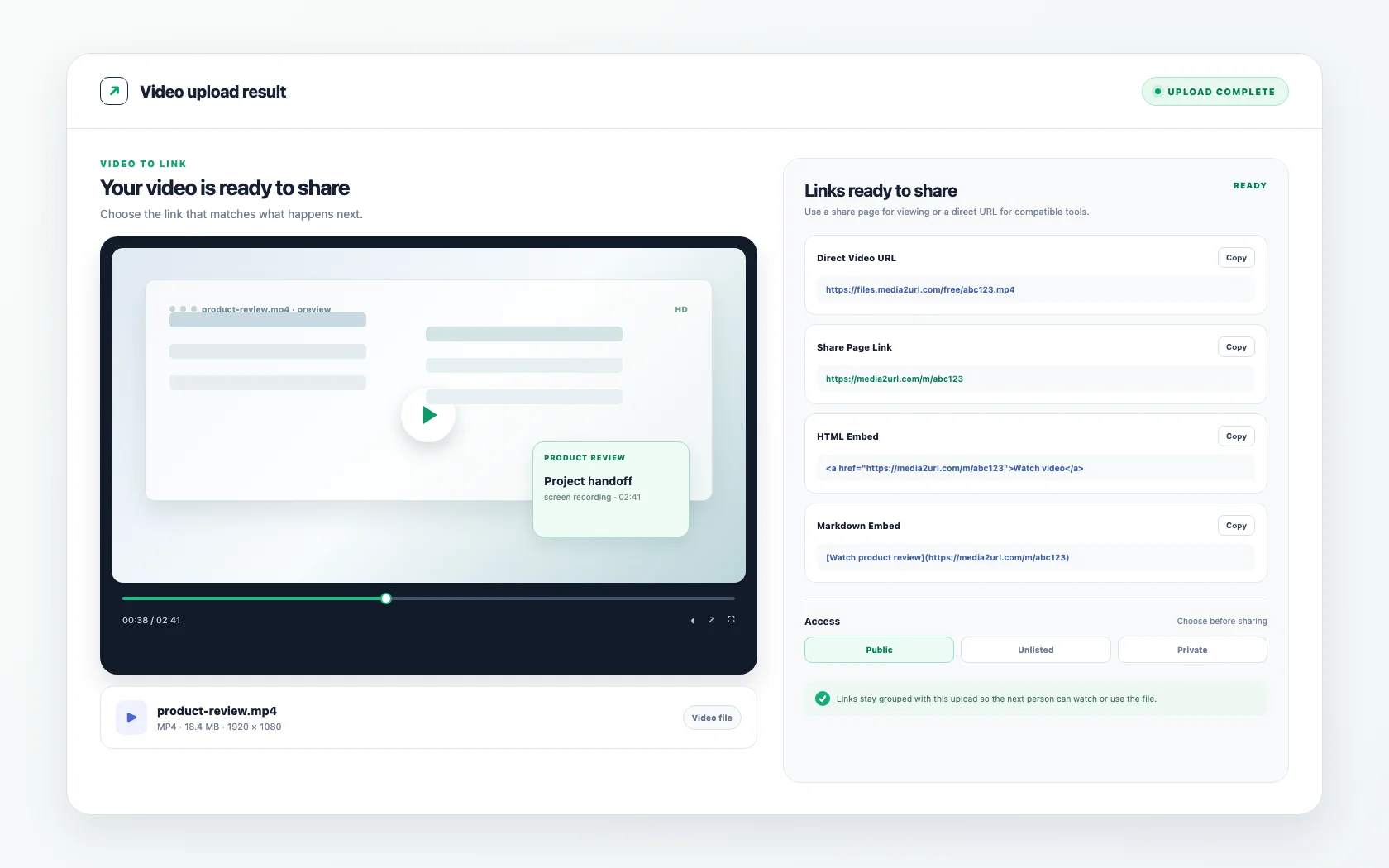
The result keeps the player beside the available links. Check the selected access and expiry settings before sending the recording to a reviewer.

Media2URL Video to Link Converter showing video playback, direct video URL, share page and sharing controls

Result panel

Ready to share

product review.mp4 · MP4 · 18.4 MB · 1920 × 1080

Direct Video URL

https://media2url.com/demo/video

Share Page

https://media2url.com/demo/video/share

PublicExpires in 7 days

Choose the destination

Use the browser share page for a person. Use the direct video URL when another system needs the hosted file.

PLAYBACK OR FILE ACCESS

A viewing page or a video source?

A share page and a direct video URL come from the same upload, but they solve different problems. One is made for normal browser viewing, while the other gives a compatible website or application the hosted video file address.

For more detail on choosing between a file URL and a viewing page, read the Direct Links guide.

Browser viewing

Someone needs to watch it

Send the share page when the next person mainly needs to open the recording and press play. The browser page keeps the video in a normal viewing experience without asking the recipient to work with the raw file URL.

media2url.com/demo/video/share

https://media2url.com/demo/video/share

Best fit: Share page

File delivery

Another system needs the file

Use the direct video URL when a website or compatible player expects the hosted video file itself. Test the URL in the destination where it will be used because playback support still depends on the video format and codec.

Video source

https://media2url.com/demo/video

Best fit: Direct video URL

WILL IT PLAY HERE?

Check playback in the destination player

A direct video URL gives the receiving website or player access to the hosted file, but playback still depends on the video format, codec and destination. Test the generated link in the actual website or player before sharing it. If the recording needs trimming or compression first, prepare it with Video Tools because creating the link does not change the recording.

FILE

product demo.mp4

FORMAT

MP4

DESTINATION

Browser player

RESULT

Playback depends on supported encoding

WHERE THE RECORDING GOES NEXT

Put the recording to work

The useful link depends on what happens after the recording leaves your device. A client review, website player or temporary handoff can all begin with the same upload, but the next step is different in each situation.

If the recording is too large for email, the guide to sharing large videos explains how to send a link instead of an attachment.

CLIENT REVIEW

Send a screen recording without another large attachment

A screen recording or product walkthrough can quickly become awkward to send through normal email. Upload the video and send the share page when the client mainly needs to open the recording, watch it in a browser and respond with feedback.

Best fit: Share page

screen recording.mp4

18.4 MB · 03:12

Here is the recording for review:

https://media2url.com/demo/video/share

WEBSITE PLAYER

Give a compatible player the direct video URL

Some websites and applications ask for the address of a hosted video file rather than a link to a webpage. If the destination supports your video format, copy the Direct Media URL from Media2URL and use it as the video source. For example, an MP4 file can be added to a webpage using the HTML video element. The src value points to the hosted recording, while the controls attribute displays the browser's playback controls. The video still needs an encoding supported by the visitor's browser, so check the result in the actual player before publishing it.

Example: Display a Hosted MP4 Video in HTML

<video controls preload="metadata" width="640">
  <source
    src="YOUR_DIRECT_VIDEO_URL"
    type="video/mp4"
  >
  Your browser does not support this video.
</video>

After you upload an mp4 file, use the actual Direct Media URL that Media2URL produces instead of YOUR_DIRECT_VIDEO_URL. While this sample can be used with mp4 files; however, you will need to find out what source type is needed for other types of video files and whether or not your web browser supports them.

If you cannot view the video, then try viewing the video via a direct link. If the video is available at that direct link, it doesn't guarantee your browser will be able to play the encoded video within the file.

Best fit: Direct video URL

Video source

https://media2url.com/demo/video

Compatible player 02:41

REVIEW WINDOW

Keep a draft video available for the review period

A campaign draft or internal review may only need to stay available for a limited time. When your account provides expiry or restricted access controls, choose those settings before sending the video link so the sharing period matches the job.

Best fit: Share page with available access controls

campaign review.mp4

Review copy

Expiry: 7 days

Access: Where available

https://media2url.com/demo/video/share

REPEATED HANDOFF

Reuse a finished recording without uploading it again

Sometimes the same video needs to be sent to another client or teammate a few days later. Keeping the completed upload in your Media2URL account makes it easier to return to the recording and use the available link again instead of searching for the original local file.

Best fit: Saved upload with available links

product demo.mp4

Saved to Media Library

Share Page

/m/abc123

Direct Video URL

/free/abc123.mp4

VIDEO TO URL TOOL

Send a finished clip or screen recording without attaching the original file again. The viewing page gives reviewers a browser player; a compatible website or player can use the direct video URL.

Upload a video

Example output · placeholder values

Direct video URL

https://media2url.com/demo/video

Share page

https://media2url.com/demo/video/share

HTML player

<video controls src="https://media2url.com/demo/video"></video>

These placeholder addresses use Media2URL's /demo/ path and have no file extension. Upload a video to receive its actual direct URL and share page.

FORMAT AND PLAYBACK

Formats, file size and browser support

MP4 is a common format for browser video and works with the Video to Link flow when it passes the current upload policy. MOV can use the same upload process where accepted, and WebM follows the same basic workflow when the file meets the platform limits.

If you need an MP4 to link or MP4 to URL workflow, upload the supported MP4 and wait for the result panel to appear. The same upload can provide the direct video URL and share page without requiring a separate tool made only for MP4.

Check the video size before uploading

Before you upload your video file, be sure to verify its size and the maximum limit that is supported by your subscription. Video files can get very big depending on how long the video is and what quality it was recorded in.

Currently, Media2URL has two types of video uploading capabilities: One for unregistered guests (up to 2MB) and one for registered users with a free account (no capability). These are separate upload limits. Registered users can upgrade to the Plus Plan, which allows video files up to 100MB; the Pro Plan, which allows video files up to 500MB; and the Business Plan, which allows video files up to 2GB each.

If you have a video recording that exceeds the limit of what can be uploaded, then you either need to decrease the size of your video recording or upgrade your account so that you can upload videos with larger file sizes. Your Video Tools can assist you in decreasing the size of your video recordings by allowing you to trim (cut out) unwanted portions of the recording, or compress (decrease) the file size of the recording. However, please remember that decreasing the size of a video recording does not guarantee that the video encoding used for that video recording will work on all web browsers and/or media players.

product demo.mp4

MP4

Browser playback depends on codec support

client-review.mov

MOV

Uses the same upload flow where accepted

documentation-demo.webm

WebM

Uses the same link workflow where supported

LINKING IS NOT CONVERSION

Hosting keeps the original recording

The Video to Link tool hosts a supported upload and creates the available links for that file. It does not automatically compress the recording or convert every upload into another video format, so the direct video URL continues to reference the hosted video.

When the recording needs trimming, compression or another supported output first, use the available Video Processing tools before sharing it. If the file is not really a video workflow at all, the File to URL tool may be a better place to upload it.

Uploaded file

review video.mp4

No automatic conversion

Need changes first?

Trim video

Compress video

Other supported processing

Open Video Processing

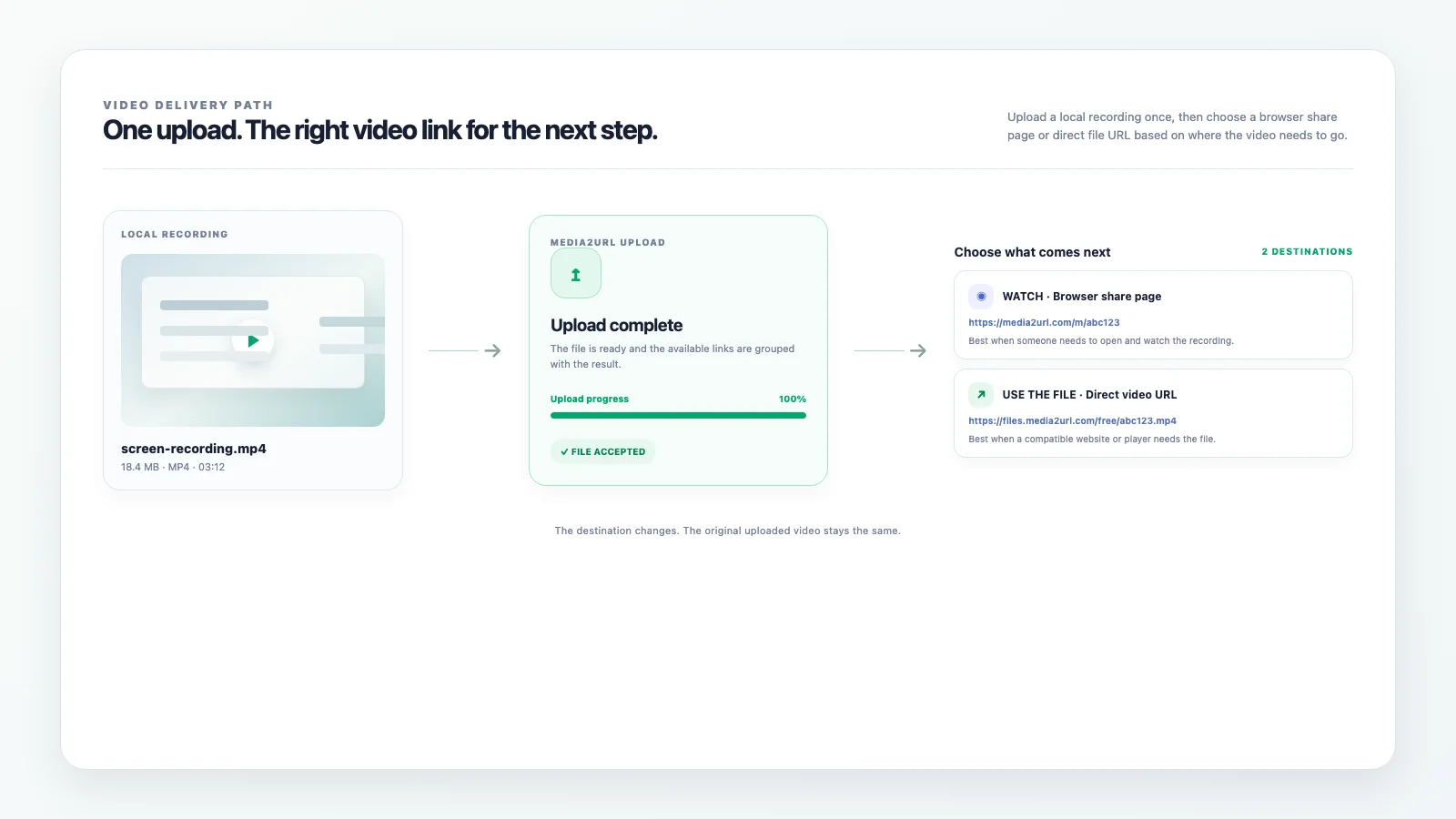
VIDEO DELIVERY PATH

From recording to delivery

Upload the finished video from your device, then review the result before sharing it.

Video to URL workflow showing a local recording uploaded to Media2URL and delivered through a browser share page or direct video URL

BEFORE AND AFTER

From a local MP4 to direct and share links

A short coastal MP4 moves from the local upload queue to its completed result. Use the media URL in a compatible player, or send the share page when someone should view it in a browser.

Before uploadFrame from the coastal MP4, which runs for four seconds, shown as a local video file before upload
The video runs for four seconds and stays on your device until it has a web address.
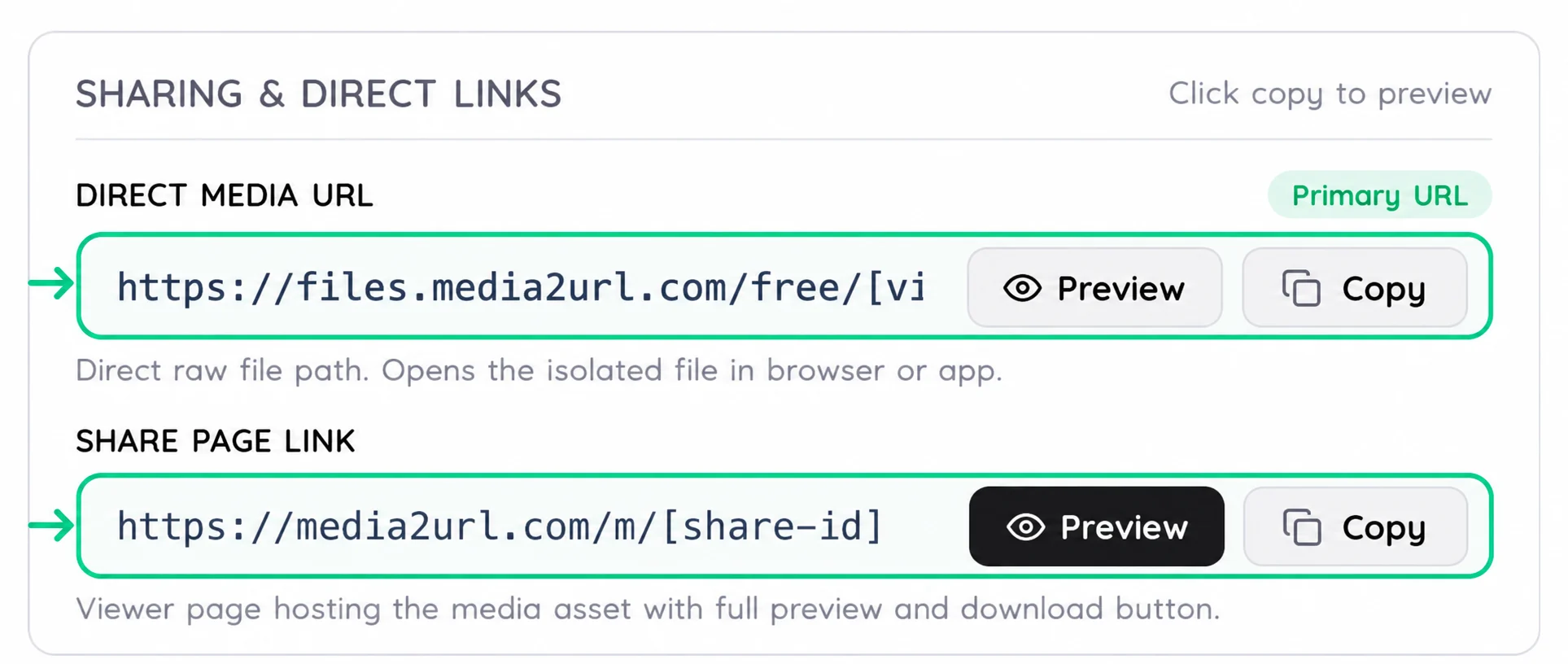
Completed Media2URL video upload with highlighted Direct Media URL and Share Page link choices
After upload, choose a Direct Media URL for a compatible player or the Share Page for browser viewing.

CONTROL THE REVIEW WINDOW

Plan the review window

Not every recording needs the same level of access. A video used on a public website may need a normal public URL, while a client review or temporary screen capture may make more sense with an expiry setting or restricted access.

The uploader shows the visibility and expiry choices available for your account. Private video links and password protection can depend on the selected plan, so use the controls shown for the actual upload instead of assuming every option is available everywhere.

Upload today

Choose visibility

Client review

Send the share page

Expiry

Only when selected

A final playback check

When you take a video of your screen it could have more of your personal data on it than you wanted to show. Notifications that pop up while you are taking the video, or if you open a new tab in your web browser, can give away private information such as an email address, or other account information.

Before you share your recording with others, make sure to watch it completely from start to finish. Check to see if there is any private or sensitive information being displayed on the screen. If you find something that shouldn't be seen by others, edit out that portion of the video prior to submitting the final product. Your visibility options will allow you to control who can view the file; however, they will not delete any information that has been recorded in the video.

VIDEO LINK QUESTIONS

Which video formats can I upload?

Media2URL accepts video files that pass the current upload policy. MP4 and MOV are common examples, while WebM can also use the Video to Link workflow where supported. The available file size depends on the limits for your account.

How do I turn a video into a link?

Upload the supported video through the Video to Link Converter and wait for the upload to finish. The result panel shows the available video URL and share page, so you can choose the output based on whether another system needs the hosted video or someone simply needs to watch it. For MP4 files, browser playback still depends on the codec support available in the receiving browser or player.

Can the recipient watch the video in a browser?

Yes, when the visitor's browser supports the uploaded format and codec. The share page can show the video with normal playback controls, which is usually easier when another person simply needs to watch the recording.

The direct video URL works differently because it points to the hosted video file itself instead of opening the Media2URL share page.

Does the uploaded video keep its audio track?

Yes. The normal Video to Link upload flow does not remove the audio track from the file you provide. Whether the sound and video play normally still depends on the original format, codecs and the receiving browser or player.

Can I restrict video downloads or access?

Use the visibility and expiry controls shown for your account. Public or unlisted sharing is available in the uploader, while private video links and password protection can depend on the selected plan. The result panel or dashboard may also show download or preview controls where the product provides them, so do not assume an option is available unless it appears for that upload.

Why Is My Video URL Not Playing on Another Website?

There are times when a user will upload a video and it successfully uploads but then fails to play in another website's video player. A potential cause for this failure could be that the video player doesn't support the encoding within the uploaded file. For instance, two MP4 files can have identical file extensions, however, they can use different video codecs.

Open the direct media url in a browser to see if the video is accessible. If you can open the video, however, it won't play correctly in your target player, then you need to determine what types of formats and codecs your target player will allow. A link to the video that has expired or a video that is restricted in some way could cause the video to not load.

Media2URL will not automatically process every video that is uploaded via the Video to Link workflow. If your recorded video requires some processing, please perform those tasks prior to uploading the processed video for sharing.