

Client proposal
Merge your cover page with your proposal, delete anything that isn't intended for the client to view, add numbers to each page, and then save this final version separately from the original.
Oftentimes there's a minor adjustment that needs to be made to a PDF prior to being sent out. This can range from having the pages in the incorrect sequence, merging multiple PDF files into one, or even selecting just a few pages from a larger document as those are the only relevant parts.
Media2URL will store each PDF task in the same workspace that contains all of your saved files. Once you have completed working with the PDF, reviewed the results, you will be able to determine if the finalized PDF is to be created into a new asset, a version of the original file, or a direct replacement.
When you just need to provide a link for someone else to view your completed PDF, you can use the PDF upload and link tool to host it and copy its available links.
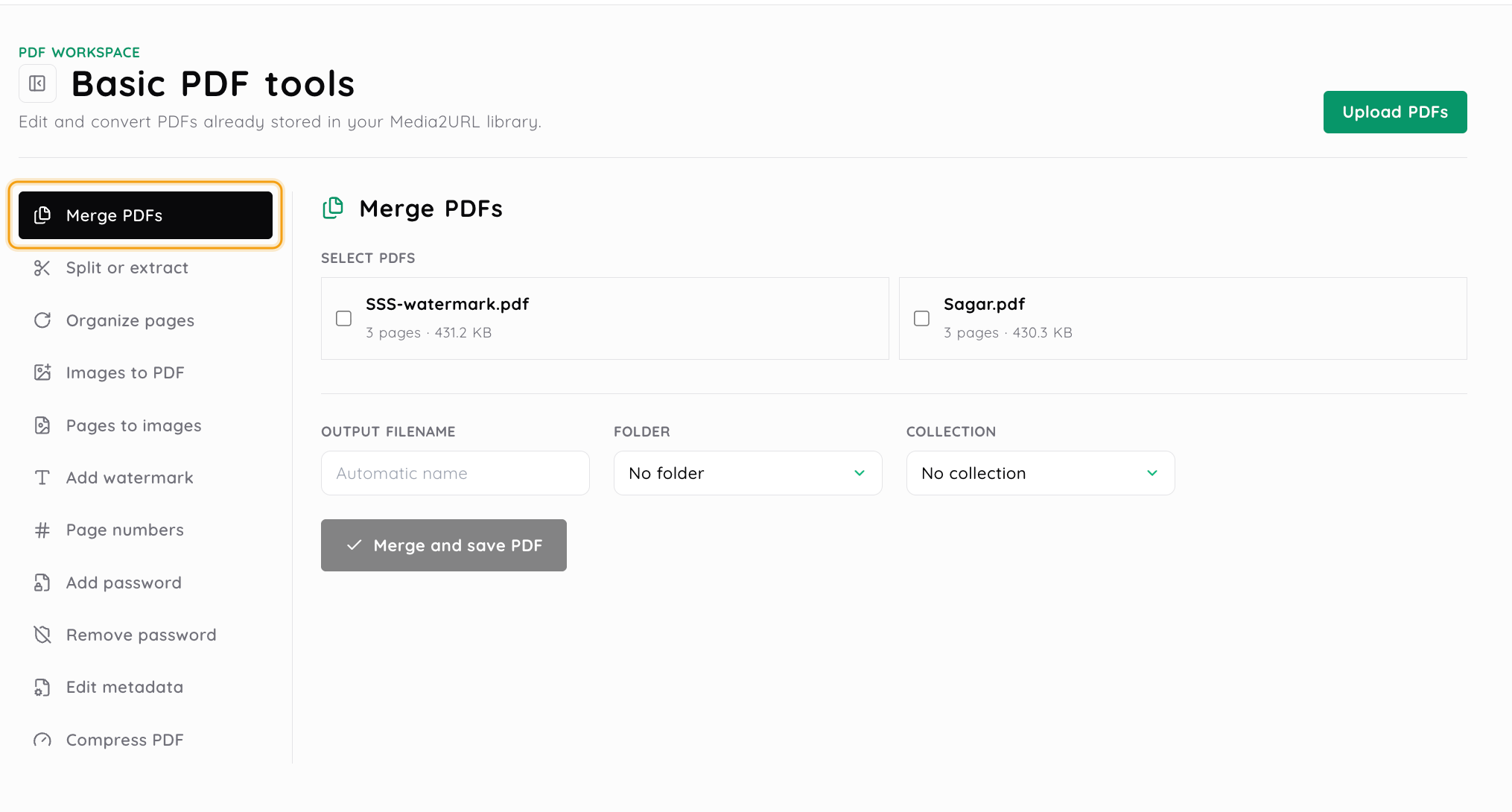
You don't have to put your PDF files into many different applications to fix an issue that can be solved with just one action. For example, if you are working on a proposal you might want to combine two PDF files together. On the other hand, if you have a very long report you may only need to extract three pages from it.
You need to select the job first. Once you have done this, the screen will display the options that are required to perform the action.
Select one or more of the existing PDF files within the active workspace. When you need to process a protected file, it will require you to enter the current password.
In addition to merging documents, splitting or extracting pages, organizing page orders, adding document elements, you can also utilize one of the many available conversion, compression, and/or protection tools.
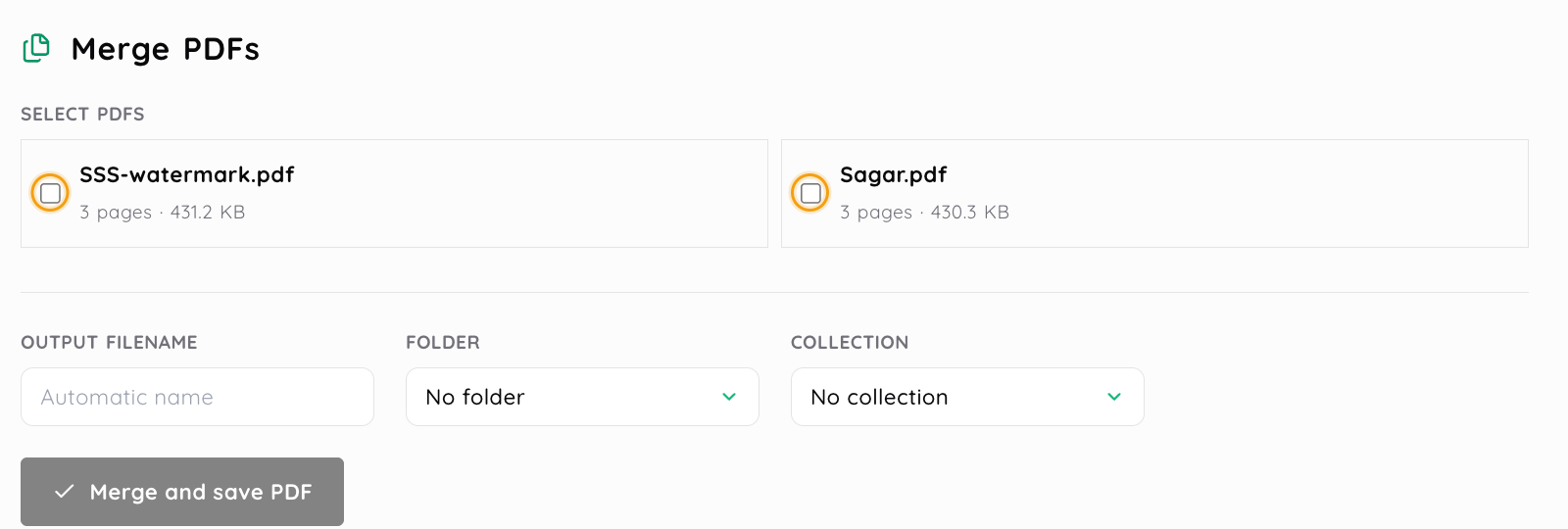
Reviewing the source pages and the settings which are relevant to this process. Before a new document is created, the merge can display the number of source pages and the anticipated length of the merged document.
Save the completed PDF as a new asset, add it as a new version or overwrite the existing file if possible. You will be able to access the new asset directly via URL, share page and download link.
The merge panel will list each source document's page count and file size. After selecting the PDFs you require, you can select an output name, directory, and collection, prior to saving the merged PDF file.
| What needs changing | Relevant PDF Workspace tools |
|---|---|
| Document structure | Merge, split, extract, reorder, rotate, duplicate and delete pages |
| Page presentation | Watermarks, page numbering and images to PDF assembly |
| Document access and information | Password protection, password removal and metadata editing |
| Output and delivery | PDF compression, pages to images conversion, save modes and link delivery |
The exact same PDF could require several different types of those services. However, each type will address a different issue. For example, when you re-order your pages, you are changing how your document looks. Compression on the other hand, deals with the size of the final product and does not matter which pages make up the product.
When combining several PDF documents into a single document, it doesn't necessarily require using each individual page of every source document. For example, if you are developing a proposal for a project, you may need to include only certain sections of other PDF documents. In this case, you can combine only those specific sections (pages 1-3) of the first document with only those specific sections (pages 5 and 8-10) of the second document.
Media2URL enables you to select the PDF sources, determine the arrangement of these files, and provide page selection criteria for each file as needed. A "pre-flight" check of the number of pages in each selected source file will display the estimated length of the final combined PDF file prior to initiating the processing phase.
The reason this feature is so beneficial is because some source documents may include appendices, older versions of pages, or parts of the document which should not be included in the finished PDF.
| Operation | Use it when |
|---|---|
| Every Page | Each page should become its own PDF file |
| Custom Ranges | One long PDF should become several grouped documents such as pages 1 to 4 and 5 to 10 |
| Extract Pages | Only particular pages such as 2, 7 and 12 need to become a separate result |
| Page Organizer | The PDF stays one document, but pages need to be moved, rotated, copied or removed |
It is important to understand this difference if the person who receives the document will use only some of its contents. Therefore, if you send an entire fifty-page PDF and ask the other party to locate what they need on their own, it would be much easier to extract just the relevant pages.
The page number is not an effective way to keep track of a document that has many pages or that contains multiple similar sections. In addition to being difficult to manage visually, the page number does not provide any context about what each page represents. A visual organizer will allow you to view the pages as a grid and then rearrange them in the correct order prior to creating another PDF.
The selected page can also be rotated, duplicated, and/or removed. This is useful for when you have a scanned page that was scanned upside-down, when you have accidentally duplicated a document, or when you would like a page to be placed at a different location within your PDF.
At times, the source is not a PDF at this point. A series of stored JPEG, PNG or WebP images can be organized and combined to form a single PDF file, which can then be transmitted as a single document.
In contrast to this, the opposite process is appropriate if a page must be converted to an image. Pages from PDFs can be generated into either PNG or JPEG formats, and these files can either be stored individually as image resources, or they can be placed into a single ZIP file containing all of those generated images.
A watermark places information on top of the actual document. This can either be in the form of a review label or as a logo image placed over the page when the document needs to have some form of branding. The PDF Workspace gives you the ability to select from many options for placing the watermark (location, size, rotation, color, etc.). Also, you have the option to resize/position your image watermark prior to saving the processed document.
Page numbers are used to help users find their way around, not as a branding tool. There are several different ways you can use page numbers: as a single number (i.e. "1"), with the word "Page" in front of it (i.e. "Page 1"), or with the number of pages shown in addition to the current page (i.e. "Page 1 of 12"). After choosing which format you want, you can determine where on your website you would like the page numbers to start, as well as control how they appear and/or where they will be positioned.
The PDF document itself can have password protection applied. If the current PDF operation supports creating protected output, you may use the user and owner passwords that are available to create a protected version of the PDF. To remove the protection from the PDF is a separate step. In order for Media2URL to produce an unprotected output of a protected PDF, the PDF must first be provided with the proper current password.
This is different from media2url link access. Password protection of a PDF document is related to the document file itself, whereas, private sharing or sharing with password protection refers to the method by which a user accesses the hosted link. Therefore, depending upon how you intend to share your document, you may require either type of protection or both types of protection.
A file named "final v4.pdf" does not provide a lot of information to the next user regarding the content of the file. However, PDF metadata provides additional description fields to be carried along with the document.
The media2url metadata editor allows users to view and modify the standard pdf metadata fields such as title, author, subject, and keywords. Modifying any of these fields will not change the actual content displayed within the pdf document.
A brochure can have the product name as the title, and the company name as its author. On the other hand, a client handout may need a clearly defined subject and relevant keywords that will be useful when the document is located at a later time.
A smaller PDF will be beneficial when your existing file is too big to share via email, download, or web browser. How much compression is appropriate depends upon what content is included within the document.
Media2URL has three options to choose from when compressing files: High, Balanced, and Light. High will give you a smaller output file; Balanced is in the middle of both file size and file quality; and Light is the best choice if you are concerned with maintaining the quality of your images or prints.
The completed job provides a report of both the amount of bytes that were reduced from the file and what percent of those bytes were saved. This value is far more useful than to provide a promise that all PDF files would be reduced in size by the exact same amount.
| Save choice | Use it when |
|---|---|
| Save as New Asset | The processed document should remain completely separate from the source |
| Attach as Version | The new PDF belongs to the same document history and the earlier version should remain available |
| Replace Source | The processed PDF should become the active file for that asset |
The choice is critical when there are existing links on the PDF. Saving a new version of the PDF will update the active asset workflow, however, saving a different version of the same PDF allows for a separate location within the library for each of the processed versions.
When you create a processing job, you have the option of sending the output of that job to either an existing folder or collection so that the resulting document will remain associated with the project that generated it.
Merge your cover page with your proposal, delete anything that isn't intended for the client to view, add numbers to each page, and then save this final version separately from the original.
Instead of re-sending the whole report, just send those pages required for only one person.
You can rearrange pages, correct scans that are upside down, and merge multiple saved images of your pages into one clean PDF document.
You can either create a watermarked version of your PDF file, or you can update its metadata and decide whether you want to overwrite your existing PDF asset with the updated version, or keep the original PDF asset and create a second version.
Yes, you can choose specific pages from your sources to include in a merged file rather than automatically including all of them. You should first decide which order you want your sources to appear in and then select only the pages you wish to use. After making these choices, you will have an opportunity to review the page information for each source prior to initiating the merge.
The split creates individual documents for each document based upon what you have chosen as your splitting options. When you need to take some but not all of the pages out of your source document and create another PDF with those pages, then extracting is more efficient.
Yes. The visual page organizer allows you to rearrange the order of the pages, as well as use the options for rotating, duplicating, and deleting pages prior to saving the completed PDF.
Yes. You can use the Image to PDF workflow to combine supported stored JPEG, PNG and WebP images into a single PDF document.
Yes, it is possible to render PDF pages into supported PNG or JPEG images. Based on the selected function, the generated image files may be returned as single image files, or as part of a single zip file.
The option to use a document security feature exists if it's possible to protect your account. The password protection you can add to a document is different than the access permissions that are applied to a Media2URL shared link.
Yes, the metadata editor can change the content of standard fields like Title, Author, Subject and Keywords in a PDF document. However, changing these standard fields will not affect what is displayed in the body of the document. These standard fields are recognized as properties of a PDF document.
No, the outcome depends on the content of the PDF file and the amount of change possible with the chosen compression preset. Media2URL displays the exact difference in file size resulting from the compression process rather than making the assumption that all PDFs have the potential to save the same amount of space.
You cannot assume that the source document has been automatically replaced after processing. Select either "Save as New Asset," "Attach as Version," or "Replace Source," depending on the method of saving used with that specific function.
Yes. After you save the processed output as an asset, use the PDF URL, share page or available download link for that file.
Next steps
When the document is already finished and only needs a hosted PDF URL.
For managing source PDFs, processed outputs and versions later.
When the next concern is who should be able to reach the hosted file.
When the finished PDF only needs to be shared for a short period.