

Media2URL

Convert a File to a URL Without Changing Its Format

If you need a link to a file without changing its format, upload a DOCX, ZIP, or another supported type. Copy its direct address or share page.

Hosting gives the file an online address; it does not turn it into a different format. A recipient may see a browser preview or a download, depending on the file and the app opening it.

Upload a file

Drag and drop files or paste from your clipboard

PDF, DOCX, EPUB, RTF, TXT, CSV, ZIP (up to 5 MB), and supported image, video, and audio files

PREVIEW OR DOWNLOAD?

What opens in the receiving browser?

What happens after someone opens a file link depends on the file type and their browser or application. A PDF may open in a browser viewer, while formats such as DOCX, EPUB or RTF may download or open in another application. That difference does not mean the link is broken. The direct URL still points to the hosted file, while the share page can show the filename and the available action before the recipient continues.

FileCommon next actionWhy
PDFPreview or open where supportedBrowsers often understand PDF viewing
DOCXDownloadOpen with compatible document software
EPUB / RTFDownloadOpen with a compatible reading or document app
CSVDownloadOpen with a spreadsheet or text app

WHERE THE FILE GOES NEXT

Send a document or supply a file URL

The file itself is often ready before the place where it needs to go. A client may need a document through one link, while a website form may ask for the hosted file address instead of accepting an attachment.

Document links give recipients a stable address to download the original file and open it with compatible software.

LOCAL FILE

proposal.docx

UPLOAD

Create available links

CHOOSE DESTINATION

ClientWebsiteFormDownload

OUTPUT

Share PageDirect File URL

CLIENT DOCUMENT

Send the document without attaching another copy

A DOCX or text file may need to reach a client without adding another attachment to the conversation. Upload the supported file and send the share page when the recipient should see the filename and available action before opening it.

Message

project notes.docx

Here is the latest document:

https://media2url.com/demo/file/share
DIRECT FILE DELIVERY

Put the hosted file behind a website button or form field

Some websites and internal systems ask for the file address itself. In that situation, use the direct file URL so the destination points to the hosted file instead of a Media2URL share page.

A download button can use the same type of link when the visitor is meant to receive the file directly. Test the final behaviour in the website or system where the URL will actually be used.

Project resources
website example

Download document

proposal.docx · 45 KB

Direct File URL

https://media2url.com/demo/file
FILE TO URL TOOL

A DOCX, EPUB, TXT or ZIP file can have its own hosted address without changing the original format. Use that address in a download button, form field or message, and let the recipient open the file with compatible software.

Upload a file

Example output · placeholder values

Direct file URL

https://media2url.com/demo/file

Share page

https://media2url.com/demo/file/share
Markdown link

[Download the document](https://media2url.com/demo/file)

These placeholder addresses use Media2URL's /demo/ path and have no file extension. A real file URL and share page appear after upload.

ZIP FILES AND WEBSITE BUNDLES

ZIP download or published website?

File to Link can host a ZIP archive up to 5 MB as a download. To unpack and publish a website bundle for browser viewing, use the separate HTML to URL workflow, which applies its own archive path, size and extraction checks.

Before importing a website bundle, review it locally and remove private notes, old builds or unrelated files.

website-assets.zip

expand locally before sharing

Review before sharing

INSIDE THE LOCAL ARCHIVE

index.html
images/
private-notes.txt
old-build.zip

This example shows what to review before importing a website bundle. Remove unrelated or private files before using the separate HTML to URL workflow.

File to Link hosts supported documents and media and provides the available file links. Some supported image uploads may be processed to remove recognised metadata for privacy.

GENERAL TOOL OR SPECIALISED TOOL?

Choose a tool for the file

File to Link is useful when the main job is simply hosting a supported document or media file and creating a URL for it. A DOCX, EPUB or CSV file does not need video playback, image embedding or audio controls, so the general file workflow is often enough.

When the file has a more specific job, the dedicated tool can explain that behaviour more clearly. A PDF may need browser review, while video and audio need playback guidance that does not apply to documents.

WHAT ARE YOU SHARING?

Start with the workflow that matches the file's job.

Documents and text files

DOCX · EPUB · RTF · TXT · CSV

File to Link

PDF requiring document preview

PDF

PDF to Link

Image

JPG · PNG · GIF · WebP

Image to Link

Video or audio

MP4 · MOV · MP3

Relevant dedicated tool

Use PDF to URL for document preview, Image to URL for image outputs, and the dedicated Video to URL, Audio to Link or GIF to Link workflows when the file needs guidance for that media type.

AFTER THE UPLOAD

The completed file result

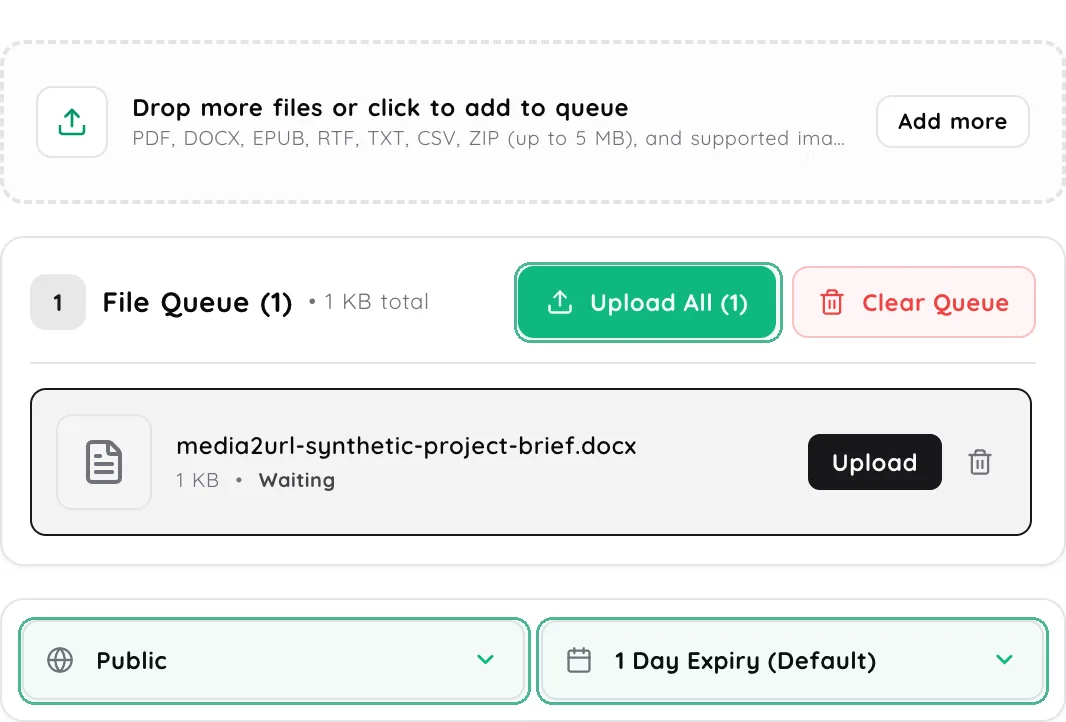
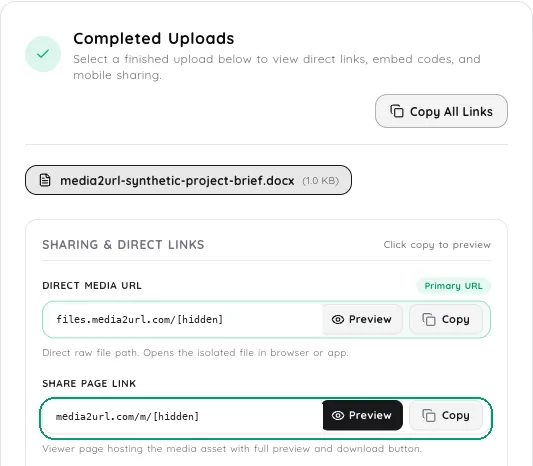
A DOCX waits in the queue with its sharing settings ready. Once it is uploaded, the result shows the file URL beside its share page so you can pick the right link for the recipient.

File upload queue before upload with a synthetic DOCX waiting and Public visibility plus expiry after one day selected
Before uploadQueue a document and confirm its visibility and expiry.
Completed DOCX upload showing direct file URL and Share Page Link preview and copy controls
After uploadCopy or preview the direct file URL and the share page created for recipients.

URL from file

Choose the output for the destination.

Direct file URL

For a website, download button or system field that needs the hosted file.

Share page

For a person who should see the filename and available action first.

Files saved to your account can be easier to find again through the Media Library than through an old email thread or message history.

FILE LINK QUESTIONS

File link questions

Which file types can I upload?

Media2URL accepts PDF, DOCX, EPUB, RTF, TXT and CSV, ZIP archives up to 5 MB, and JPG or JPEG, PNG, GIF, WebP, MP4, WebM, MOV, MP3 and WAV. APKs, macro-enabled Office documents, scripts and executable-style files are not accepted through this uploader. Account limits can be lower.

How do I turn a file into a URL or link?

Choose an accepted file from your device and upload it through File to Link. Media2URL hosts the original file and provides the available direct URL or share page in the result panel. The same workflow covers supported documents such as DOCX, EPUB, RTF, TXT and CSV; the receiving browser or application determines whether the file opens or downloads.

Can I create a link for a DOCX, EPUB, RTF or ZIP file?

Yes, when the file passes the current upload policy and account limits. Documents and ZIP archives download as attachments instead of rendering their contents in the browser. ZIP archives are limited to 5 MB, and the separate HTML to URL workflow is for unpacking and publishing website bundles.

Will every file preview in the browser?

No. Preview behaviour depends on the file type, browser and device. Some files open in a browser viewer, while others download or open in another application. A different opening behaviour does not mean the link is broken.

Should I use a direct file URL or the share page?

A download button normally needs the file address itself because the click is meant to open or download that file. When the link is going to a person instead, the share page gives them the filename and the available action before they continue. The better choice depends on what should happen when the link is opened.

Can a file link expire or use restricted access?

For a temporary file upload, choose an expiry option shown in the uploader. Visibility, password protection and additional download controls can depend on the selected plan and file type. Use only the controls shown for the current upload.