

Multiple selection
Use the file picker, drag and drop, or paste support to add a group of images to the queue.
Have a set of product photos to publish? Bulk image upload queues them together, shows progress file by file, and lets you export the results to CSV.
Export CSV saves a snapshot of the queue with filenames, upload statuses, file details and available URLs. Keep the filename beside each URL when matching product photos to catalogue rows.
Drag and drop files or paste from your clipboard
JPG, PNG, WebP, GIFChecking batch capacity…
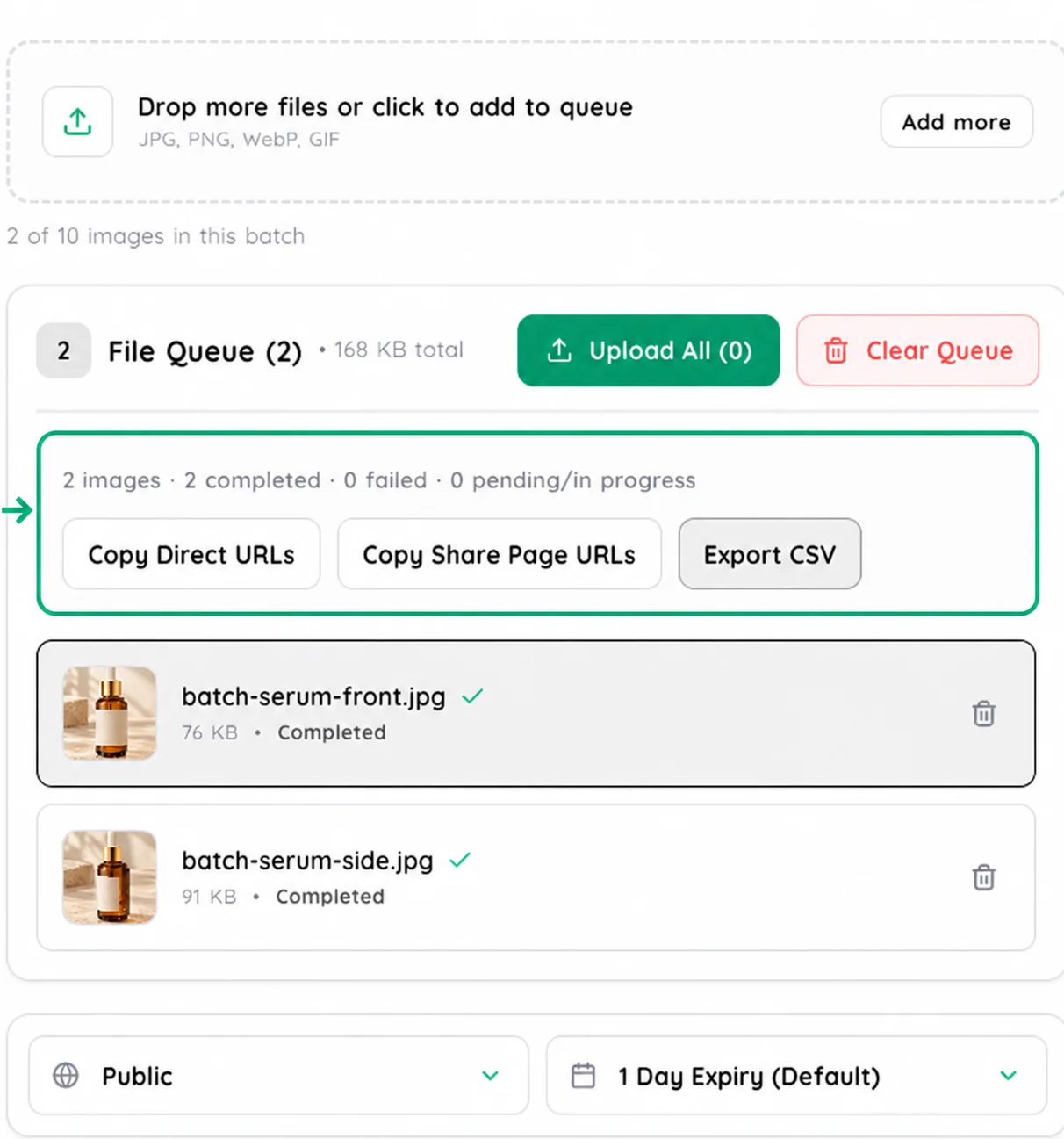
Use "Copy Direct URLs" to collect the available file addresses for completed images. Choose "Copy Share Page URLs" when the recipient should open each image on its Media2URL viewing page.
Check the status before using an exported URL. Waiting or failed files may not have a link yet. Retry failed items, then export the queue again to capture their completed results.
Use convert single images to direct CDN URLs with Image to Link when you mainly need image URLs from a normal upload workflow.
Keep a related set of images in one queue and check the status beside each filename. A failed item can be retried without restarting the successful uploads.
Each completed image has its own result. Copy a batch of available URLs or export the queue when you need to match those files to a catalogue or spreadsheet.
Example output · placeholder values
Each image keeps its own status and URL.
Direct URL
https://media2url.com/demo/batch/imageCSV format
filename,status,direct_url,share_page_url,file_type,file_size_bytes
product-front.webp,completed,https://media2url.com/demo/batch/image,https://media2url.com/demo/batch/share,image/webp,184320
These placeholder addresses use Media2URL's /demo/ path and have no file extension. The batch table and CSV use the files you upload.
The batch result is the handoff
Add several images through the file picker, drag and drop or paste support, then start the batch upload. Each image keeps its own filename and progress, so you can see which files are still waiting, which have finished and which need attention.
When a file finishes, select it from the completed list to see its links and other available outputs. If another image fails, its error and retry option stay with that file, so one failed upload does not hide what happened to the rest of the batch.
Use the file picker, drag and drop, or paste support to add a group of images to the queue.
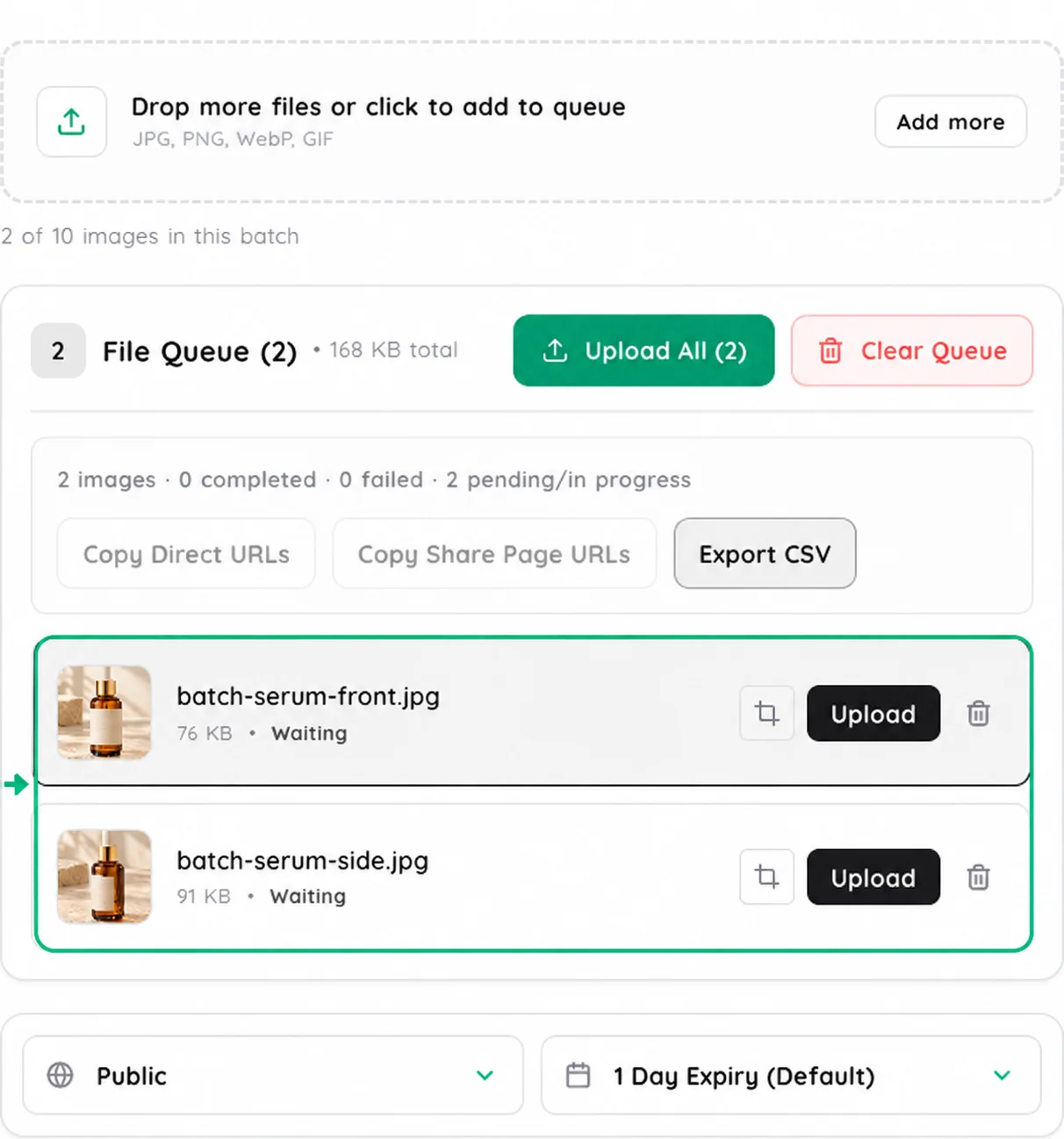
See waiting, uploading, verifying, processing, completed, or failed for each filename.
Copy a direct URL, share page, HTML, Markdown, delete link, or QR code for the selected result.
Signed-in users can organise the batch with folders, collections, tags and other workspace options where available.
REAL BULK IMAGE UPLOAD
The queue keeps the selected images together before the batch starts. When processing finishes, the results show each file’s status and let you copy the URLs or export them as a CSV.
Before upload
After upload
A bulk upload is faster, but one wrong file can still create extra cleanup later. Check the filenames and remove duplicate or outdated images before starting the upload, especially when several files look similar.
It also helps to keep related images together. If one batch contains files for different clients or projects, use folders or separate uploads so the results are easier to identify later.
For images that need cropping or other preparation first, use the Image Editor before adding them to the batch.
A filename such as product front.jpg is much easier to recognise later than something like IMG_4827.jpg. Clear names help when several completed images are listed together and you need to match the correct URL with the correct file.
Media2URL keeps the original filename visible in the queue, so naming the files before upload can make the final handoff much easier to check.
Upload a group of product photos together when each image needs its own URL for a store, catalogue or product sheet.
Keep banners, thumbnails and supporting images in one queue when several pages are being updated at the same time.
Upload a batch of approved images together so each file can be checked and shared without starting a separate upload for every asset.
Keep screenshots, diagrams or article images together when you need several links for one guide, report or project.
Exporting design bundles or social graphics from Canva? Read our walkthrough on how to convert Canva design batches into direct publishing URLs.
When several images are being uploaded together, checking the sharing settings before the queue starts saves you from fixing files one by one later. The visibility and expiry choices shown beside the batch are the ones available for that upload. Private access or password protection depends on the current plan.
Basic uploads can start without signing in. If you want to organise the images with folders, tags or other workspace settings, those options are available through the signed in dashboard where supported.
Each image still receives its own result; batch controls can copy completed direct URLs or Share Page URLs, or export the current queue as a CSV snapshot. Use the visible limits and controls in the uploader as the guide for the batch you are creating.
Choose files through the browser picker, or drag multiple image files into the dropzone. The uploader adds them to one queue and keeps each filename visible.
Each image has its own waiting, uploading, verifying, processing, completed or failed state. If one file fails, the uploader shows the error for that image and lets you retry it without restarting the rest of the batch.
Yes. Add the images to the bulk queue and start the upload. Each completed image still gets its own result. Batch actions can copy the available direct URLs or Share Page URLs, and the CSV export captures filenames, current statuses, file details and available URLs for the whole queue.
Public guests can upload supported images up to 2 MB per file, with a maximum of 10 uploads per day across Media2URL website upload tools. Sign in for more uploads, or upgrade for larger files and higher limits.
Use Image to Link when you mainly need image URLs from a normal upload workflow. Bulk Image Upload is designed around a related group of images, with batch progress, per-file status, individual image results, and batch-level copying and CSV export.