

How to Publish a Canva Design as a Direct Link and Update It Without Changing the URL

Quick answer
Use the Media2URL app to publish your Canva design and obtain a direct file link that you can then use in HTML, Markdown or CSS. To modify the artwork while maintaining the same URL, update the current managed publication via the controls provided with your plan. If you create a new publication, it will have a different address than the old one, and modifying your design within Canva itself will not affect the hosted file.
In this article12 sections · Jump to what you need
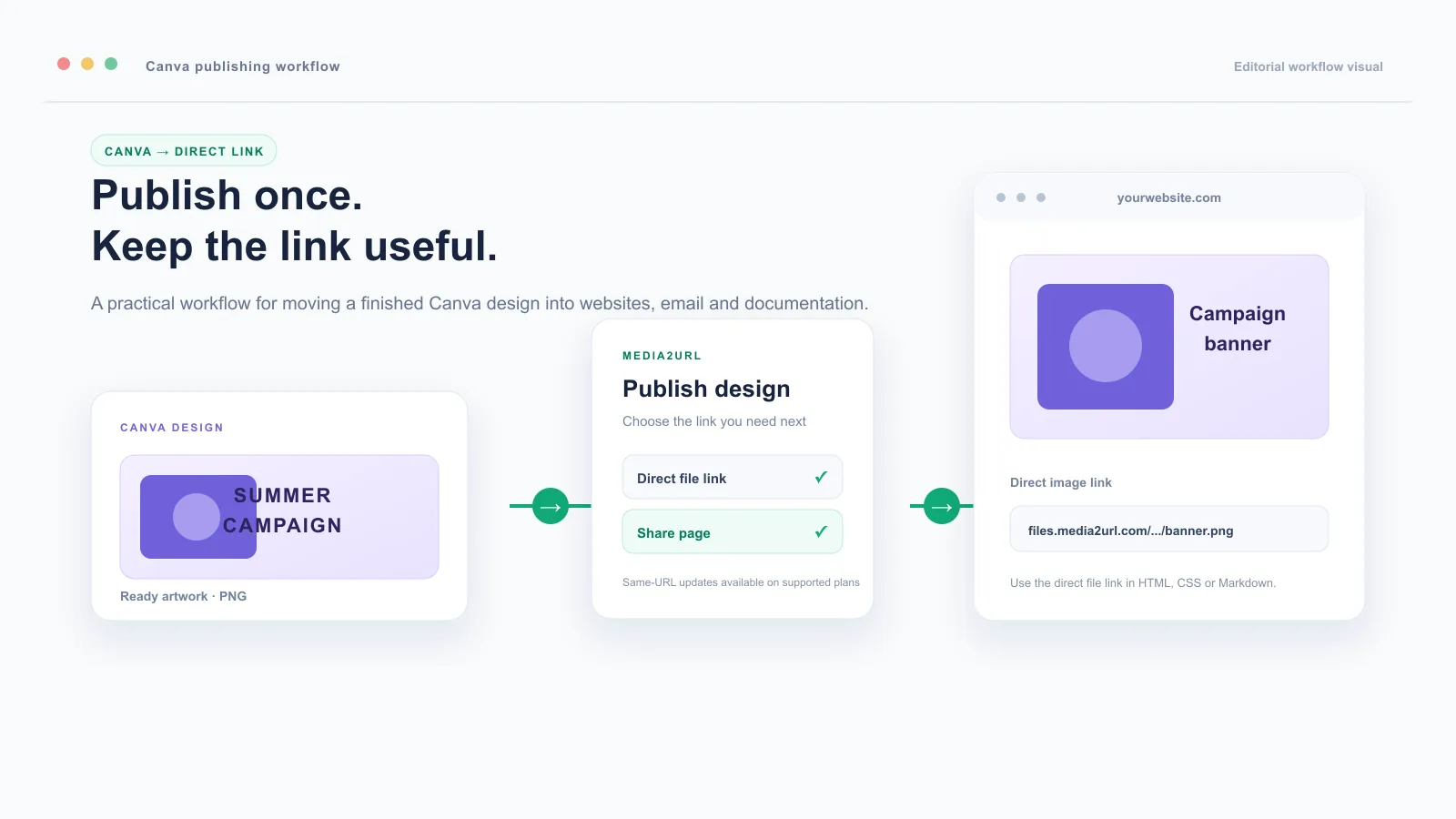
Canva designs can be created quickly, but there are many ways that you can use them outside of Canva. Some of these include creating designs for websites, HTML emails, markdown files, CSS codes, discord messages and other online documents. Typically, if you create a design on Canva and want to use it elsewhere, you would download the design from Canva, upload it to another service, then get a new URL to share your design. If you make updates to your design on Canva, you would have to go through this entire process again.
The above is true if you've put up a banner on multiple pages. When there's a simple error like changing a date or swapping out a promotion, it may take a lot of digging through old files and other websites to find what needs to be fixed. The Media2URL Canva integration allows users to manage their workflow within one application. Users can directly publish their Canva designs as images, generate shareable links to the design for others to view, and then modify those published designs later while retaining the same public URL if supported by the user's account permissions.
A Canva share link and a direct file link are different
A typical Canva share link will take you to either a Canva preview screen or page. This is great for viewing your design and commenting on it. However, this is different from a direct image link. A direct file link will bring up the actual image file. This is the type of link you would use in an HTML image tag, as a CSS background, in a Markdown document, or in a forum post.
| Where you want to use the design | Link to use | What happens |
|---|---|---|
| Website, HTML, CSS, or Markdown | Direct file link | The image loads from the file address. |
| Sending the design to a client | Share link | The person opens a Media2URL preview page. |
| Clickable image on a website | Direct file link inside a share link | The image loads directly and opens the preview when clicked. |
| Discord, forums, or documentation | Direct file link | The image can appear inside the supported platform. |
The significance of this is that when you place a shareable URL within an HTML image tag, it generally results in the user viewing a website rather than the image. Therefore, although the URL will open correctly in a browser, the image could potentially look broken.
Choose the right Canva export before publishing
The correct format depends upon what you plan to do with your design. Logo designs with transparent backgrounds require a different approach than large scale advertising banners.
| Format | Suitable for | Reason |
|---|---|---|
| PNG | Logos, transparent graphics, text-heavy designs, and sharp shapes | It keeps transparency and usually protects small text better. |
| JPG | Photographs, full-background banners, and simple promotional graphics | It can produce a smaller file when transparency is not needed. |
Small files do not necessarily mean high quality files. Check each of your exported designs one time and look for the smallest font size, any thin lines around the edge of the design, and the edges of the logo itself prior to publishing. Your design may look crisp in Canva but could lose some of its resolution during compression.
Name your file so that it will continue to be relevant to you after many months have passed. “Banner” is difficult to find later, while “Homepage summer campaign banner 2026” gives useful context when the library becomes larger.
Connect Media2URL inside Canva
Once you have opened the design that you want to publish in Canva, use the left side panel to select Apps, then search for Media2URL. After selecting the app, follow the authorization screen in Canva to link the app to your Media2URL account. When the linkage has been completed, the Media2URL panel should appear on the screen in Canva. Depending upon which version of the app is installed, you might find options like Publish and Library.
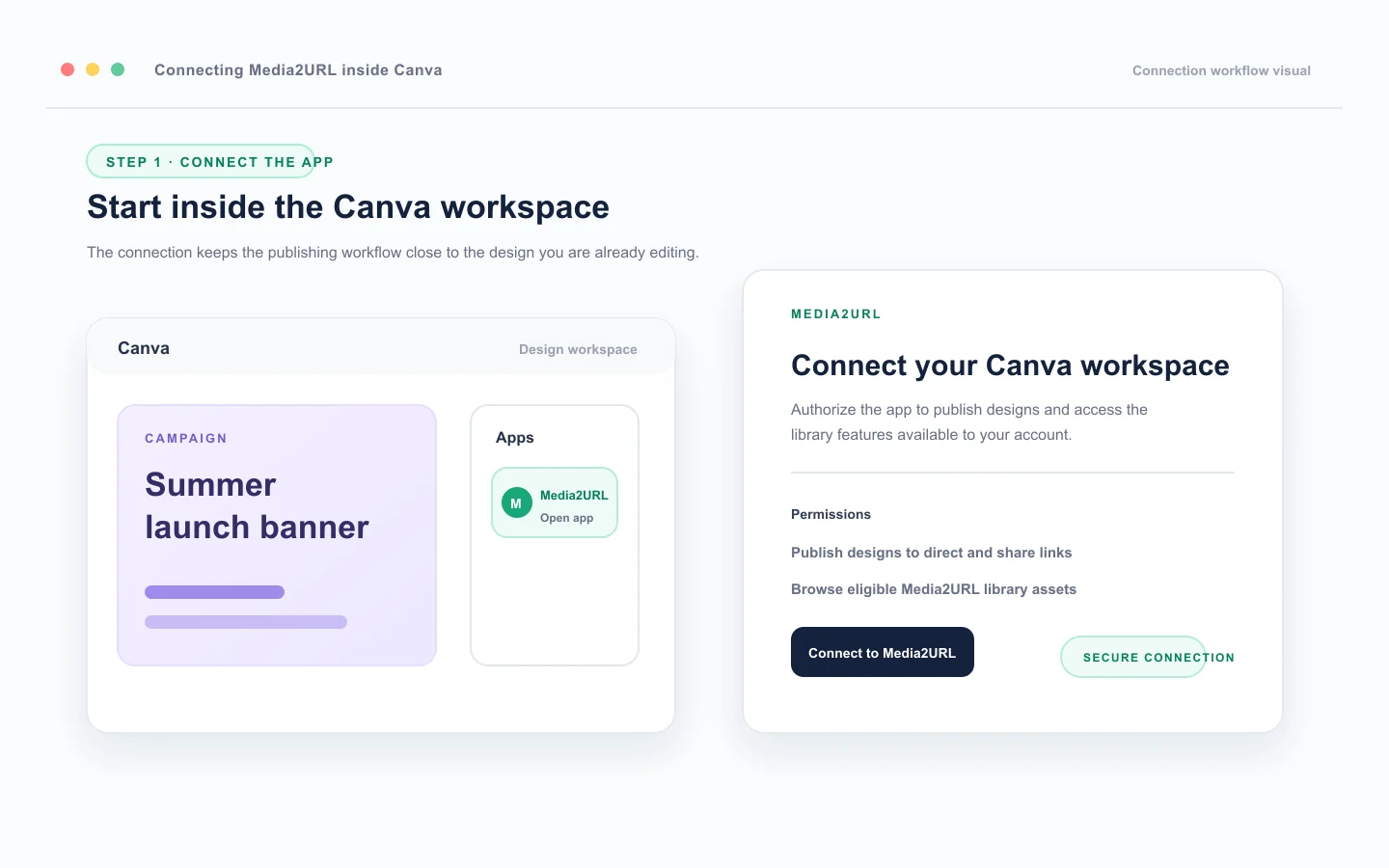
If the app is not available after authorizing, try refreshing your Canva design and reopening the Apps panel. It's possible that the Media2URL account containing the necessary files and plan access is not active when you connect to the app, even though the connection was successful, because a different Media2URL account is currently active in another browser tab.
Publish the Canva design to a direct link
Open the Publish area within the Media2URL Panel. Type in a Title for your Asset and select which Output Format you wish to use. It is helpful to name the design with some description of what it was designed for, instead of just using colors or sizes. When you are ready to publish, click Publish to Media2URL and wait until the Upload has completed. After the Upload has completed, the App will display the Links generated for your Design.
If you have several exported graphics ready for a campaign, the bulk image uploader can create individual hosted URLs for a batch of files.
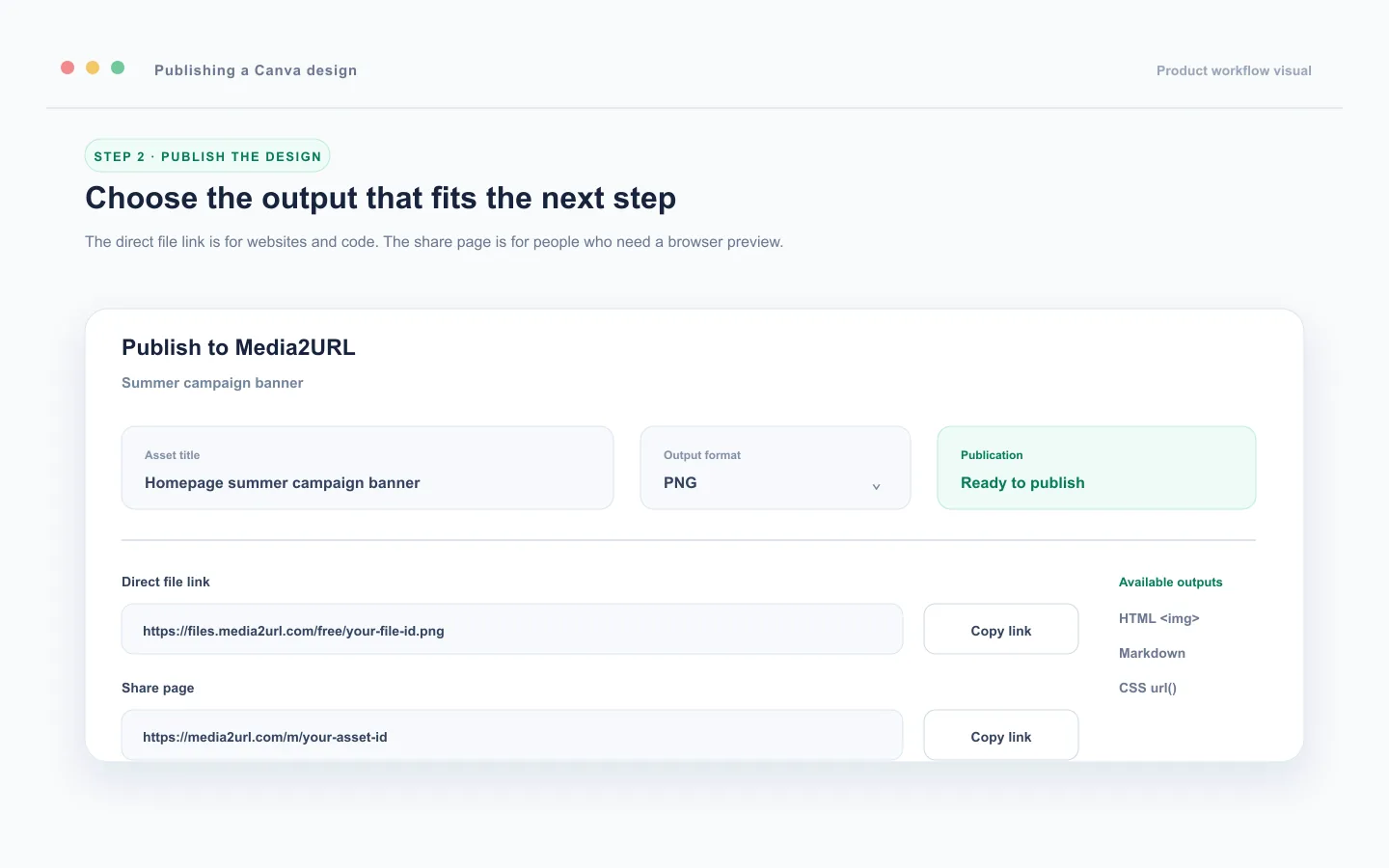
The result normally includes a direct file link for technical use and a share link for people. The direct file address may look similar to this:
https://files.media2url.com/free/your-file-id.png
The share address may look similar to this:
https://media2url.com/m/your-asset-id
Normally the results contain a direct file link to be used technically, and a share link to be used by other individuals. Prior to utilizing the direct file link on a different web site, open the direct file link in a new browser tab. The image will load in the browser. If a Media2URL preview page opens, then you likely used the share link rather than the direct file link.
Use the direct link in HTML, Markdown, and CSS
A website can use the direct file link inside an image element. If you also want visitors to open the Media2URL preview page when they click the image, place the direct file link inside a normal link element.
<a href="https://media2url.com/m/your-asset-id">
  <img
    src="https://files.media2url.com/free/your-file-id.png"
    alt="Summer campaign banner for the Media2URL homepage"
  >
</a>
A website can use the direct file link in the image element. If you would like your users to go to the Media2URL preview page when they select the image, you can include the direct file link within a standard link element. Your src attribute defines the image that will load, and your href attribute determines what page will open once someone selects the image. Alt text is used to explain the design being displayed. This is helpful for individuals who are unable to view the image as well as providing screen readers with relevant information.
Markdown links directly to the image file. You can create a clickable image by inserting the image into an existing link.
[](https://media2url.com/m/your-asset-id)
A CSS background also needs the direct file address:
.homepage-banner {
  background-image: url("https://files.media2url.com/free/your-file-id.png");
}
A CSS background also requires the direct file address. Do not use the share link in the CSS background-image property as CSS requires the actual image file. Some email applications will prompt users to allow external images, this is a function of the email application and does not indicate a broken Media2URL link.
Update the design without changing the public URL
In those instances where you have a single design in use throughout your site (or even other sites), a same-URL update is particularly useful. For instance, if you have a "sale banner" on your home page, your blog, an email template, and product documentation, then uploading a modified design as a separate file can result in all of those locations displaying the older version of the design. However, with the managed publication process, the current public address will always point to the most recent version of the asset.
To continue working with the same Canva design, start by launching the Media2URL application again. In the Publish area of the application, there should be a choice between updating an already-managed publication or maintaining the original URL. If you select to update the current managed asset, you will then have to confirm this update once your account allows you to do so.
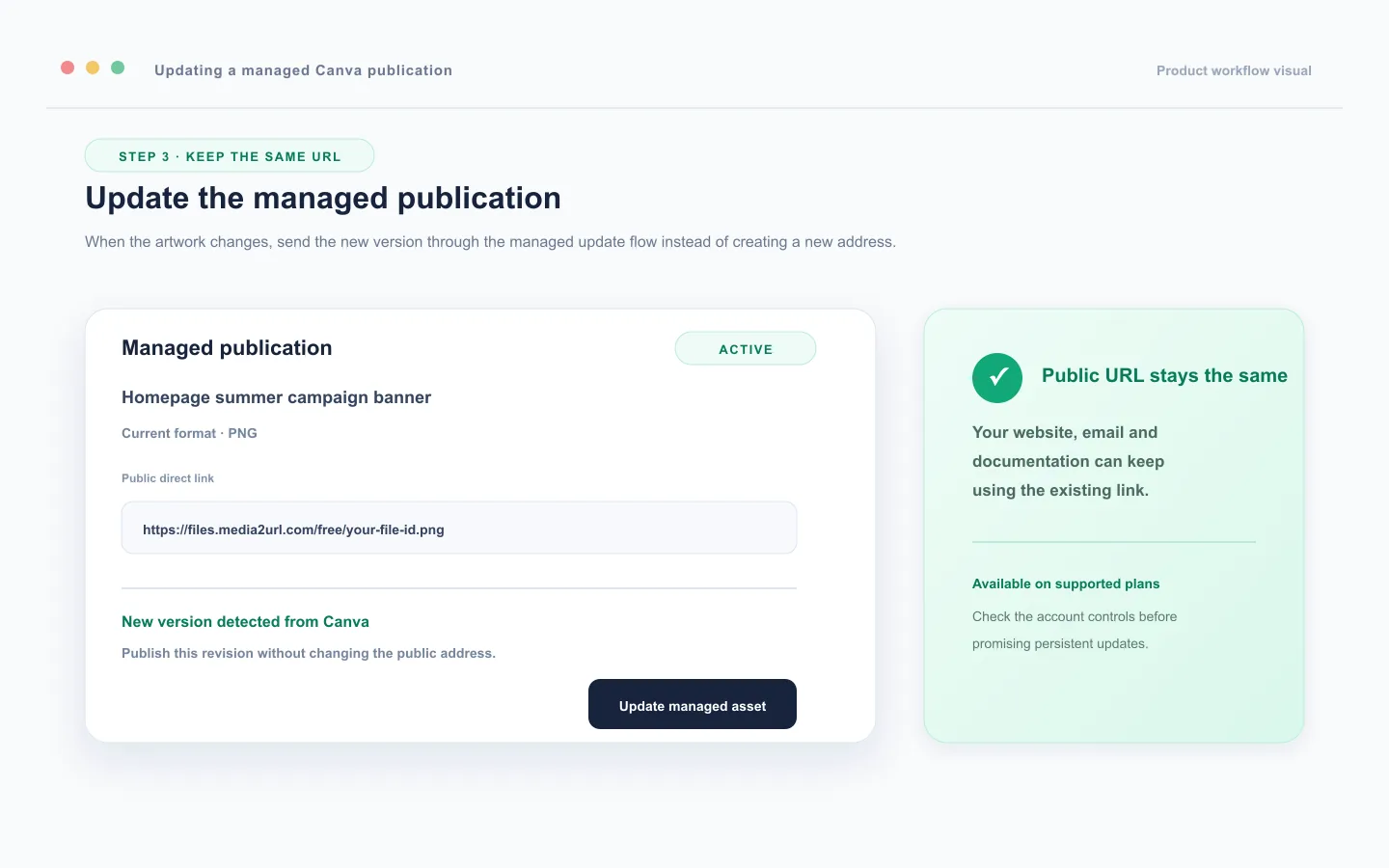
After making this confirmation, the new version of your file will replace the previous one; however, the public direct link to the file will remain the same. This means that if you are using that link within any website or document, you do not need to make edits to those items again.
Media2URL can save earlier versions of files in the file's version history, depending on the type of account plan the user has. This is especially beneficial if there are times that the date of a campaign was altered incorrectly, or if a user wants to bring back the original banner after a promotion ends.
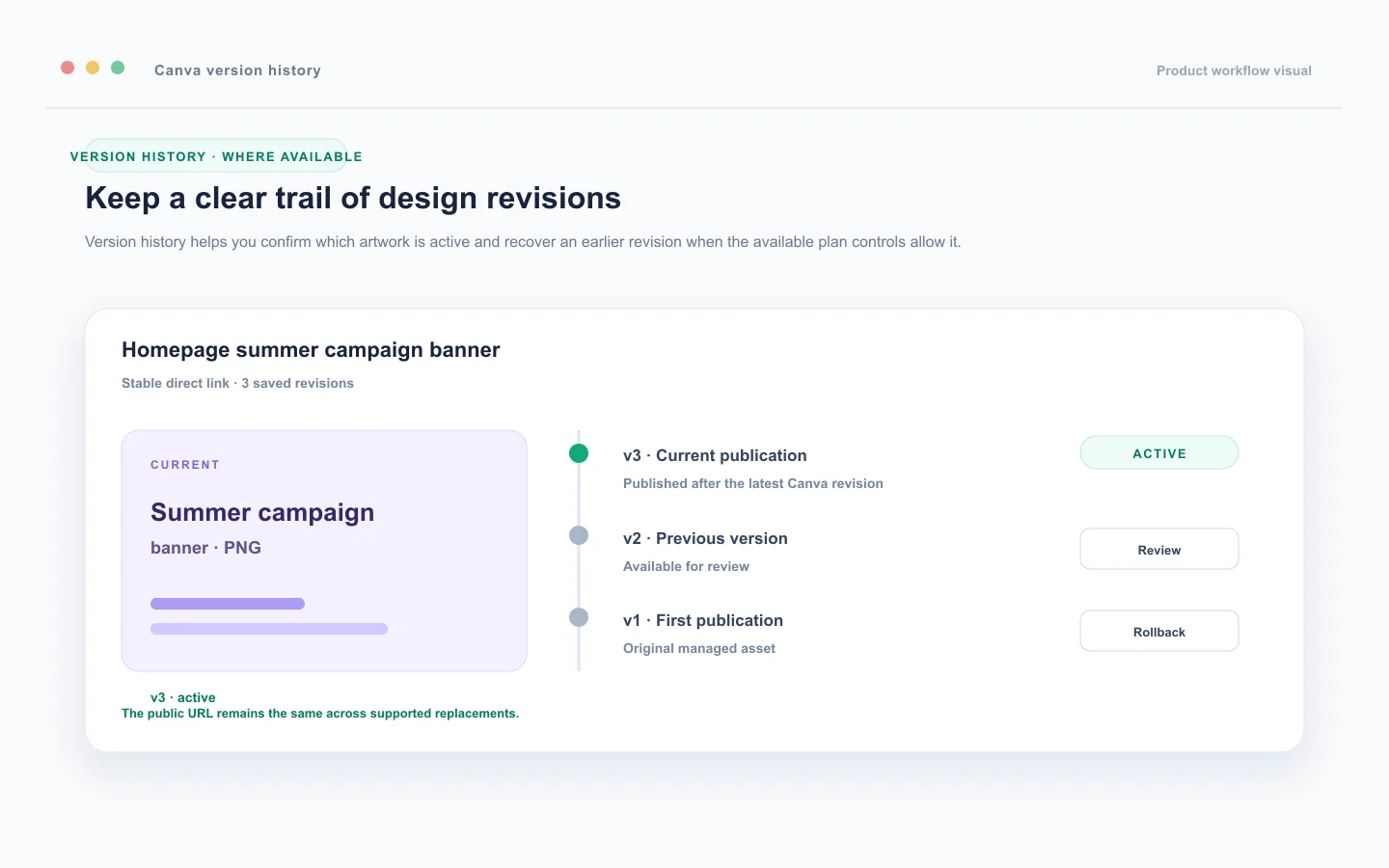
In order to use the above-mentioned process, the initial publication must be created as a managed asset. If a user publishes each time as a standard new publication, Media2URL creates a new file with a completely different URL. Changing a Canva design does not automatically affect other unrelated files previously uploaded.
The level of support for persistent hosting, versioning of your articles/pages and the ability to replace existing articles/pages at the same URL will depend on which Media2URL plan you have purchased and what features are available within your Media2URL account. Before you tell your readers that you are going to publish X articles/pages per year, or retain them for Y years, please check out our current pricing page.
Check the updated image when an old version still appears
The cache from your browser or delivery system may display the old image for some period of time after you have updated it. However, this does not necessarily indicate that your update did not occur. To determine if the update took place, open the URL to the updated image in a private browser window or refresh the page without accessing your standard browser cache.
If you see the new design in either of those locations, then the update has been successful and you were viewing a locally cached copy of the previous design. If, over an extended period of time, the old design continues to appear in all of the various browsers you use, please go back to the Media2URL application and verify if the asset you are managing displays the new design as active.
Add Media2URL files back into Canva
The user can also reverse the workflow. In the Media2URL app, go to the Library area and search for an existing asset using its title. After locating the desired image, select Add to Design so that it will be added to the current Canva canvas.
This can be beneficial if a user has a logo, product image, campaign banner, or approved background stored in Media2URL. The user does not have to download the file, store another local copy, and then re-upload it each time they want to include it in a new design.
Common problems and what they usually mean
| Problem | Likely reason | What to check |
|---|---|---|
| The Media2URL app is not visible | The app is not connected in the current Canva account. | Refresh Canva and check the active account. |
| The link opens a preview page instead of the image | The share link was copied. | Copy the direct file link from the publish result. |
| The image looks blurry | The wrong format or excessive compression was used. | Recheck the export format and small design details. |
| The old design still appears after an update | Browser or delivery cache is showing an earlier copy. | Test the direct link in a private browser window. |
Keep public links for suitable files
A publicly accessible link is available to anyone with the URL. This type of link is not suitable for private client work, confidential documents, unreleased products, or files that need to be viewed only by certain individuals. Choose the appropriate level of access based upon the content of the file.
Although an unlisted link can decrease the likelihood of others finding the file, it will not guarantee privacy if someone else forwards the URL. Finally, remember that files may lose functionality due to deletion, restriction, or expiration. Publish files only when you are authorized to host and share them.
Review the Privacy Policy, Terms of Service, Security, and Report Abuse pages when you need the platform rules.
Continue with the Canva integration
This guide explains the available Canva publishing, library, and plan-boundary features. The direct links guide is useful when you need to troubleshoot a file URL after it has been published.
A simple Canva workflow can be maintained much better if you treat your initial publication as a managed asset. You publish the design only once, then use the direct link to the image each time you need it. When you make changes to the design, you simply go back to that same publication.
Frequently Asked Questions
Can I use a Media2URL direct link inside HTML?
Yes. When you want to use the actual file location in your image tag, use that inside the src attribute. If you are going to allow users to click on the image and then see a preview of it, you can also include the Media2URL share address as a separate option.
Does editing the Canva design automatically update the old URL?
No. You need to connect your design to a managed Media2URL publication, then submit it via the appropriate update process. If you create another upload, you will have a separate publication with its own URL.
Can I update a design after downloading it from Canva?
When you upload a new file, the old file's URL is still active. To overwrite the old URL, you must use the managed asset update workflow to update the existing managed asset. If you upload the file as a new file, you create a new link.
Is the direct link permanent?
The link will remain active as long as the asset is being stored and accessed according to the appropriate guidelines for storage, access, and retention. If you delete the asset, allow it to expire, or modify its accessibility settings, then the link will no longer function.
Can I use the link in an email?
Yes. The direct file link can be used within an HTML email. Many email clients will restrict access to external image files until the user authorizes the download of those files. Therefore, the recipient of your message may have to choose an option like Display images prior to viewing your design.