

Dropbox Direct Link: How dl=0, dl=1 and raw=1 Work

Quick answer
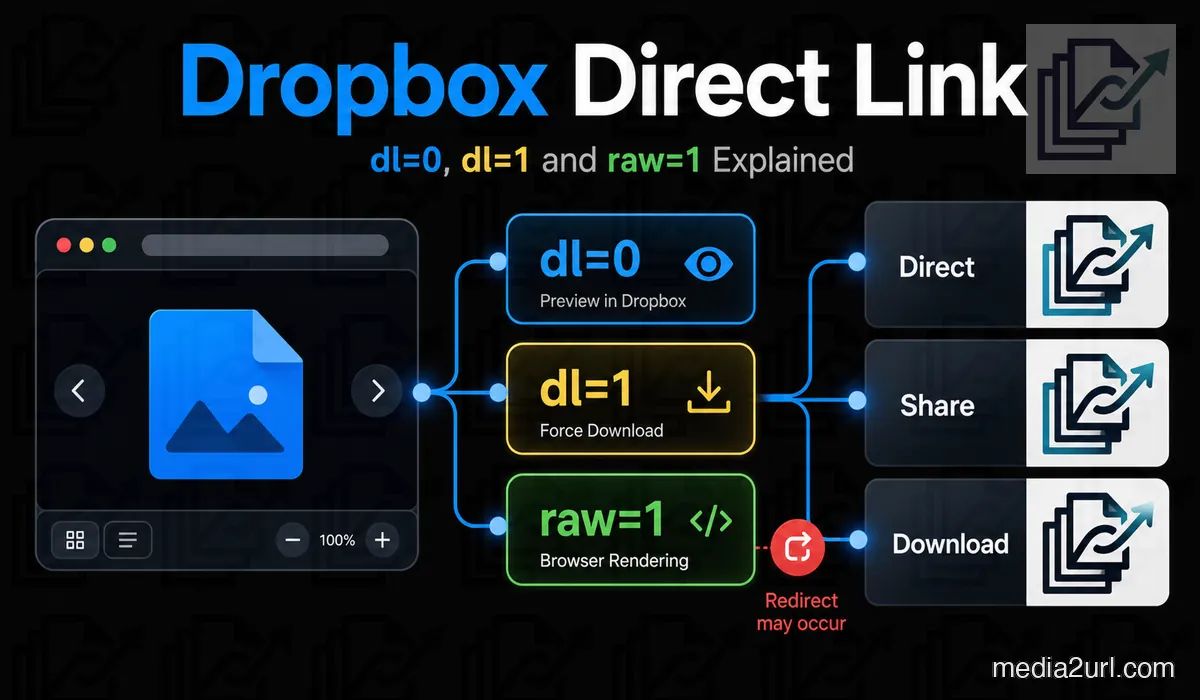
You can use dl=0 to view a file on Dropbox preview, you can use dl=1 to download files from Dropbox, or you can use raw=1 to view supported files through a redirect. Your links should always contain the appropriate URL parameters (dl, rlkey, etc.) and be tested at their intended destination to ensure that sharing permissions, redirect functionality, and bandwidth limitations do not affect the access of your users.
In this article12 sections · Jump to what you need
You have been asked by someone to email a PDF. You have created a link to the PDF using Dropbox, which you emailed. Now, a minute later, you are being asked if you can create a link that will allow the recipient to download the file directly from the link rather than open the file within Dropbox. The PDF is currently stored on your computer in Dropbox. There must be another way to provide the desired functionality without having to re-upload the PDF to another site.
Most likely, you will never need to do this. However, check out the very last part of your Dropbox share link, and you should most likely see dl=0. If you change this little piece of your share link, it will allow you to ask for a download. Another way to get around the standard preview screen is by using raw=1. This can be used when you would like your web browser to show all compatible files directly rather than using the preview screen.
This distinction will become much more critical if the link is being clicked from within a website instead of inside an email. Most browsers are capable of handling Dropbox's redirects correctly; however, many applications do not.
What those three Dropbox parameters actually do
We'll begin by looking at a standard sharing URL. While your URL will have a different name and key, it should appear similar.
https://www.dropbox.com/scl/fi/example/photo.jpg?rlkey=example&dl=0
Your URL will identify the image using the file path and include the rlkey portion of the URL. The area we want to focus on is located at the very end of your URL: dl=0.
This is telling Dropbox to use its standard preview. The recipient will be able to view the image/document on the same Dropbox viewing page as all of the control options for that specific file.
There are three parameters worth knowing.
| Parameter | What Dropbox does |
|---|---|
dl=0 | Opens the usual Dropbox preview. |
dl=1 | Requests a download instead of the normal preview. |
raw=1 | Bypasses the preview and asks the browser to render supported content after a redirect. |
These changes do not affect the file in your account. You are changing what the shared link is asking Dropbox to do, you are not creating a new image/document nor are you making edits to the original image/document. When you edit the URL, make sure to keep your rlkey and required parameters intact.
A download link takes one small change
When we go back to that PDF (perhaps it is an application form, or perhaps you want to put a button on your company's website so people can download a brochure) the standard Dropbox preview may not be very helpful in either case. It would be better if the download begins automatically when the person clicks on the link.
If you're starting with a finished brochure file and want a new hosted PDF address, host the finished PDF as a shareable link.
Here's the original link:
https://www.dropbox.com/scl/fi/example/report.pdf?rlkey=example&dl=0
Change the last zero in dl=0 to one, so that you have dl=1:
https://www.dropbox.com/scl/fi/example/report.pdf?rlkey=example&dl=1
Dropbox will then ask the browser to download the shared file. Do not change where the question mark or ampersand are located. If rlkey has a question mark before it, then dl comes after an ampersand. You are not going to replace the whole query string, nor do you need to add another dl=1 at any other location.
For an occasional document download, this may be all you need. The file stays in Dropbox, and the recipient gets a link intended for saving it.
The image problem is slightly different
Downloading a PDF file from a Dropbox link can be simple, however, using a Dropbox link for photographs can be useful as well. For example, if you upload a photograph of a product for a co-worker to view, and then at some later time you want to use that photograph in a blog entry. Because the photograph has been uploaded to the Internet, you can simply take the Dropbox URL and insert it into the appropriate area on your web site where you enter photographs. You cannot use the Dropbox preview link because your web site is looking for photographs and not a web page that contains photographs.
Try using raw=1 instead of dl=0:
https://www.dropbox.com/scl/fi/example/photo.jpg?rlkey=example&raw=1
According to Dropbox documentation, raw=1 will allow you to view some of your Dropbox files through your web browser without being redirected to the Dropbox viewing page. Therefore, an image can be viewed by the user without them having to go to the Dropbox viewing page.
For an HTML webpage, you could try the modified address like this:
<img
  src="https://www.dropbox.com/scl/fi/example/photo.jpg?rlkey=example&raw=1"
  alt="Product photograph"
>
Before you publish, test out this feature on your own website first. This is because although an image might open up correctly when clicked directly from a link in your website builder, it could potentially not work correctly within your website builder itself.
Why the redirect can cause trouble
The first raw=1 Dropbox address does not always provide you with the image. Dropbox has stated that this parameter creates an HTTP redirect. This redirect is followed by your browser to the URL from which the content will be served; most of the time, your browser does so without drawing attention to what occurred.
However, a third-party application or importer may not follow redirects. An application that expects an immediate image response would likely have a failed import because of the redirect, even though the photo is visible in Chrome. The application receiving the URL must be able to handle redirects. It's worth testing this before adding the link to several pages.
Your own Dropbox account may be hiding the problem
Another way you will be able to use a link while others cannot is because your web browser could already be logged on to the Dropbox account that controls the file. To see if this is true, copy the modified URL from your address bar and open up a private browsing session. If the page asks you to sign-in or shows an "access denied" message, then check out how the original file was being shared.
Dropbox lets you control how much access people will have to your files. When a file is meant for use only by members of your team, it will never be available publicly simply because you changed dl=0 to raw=1. Also, files that require passwords to open, and those that were sent as links which are now expired, will also remain private.
If you're uploading a new document for a short handoff rather than editing an existing Dropbox link, File to Link lets you choose an available expiry option at the start.
If a photo disappears from your site for no apparent reason, verify the status of the file on your Dropbox account to make sure it was not deleted and/or its permissions were not revoked.
What happens when a lot of people open the link?
Sharing a link to your Dropbox files with co-workers does not require as much as displaying an image from a very busy website. Every time a new person visits, they are going to make a request to their browser to get that image. Therefore, every visit will use up part of your Dropbox account's sharing allowance.
Dropbox publishes daily limits for shared files. The figures recorded in the original guide, reviewed in August 2026, were:
| Dropbox account | Daily bandwidth | Download allowance |
|---|---|---|
| Basic accounts and trials | 20 GB | Up to 100,000 |
| Plus, Family, Professional, Essentials, Standard and Business | 1 TB | Unlimited |
| Advanced, Business Plus and Enterprise | 4 TB | Unlimited |
If you exceed your daily sharing limit, Dropbox will usually pause your sharing for 24 hours. While changing the raw=1 parameter in the Dropbox URL will allow you to serve files differently than normal, it will not increase your bandwidth limitations.
Can Dropbox display an entire HTML website?
If a raw=1 allows us to view images from our account, then why can't we upload an HTML file with raw=1 and have a whole website published? Unfortunately, Dropbox doesn't allow users to host websites via their shared links. All HTML files that are shared are viewed as if they were just any other document.
So, if you've developed an HTML project that you would like people to visit as if it were a website, then you'll need to use dedicated HTML hosting services. Media2URL's HTML to URL publishing tool is designed for turning a supported HTML project into a hosted page.
When the link looks right but still fails
Instead of guessing what Dropbox returns via its URL parameters, look at the actual response from Dropbox. You can either inspect the response from Dropbox using curl in your terminal (to see the headers and the redirects), or you can use Media2URL's Link Doctor to follow the redirect path, view the HTTP response code, see the CORS header, and determine the content type of the file that was returned.
curl -I -L "YOUR_DROPBOX_URL"
The -I option requests the headers, and -L follows redirects.
Be careful not to enter any private signed URLs or credential information into any public URL inspection tool. A link that grants access to a restricted file isn't something you want to share casually.
Keep the working file in Dropbox if that's where it belongs
There are numerous reasons why you may want to keep using Dropbox even after you've made the decision to change how you publish files. You could use it as your company's repository for original design files; as a platform for collaborating with other employees; or as a way for multiple people to access files from the same folder. Moving all of these files to Media2URL just so that you can provide direct image URLs would be a lot of extra effort.
If, however, you wish to have separate control over the published versions of your files with the ability to transform the URLs, or optimize the image sizes based upon whether they will be viewed on a computer screen or mobile device, then hosting a separate version on Media2URL will give you greater flexibility. A separately hosted Media2URL image can use supported URL transformations to request different dimensions and quality settings. Available fit and crop controls can help when the same photograph needs to appear in different website layouts.
The original Dropbox photograph can stay exactly where the team left it.
Bringing a file into Media2URL
For supported files, Media Migration can import content from accessible source URLs and available cloud storage sources. The Dropbox file must be accessible to the migration process, and you need permission to host it elsewhere.
When files have been moved into Media2URL, they remain in Dropbox, but now there is a separate instance of the same file in Media2URL. Removing or changing that copy doesn't mean the original Dropbox file has been moved out of your account.
Think about printed links before changing hosts
This is as well as thinking about the impact that printing (QR) links on your product packaging can have on how you change hosts. For example, if you print a link directly to Dropbox, and you decide to move your hosting from Dropbox to Media2URL, the links that are printed will not change until you setup a redirect for the old URL.
Media2URL supports replacing eligible published assets while keeping their managed URL unchanged. Available version history also lets you return to an earlier supported version if a replacement needs to be reversed. For more detail on the different publishing workflows, see our Dropbox vs Media2URL comparison.
So which Dropbox link should you copy?
Which Dropbox link should I copy? If an individual wishes to access your document via Dropbox, then use dl=0. However, if an individual wishes to download your file, then use dl=1. Lastly, if you are attempting to show compatible media files directly from Dropbox, but do not want to go through the standard viewing process, then use raw=1. Always check to see if the application used to receive your file will properly handle redirection.
Frequently Asked Questions
Can I change a Dropbox sharing link into a direct image URL?
For those images that are supported by Dropbox, replace dl in your URL with raw=1. When you do this, Dropbox will ask the browser to display the image directly (or raw), rather than displaying it within the typical preview format. However, even though the image is displayed directly, the request will be processed through an HTTP redirect.
Why does a Dropbox raw=1 image open in Chrome but fail in another application?
If the other app does not use Dropbox's redirect, start by looking at those options. After checking those options, look at the file's sharing permissions and determine if there has been a temporary disruption of access due to Dropbox bandwidth limitations.
Should I remove rlkey when changing the URL?
No. Use your existing sharing key and all other required parts of your address (such as rlkey). You may only change the parameter that controls the type of action you are requesting (i.e., previewing, downloading, etc.).
Can I use raw=1 to host an HTML website?
No, Dropbox cannot display shared HTML files as standard hosted web pages. This parameter is used to request the supported contents of a file without displaying the typical Dropbox preview.
Related guides
If you're unsure why a URL works in your browser but fails inside another website, read our Direct File Links guide. It explains the difference between an address that returns the actual file and one that opens a webpage containing it.
The image link troubleshooting guide covers other reasons pictures refuse to display. For a closer look at the different link types available after publishing a file, see Direct URL vs Share Page URL.